
Outlook (Microsoft 365)
Add and keep email signatures up to date in Outlook, for a company whose email runs on Microsoft 365: web, Windows, Mac and mobile.
The Outlook (Microsoft 365) module adds each employee's Profiles Flow signature in Outlook, to every message they write, for a company whose email runs on Microsoft 365. It works through an Outlook add-in, which Outlook loads by itself: once installed, there is nothing left to redeploy, and a changed profile or template gives the new signature from the next message. This page can be passed on as is to the Microsoft 365 administrator.
Who does what
| Step | Who |
|---|---|
| Enable the module and download the add-in's manifest | A Profiles Flow Administrator |
| Upload the add-in to the Microsoft 365 admin center, once and for all | A Global Administrator of the company's Microsoft 365, or an Exchange Administrator |
Prerequisites
- Email on Microsoft 365 (Exchange Online). For an on-premises Exchange server, use the Outlook (Exchange) module.
- A Global Administrator or an Exchange Administrator of the company's Microsoft 365.
- In Profiles Flow, each employee has an active profile, with a template, whose Sign-in email or Displayed email is their Microsoft 365 address.
Compatible Outlook versions, according to Microsoft: Outlook on the web, the new Outlook for Windows, classic Outlook for Windows (Microsoft 365, up-to-date version), Outlook for Mac, and the Outlook apps for iPhone and Android.
1. Enable the module and download the manifest
-
Open Management › Modules › Outlook (Microsoft 365).
-
Turn on Module enabled.
-
Also sign replies and forwards: checked by default. When unchecked, the signature is only added to new messages. The setting applies from the next message, without redeploying the add-in.
-
Click Save. The first save creates the company's key and brings up the Deployment in Microsoft 365 section. There is nothing else to configure.
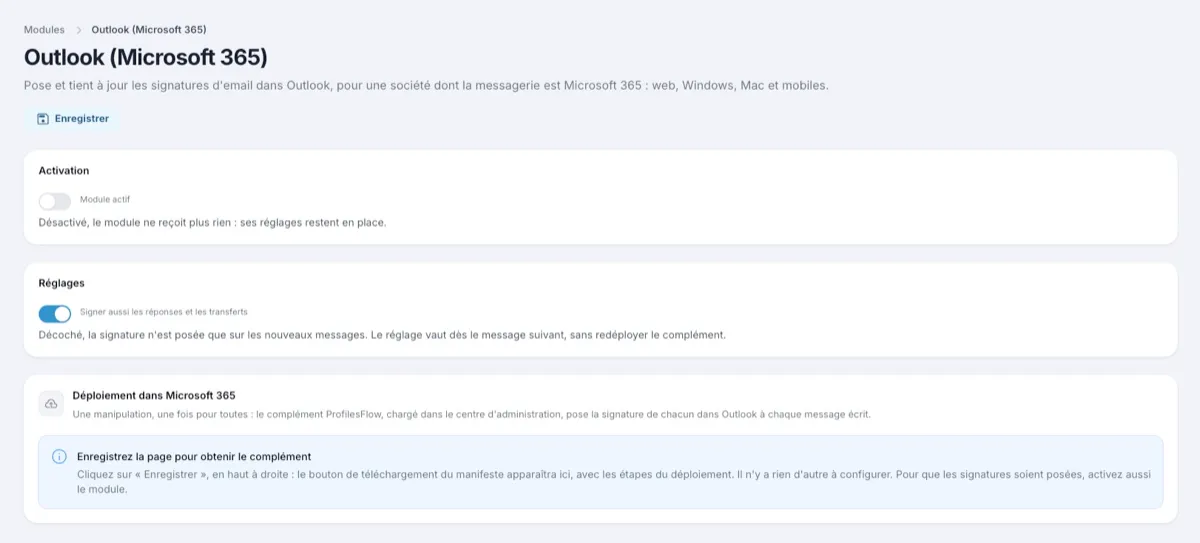
Outlook (Microsoft 365) module page before the first save: Module enabled, Also sign replies and forwards, and the Save the page to get the add-in box -
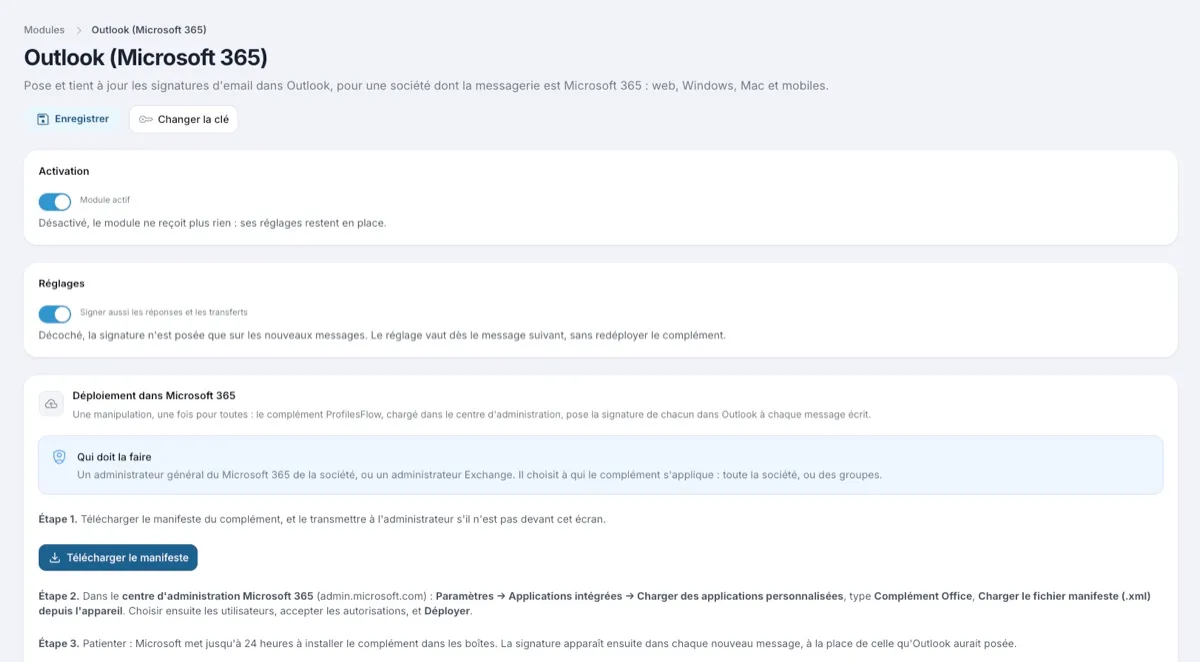
Step 1. Click Download the manifest. You get the file
profilesflow-outlook.xml, to pass on to the Microsoft 365 administrator if they are not at this screen.
2. Upload the add-in (Microsoft 365 administrator)
- Step 2. Open the Microsoft 365 admin center (admin.microsoft.com) › Settings › Integrated apps › Upload custom apps.
- Choose the Office Add-in type, then Upload manifest file (.xml) from device, and select
profilesflow-outlook.xml. - Choose the users: the entire organization, or specific users and groups.
- Accept the permissions, then click Deploy, and go through to the final screen.
- Step 3. Wait: Microsoft takes up to 24 hours, sometimes more, to install the add-in in the mailboxes.
The add-in then appears in Integrated apps under the name ProfilesFlow - Signatures.
What the user sees
- On every new message, and depending on the setting on every reply and forward, the Profiles Flow signature is added in place of the one Outlook would have added: there are never two.
- The signature is always up to date: a profile or template changed in Profiles Flow is picked up from the next message.
- A person without an active profile writes as usual, without a signature and without an error message.
- The add-in does not show in Outlook's list of Apps: it starts by itself when a message is opened.
- On mobile, in a reply or a forward, the signature appears once the message is switched to full screen.
Check
- Once Microsoft's delay has passed, open Outlook on the web with the account of an employee who has an active profile, and write a new message: the signature is added a few seconds after it opens.
- On the module page, the Status block shows the number of Profiles concerned and the date of the last signature served.
Security: the add-in key
- The manifest contains a key specific to the company. It only allows reading the company's signatures, whose content already goes out in every message sent. It gives access to no other data.
- The add-in only acts on the message being written, to add the signature. It has no access to the rest of the mailbox.
- No password or access to the mailbox is requested by Profiles Flow.
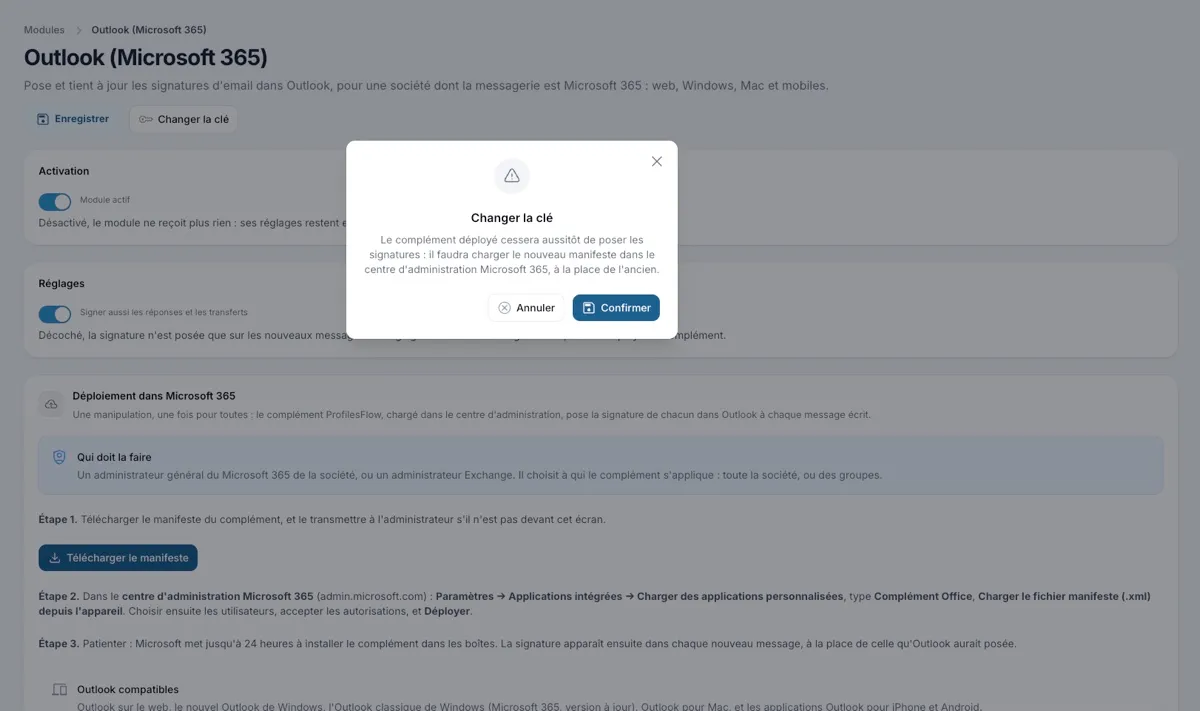
- In case of a leak, click Change the key at the top of the module page: the old key is revoked immediately, and the deployed add-in stops adding signatures. To restore them:
-
click Download the manifest to get the new one;
-
in the Microsoft 365 admin center, open Integrated apps › ProfilesFlow - Signatures › Update add-in;
-
upload the new file and go through to the final screen;
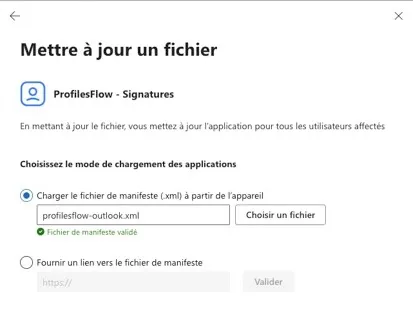
Microsoft 365 admin center: panel for updating the file of the ProfilesFlow - Signatures add-in, with the manifest uploaded and validated -
wait: as with the first deployment, Microsoft may take up to 24 hours to install the new version in the mailboxes. In the meantime, messages go out without a signature.
-
- Disabling the module has the same effect as revoking the key: no more signatures are added, without an error message.
Troubleshooting
The signature does not appear
- Has Microsoft's delay passed? Allow up to 24 hours after deployment or update.
- Is the employee among the users the add-in is assigned to? Check in Integrated apps › ProfilesFlow - Signatures, under Assigned users.
- Is the module enabled in Profiles Flow?
- Does the employee's Microsoft 365 address match an active profile, with a template?
- Has the key been changed? The deployed add-in must then be updated with the new manifest (see above).
“Update the version number in the manifest file”
Microsoft refuses to upload a manifest with the same version as the one already deployed. If this message appears during the update, the version in place is already the right one: there is nothing to upload again, just wait for it to be installed in the mailboxes.
Replies are not signed
Check the Also sign replies and forwards setting on the module page. On mobile, switch the message to full screen.
Two signatures in one message
The add-in turns off Outlook's signature in every message where it adds its own. An old signature that remains visible was typed or pasted into the body of the message, or comes from a message template: remove it from there.