

Identical email signatures for the whole team
Every email sent by your employees carries your image. Profiles Flow generates their signatures from their profiles, with the same layout for everyone, and keeps them up to date without anyone having to touch them.

No more makeshift signatures
Stretched old logo, a font that changes from one employee to the next, a switchboard number that no longer exists, an image that doesn't display for the recipient: a handmade signature ages badly. With Profiles Flow:
The layout is defined once
In a template, for the whole team.
The information comes from the profile
Of each employee: name, job title, phone, social networks.
The company logo, colors and contact details
They are shared by everyone.
A “My business card” button
It leads to the employee's profile page, where their contact is saved in one tap.
Build your signature, block by block
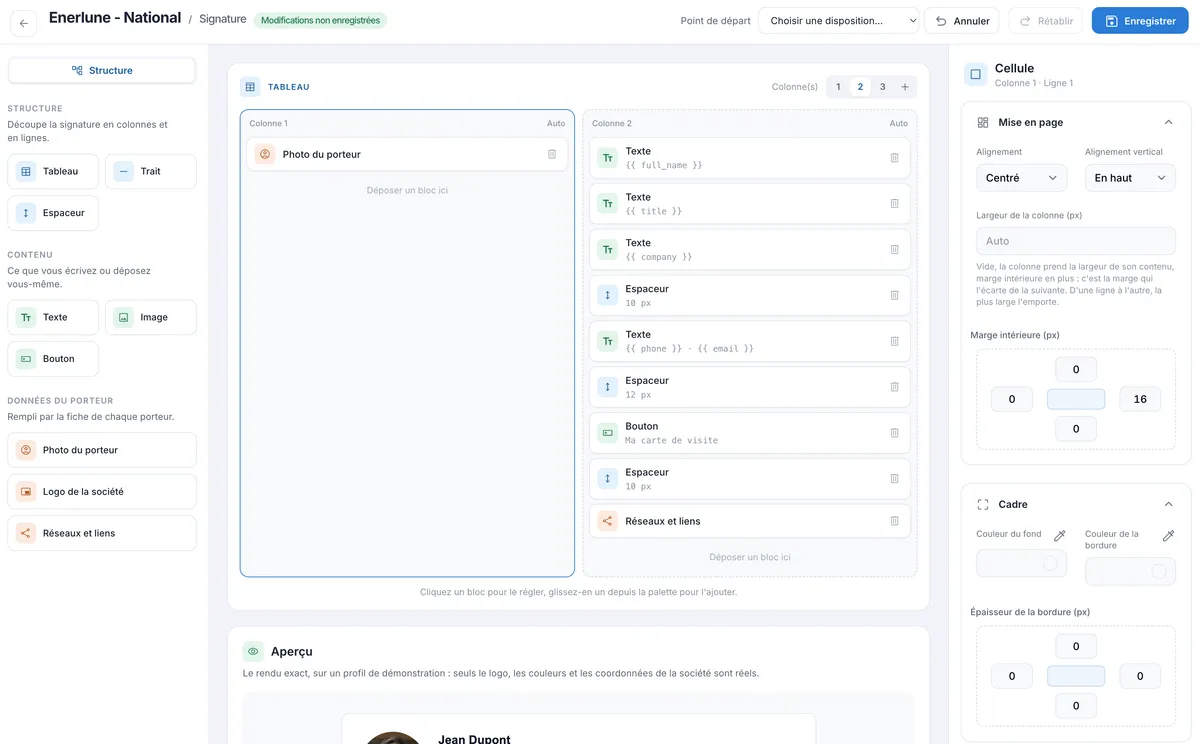
The signature editor lets you build the layout without writing a line of code. Start from a ready-made layout, then drag in the blocks you need:
- structure: table with one, two or three columns, line, spacer;
- content: text, image, button;
- profile data: photo, company logo, social networks and links, name, job title, phone, email.
Each cell can be fine-tuned (alignment, width, margins, background, border), with an exact real-time preview. To get going quickly, five layouts serve as a starting point: Text only, Photo on the left, Photo and logo, Logo on top and Standalone card.
Designed for every email client
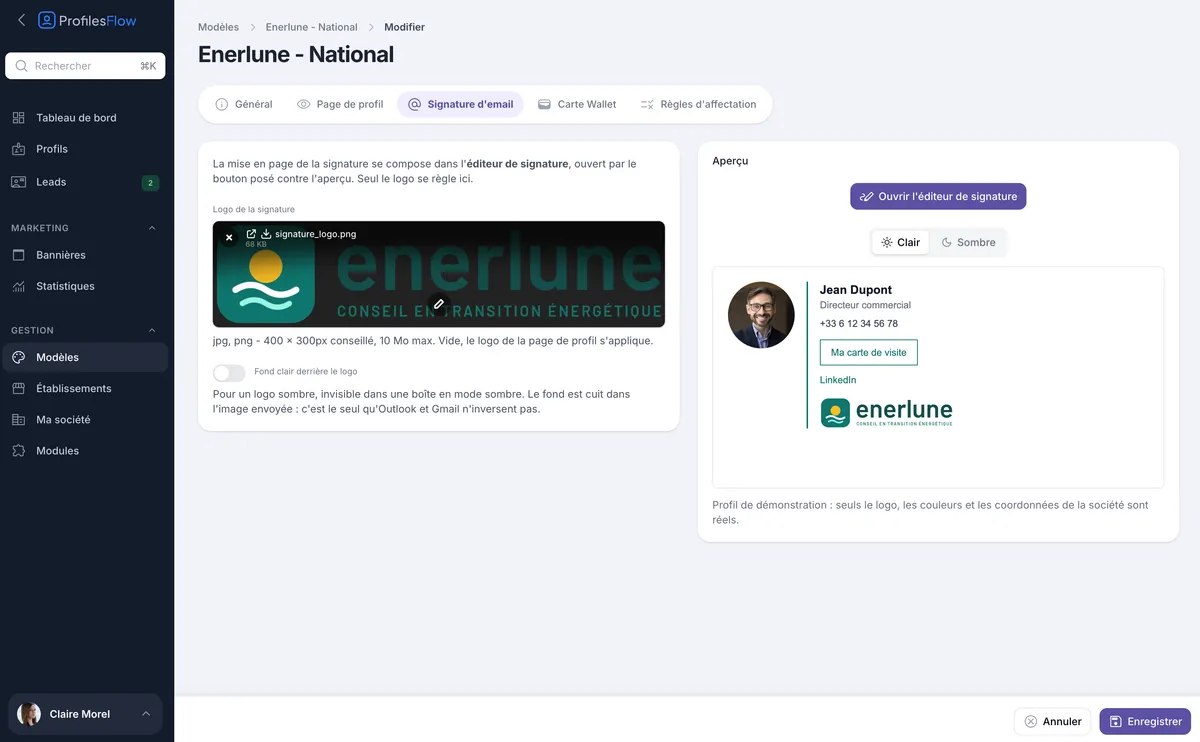
An email signature has to display everywhere: in Gmail, in Outlook on Windows, on Mac, on a phone, in light mode as in dark mode. The code of our signatures is built for these constraints, including Outlook's most temperamental ones. A dark logo can be given a light background built into the image, so it stays legible when the recipient's email client switches to dark mode.
Installed automatically, or in two clicks

Google Workspace: automatic installation
Your Google Workspace administrator authorizes Profiles Flow once, without sharing any password. After that, signatures are installed in every Gmail account of the company, and update themselves as soon as a profile or template changes. No permission grants access to messages.

Outlook with Exchange: deployment at sign-in
If your email runs on an in-house Exchange server, your IT department places a script provided by Profiles Flow in a Windows group policy, once. At each sign-in, Outlook receives the up-to-date signature, set as default.

Outlook (Microsoft 365)
Installs and keeps signatures up to date in Outlook, for a company whose email runs on Microsoft 365: web, Windows, Mac and mobile.
Manual installation: for everything else
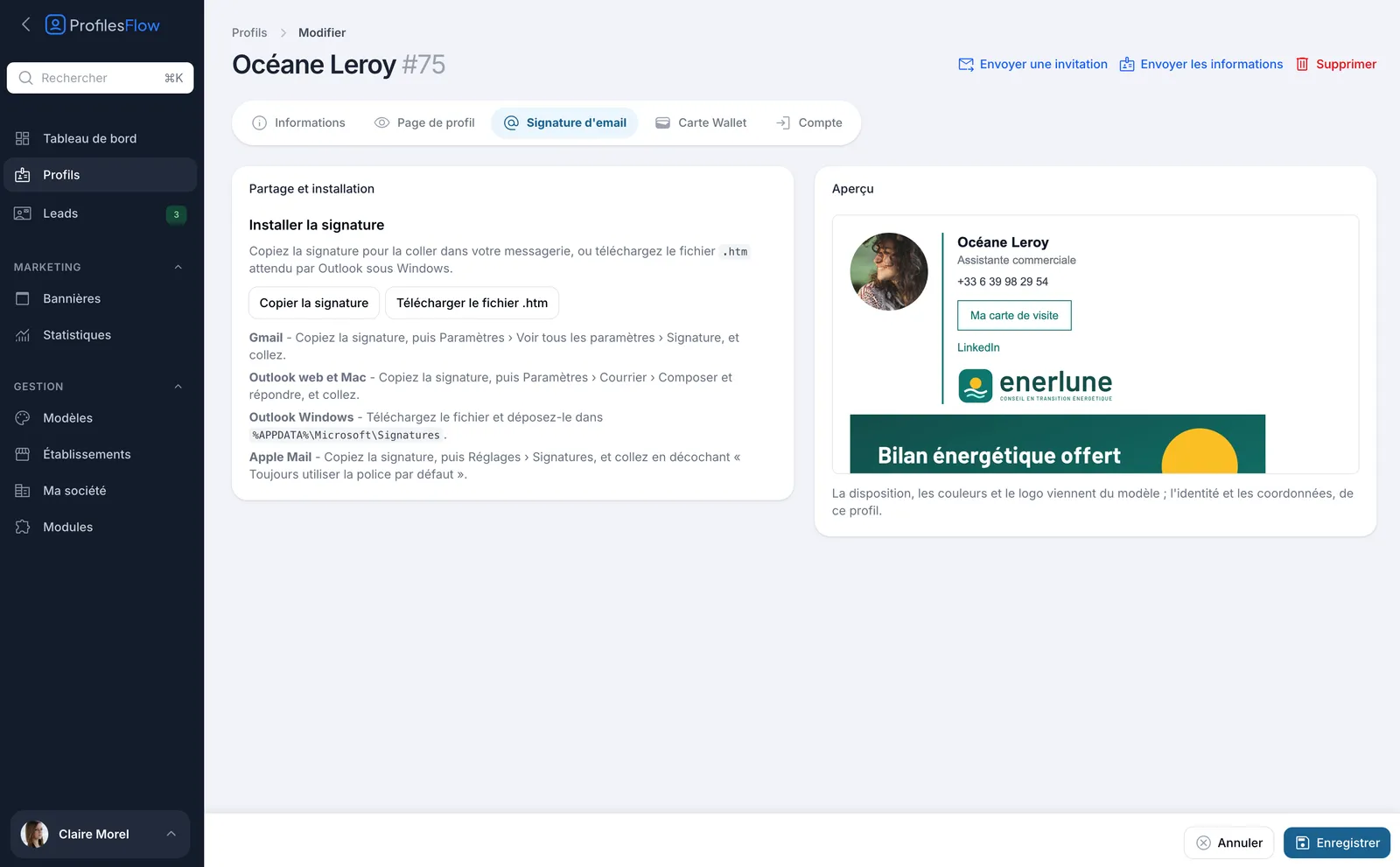
Each employee has an installation page with their signature ready: a button to copy it and paste it into Gmail, Outlook on the web or on Mac, or Apple Mail, and an .htm file for Outlook on Windows. Step-by-step instructions are shown alongside.
Centralized updates
An employee changes job title: their signature follows. Your switchboard changes number: you edit it in the template, and every signature is up to date. The signature images (photo, logo) are served by Profiles Flow: a new logo appears in the signatures without reinstalling.
Your campaigns in every email
Add a banner under every signature in the company: trade show, offer, recruitment, new product. It has its start and end dates, and you track its clicks.
Discover marketing banners ›Frequently asked questions
Which email clients are compatible?
Gmail, Outlook (Windows, Mac and web), Apple Mail and most email clients that accept an HTML signature. Installation is automatic for Google Workspace and for Outlook connected to an in-house Exchange server, and manual in a few clicks for the others.
Can employees edit their signature?
The layout and the look come from the template, shared by everyone. Depending on the rights you give them, each employee can update their own information (job title, phones, social networks) in their profile; their signature follows.
Does the signature need to be reinstalled after every change?
Not with the Google Workspace and Outlook (Exchange) modules: updates are automatic. With manual installation, the images (photo, logo, banner) update on their own; a text change, such as a new job title, requires copying the signature again.
Do the images display for the recipient?
Yes. The images are hosted at secure addresses and optimized for email clients. As with any signature, some recipients block images by default; the signature text then remains legible.
Can I have different signatures for different teams?
Yes, by creating several templates. Assignment rules decide which template applies to which branch or which employee.
Other features
See the product overview ›A professional signature for the whole team, starting today
30 days free, no credit card.