

Establishments
Create your sites and branches, with their address, emails, phone numbers, social networks and links, shown on profile pages.
An establishment is a location of your company: head office, branch, store, local office. Each employee is attached to one, and their profile page shows the address and contact details of their establishment. Managing establishments requires the Editor or Administrator role.
The list of establishments
Open Management › Establishments. For each establishment, the list shows its name, the number of attached profiles (Profiles), its postal code, city and country, and the number of phone numbers, emails and links filled in.
Use Search, Filter and Columns to find an establishment or choose which columns are shown.
Example: the fictitious company Enerlune has four establishments, “Enerlune Paris - Siège”, “Enerlune Lyon”, “Enerlune Bordeaux” and “Enerlune Nantes”.
Create an establishment
- In Management › Establishments, click New Establishment.
- Enter the establishment's Name. This is the name shown on profile pages: choose it as your contacts should read it.
- Fill in the tabs on the right (details below).
- Click Save.
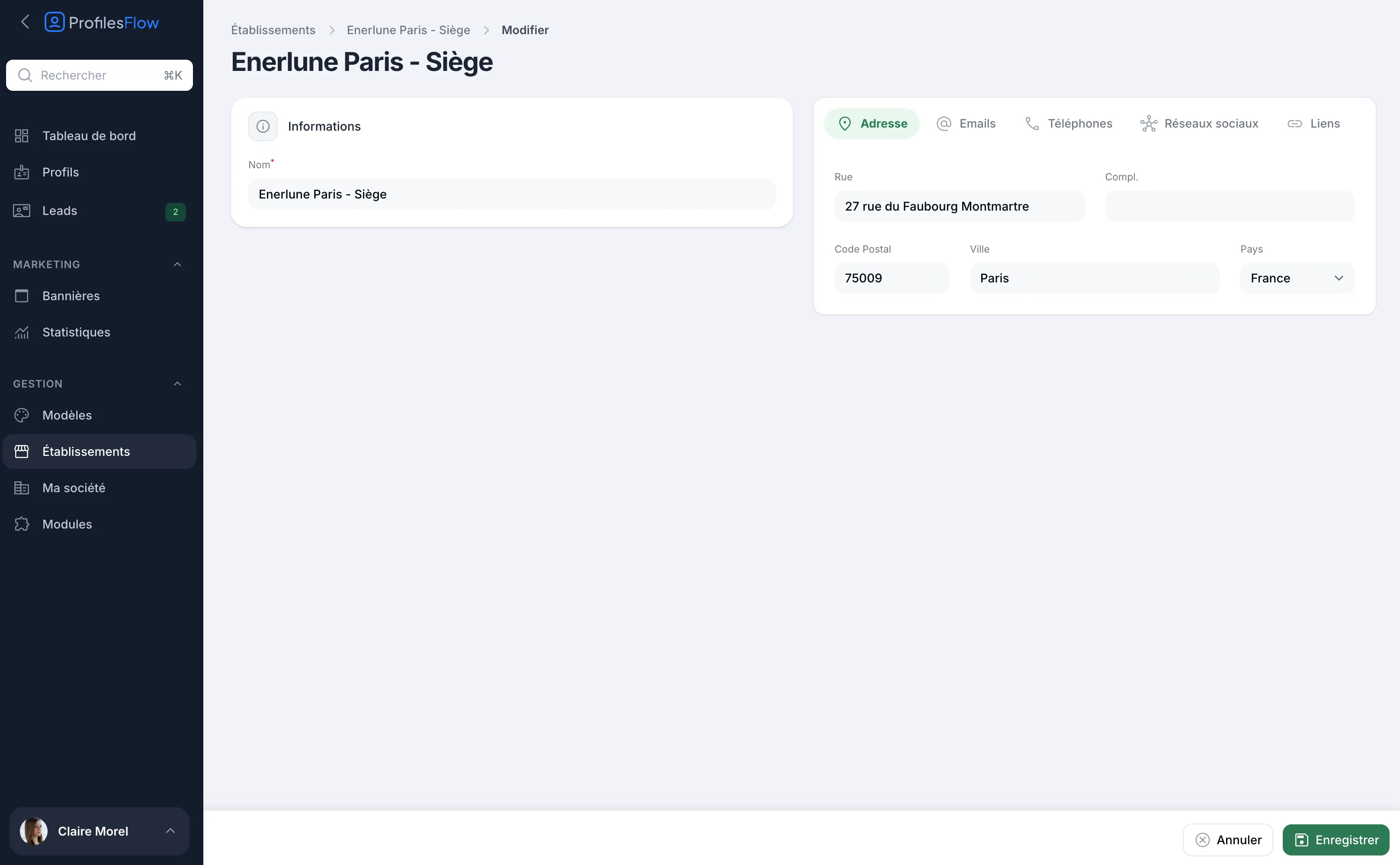
Address
Street, Address line 2, Postcode, City and Country. On the profile page, the address is shown with a View on map button that opens the location in Google Maps.
Emails
Click Add an email, then enter a Name (for example “Reception” or “Sales department”) and the Email. The name is shown in front of the address on the profile page.
Phones
Click Add a number, choose the Type (for example Switchboard), the Country, then enter the number. See Phones, social networks and links for details on types and format.
Social networks
Click Add an account, choose the network (LinkedIn, Instagram, Facebook, X, YouTube), then enter the address or name of the account. Useful for a branch that has its own page.
Links
Click Add a link, then enter a Name (the text displayed, for example “Book an appointment”) and the URL.
In each tab, drag the rows by their handle to change their display order, and use the trash icon to remove one.
Attach a profile to an establishment
- Open the employee's profile in Profiles.
- In the Information tab, choose their Establishment.
- Save.
If your templates are assigned by establishment, changing a profile's establishment can also change its template: see Assignment rules.
What the establishment shows on profiles
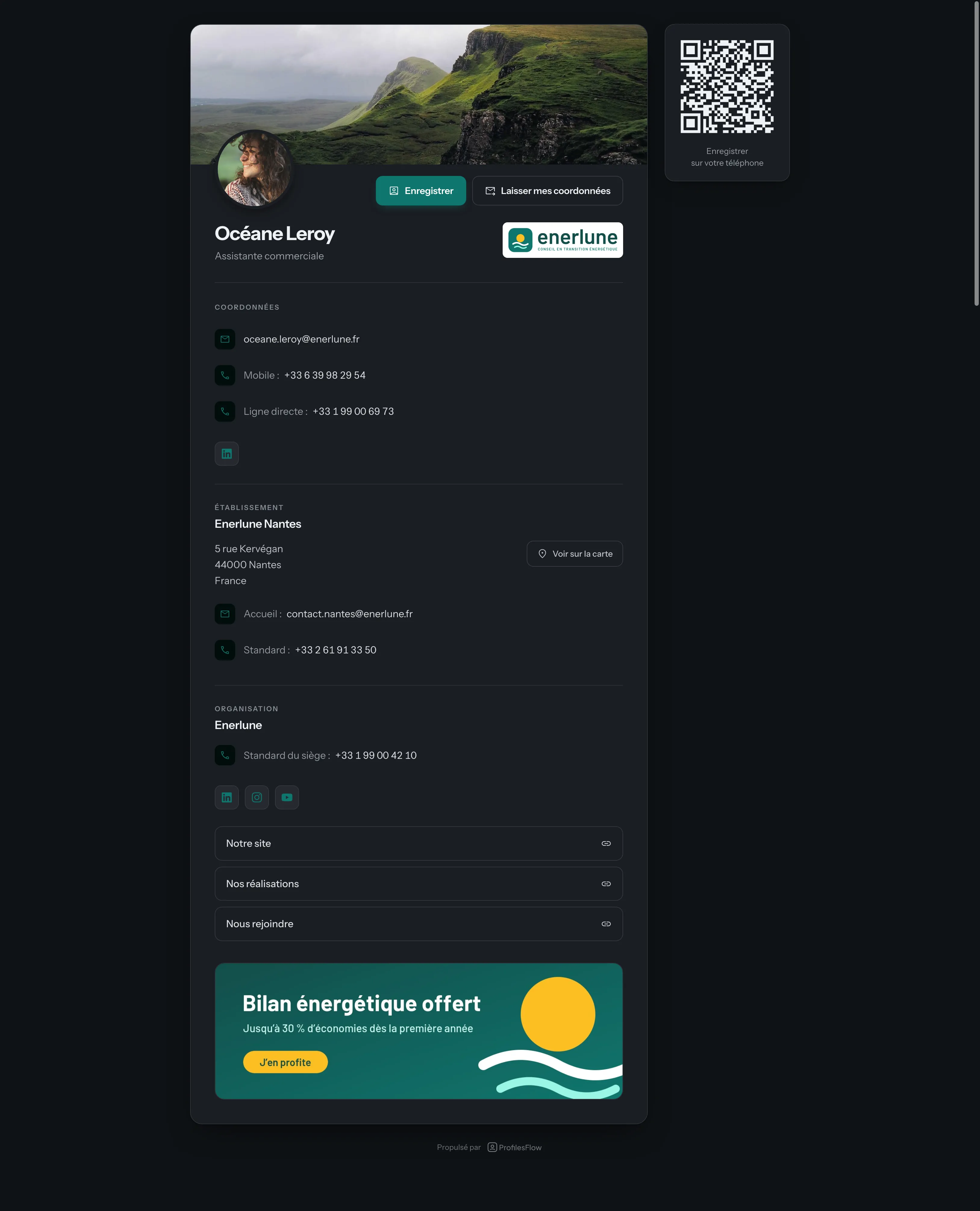
An employee's profile page shows three blocks, in this order:
- Contact details: the person's own, entered on their profile;
- Establishment: the name of their establishment, its address with View on map, then its emails, phone numbers, social networks and links;
- Organization: the company name and the shared contact details defined in the template.
A change to the establishment applies immediately to the profile page of every employee attached to it: change a branch's switchboard number once, and all pages follow.
A profile without an establishment simply does not show this block. The establishment is not required and does not count toward the profiles to complete.
Good to know
- The establishment name is also used by profile import and Active Directory sync: the establishment is matched there by its exact name.
- If your email signature shows an address, it is the one of the employee's establishment (or, failing that, the one in My company).