

Understanding templates
What a template is, what it holds, and when to create one or several to style your company's profiles.
A template holds the look shared by a set of profiles: logo, colors, themes, company contact details. The employee's profile says who they are, the template says what their materials look like. Managing templates requires the Editor or Administrator role.
What a template holds
A template is set up in five tabs:
| Tab | What it controls | Help page |
|---|---|---|
| General | template name, company name, shared contact details (switchboard, emails, social networks, links) | Shared contact details |
| Profile page | theme, main color, logo, header image | Customize the profile page |
| Email signature | signature logo, access to the signature editor | Customize the signature |
| Wallet card | the card's colors, logo, banner and QR code | Customize the Wallet card |
| Assignment rules | the profiles the template applies to | Assignment rules |
Each settings tab shows a preview on the right. Make your changes, check the preview, then click Save: all the profiles linked to the template follow.
An important rule: no template, no materials
A profile that is not claimed by any template has no profile page, no signature, no Wallet card and no QR code. Its profile record shows this in the Template box: “No rule claims this card”.
A new template applies to no one until its assignment rules are set. Keep this in mind from your very first template.
The template list
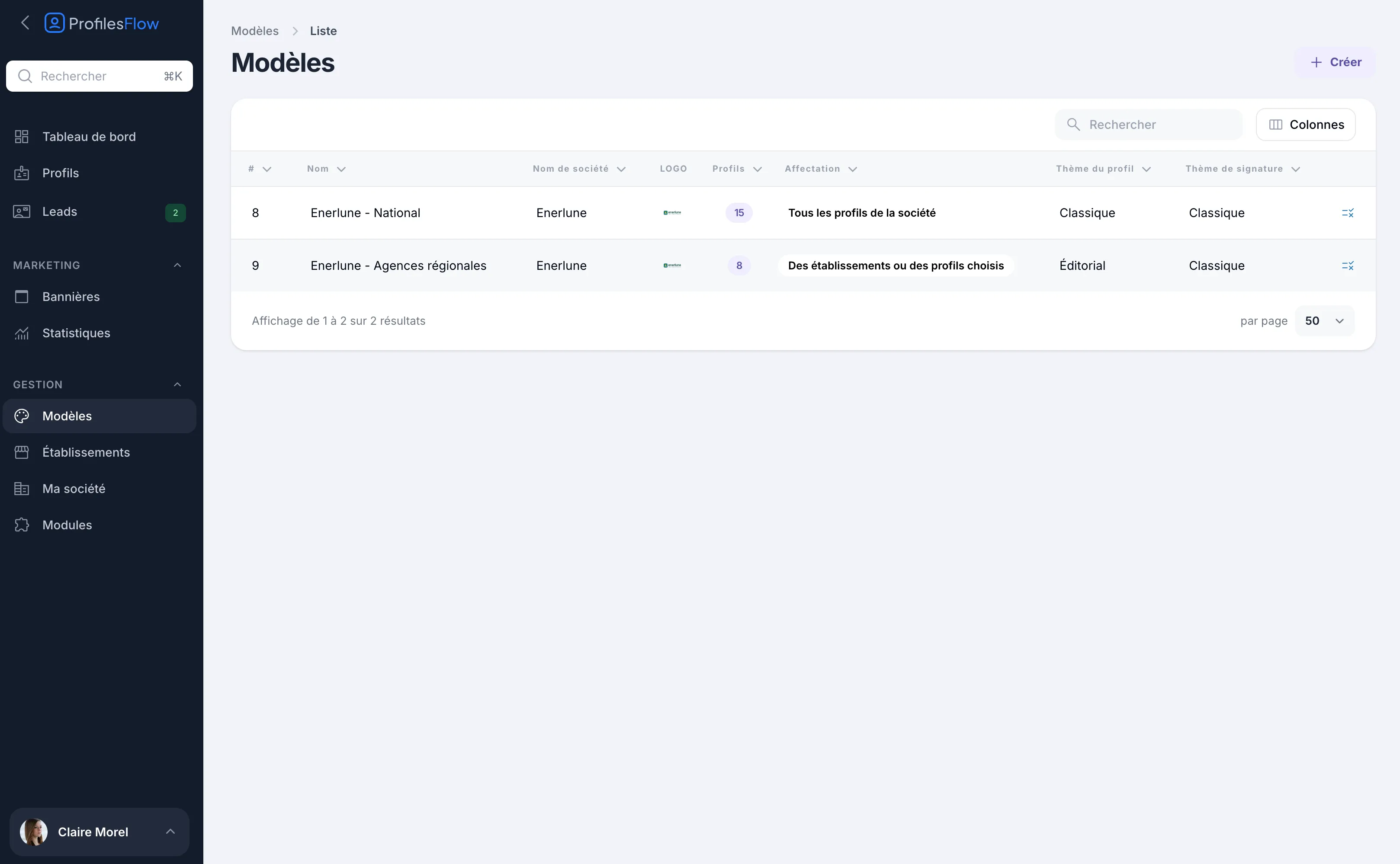
Open Management › Templates. For each template, the list shows:
- its Name and the Company name displayed;
- its Logo;
- the number of Profiles it styles;
- its Assignment (for example “All the company's profiles”);
- the Profile theme and the Signature theme.
The icon at the end of the row opens the template's assignment rules directly.
Create a template
- In Management › Templates, click New Template.
- Enter the Template name (an internal name, for example “Enerlune - National”) and the Company name as it should be displayed.
- Click Save. The template opens in edit mode.
- Set up the General, Profile page, Email signature and Wallet card tabs.
- Finish with the Assignment rules tab, then save.
One template or several?
A single template is enough when all your employees share the same visual identity and the same company contact details. Set its rules to All the company's profiles.
Several templates are useful when some of your teams need to present themselves differently:
- a network of branches, whose regional branches have their own theme;
- a brand or a subsidiary with another logo;
- a team whose signature has a different button or layout;
- a management team whose Wallet card leads to the profile page rather than to the contact card.
Example: the fictitious company Enerlune uses two templates.
| Template | Profile theme | Assignment |
|---|---|---|
| Enerlune - National | Classic | All the company's profiles |
| Enerlune - Agences régionales | Editorial | Selected establishments: Lyon and Bordeaux |
Employees in Lyon and Bordeaux use the “Agences régionales” template; everyone else uses the head office one. How it works in detail is described in Assignment rules.
Each profile uses only one template at a time.
Delete a template
A template that still styles at least one profile cannot be deleted. First change its assignment rules (for example to No profile) so that its profiles move to another template.