

Customize the Wallet card
Set the colors, logo, banner and QR code of the Apple Wallet and Google Wallet card, and how they differ.
A template's Wallet card tab controls the look of the business card your employees add to Apple Wallet or Google Wallet. A single configuration produces both cards, with a few differences imposed by Apple and Google. Role required: Editor or Administrator.
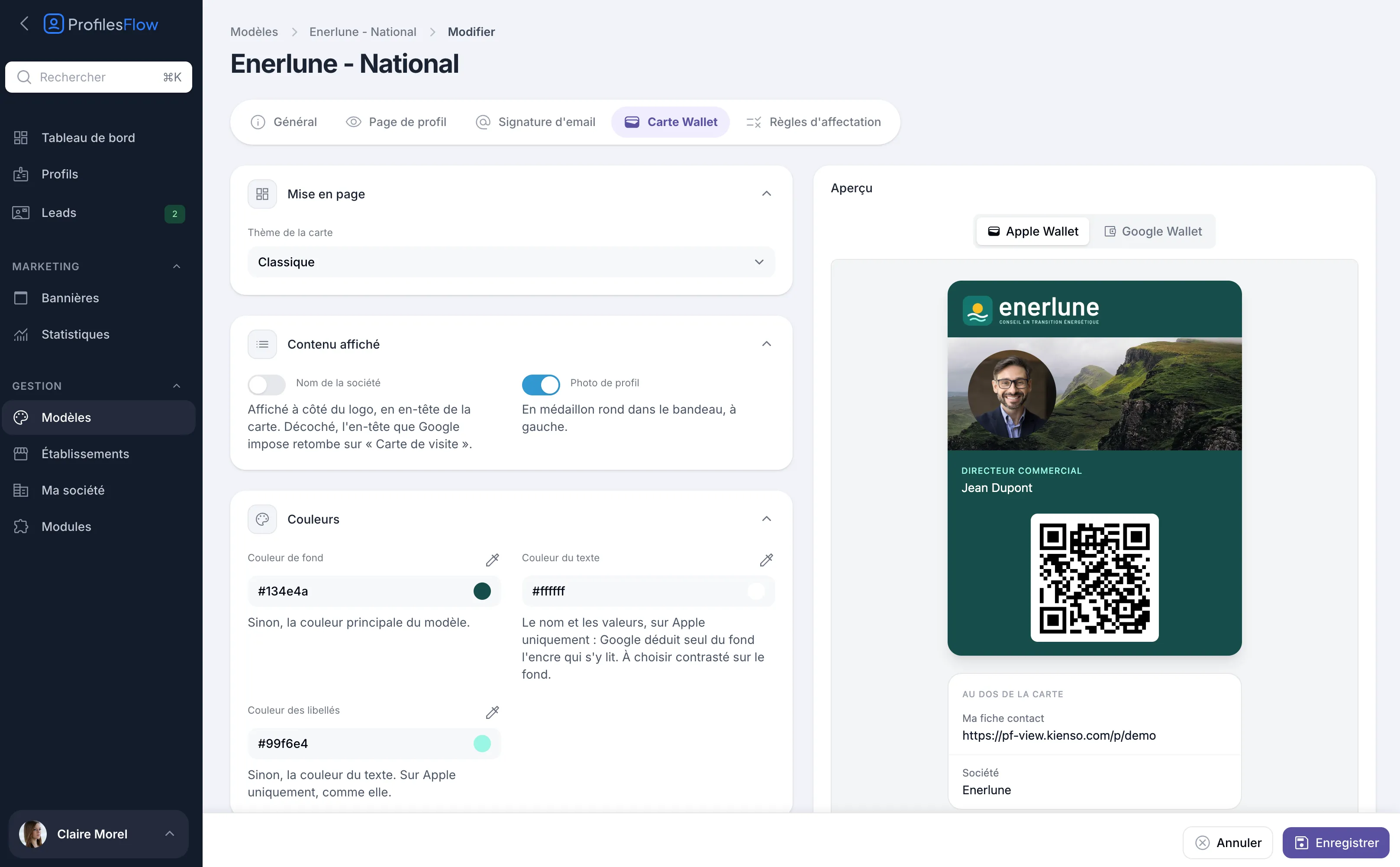
Edit the card
- Open Management › Templates, then the template, Wallet card tab.
- Set up the sections described below.
- Check the Preview on the right, with the Apple Wallet and Google Wallet buttons.
- Click Save.
Settings
Layout
Card theme: Classic.
Displayed content
- Company name: shown next to the logo, in the card header. When unchecked, the header that Google requires shows “Carte de visite”.
- Profile photo: the employee's photo, as a round medallion in the strip, on the left.
Colours
- Background colour: otherwise, the template's main color.
- Text colour: the name and the values. Apple only.
- Label colour: otherwise, the text color. Apple only.
Choose a text color with good contrast against the background.
Logo
- Card logo: jpg or png, 480 × 150 px recommended, 10 MB maximum. If left empty, the profile page logo applies.
- Logo in the header: shows or hides the logo.
- Logo width (px): on Apple, the logo is capped at 160 × 50 px; its height follows the width without exceeding 50 px.
Images
- Card banner: the strip image, jpg or png, 1125 × 432 px recommended, 10 MB maximum. If left empty, the profile page one applies.
- Show the banner: when unchecked, the photo stands alone against the card color.
The image is centered and cropped differently by Apple and by Google: check both previews. A banner designed for the profile page often crops badly on the card.
QR code
QR code destination: what the person who scans the card gets.
- Contact card (vCard): gets straight to the point, the contact is saved in their phone. It arrives as a file to open.
- Profile page: takes one more click to save the contact, but also shows the links, social networks and banner.
The back of the card (Card details on Google) shows the Ma fiche contact link and the Société name.
The differences between Apple and Google
| Apple Wallet | Google Wallet | |
|---|---|---|
| Background color | applied | applied |
| Text and label colors | applied | ignored: Google chooses on its own an ink that is readable on the background |
| Logo | card logo, up to 160 × 50 px | a small square in the header: the Favicon from the Profile page tab, or else the logo |
| Company name unchecked | no name in the header | “Carte de visite” in the header |
| Banner | cropped to 375 × 144 | cropped to 1032 × 336 |
For a polished look on Google Wallet, upload a square Favicon in the template's Profile page tab (see Customize the profile page).
After a change
Cards already installed on phones do not change their look by themselves. Their QR code, however, always leads to the up-to-date profile: a change of number or job title requires nothing.
For a new look to apply, each employee needs to reinstall their card. Send them their links again with Send details (see Invite and send information): so change the card's look wisely, preferably before rolling it out.
For installation on the employee's side, see Add your card to Wallet.