

QR codes
The two QR codes of a profile, the page one and the exchange one, where to find them and how to print them so they scan well.
Each profile has two QR codes: one opens the profile page, the other opens the card exchange form. This page explains what each one is for and how to print them correctly. They are in the profile, available to its holder (User role) as well as to Editors and Administrators.
The profile page QR code
Scanned with a phone camera, it opens your profile page. Your contact can then save your contact details in one tap with the Enregistrer (“Save”) button.
To download it:
- Open Profiles, then the profile concerned.
- Click the Profile page tab.
- In the QR code block, click Download the QR code.
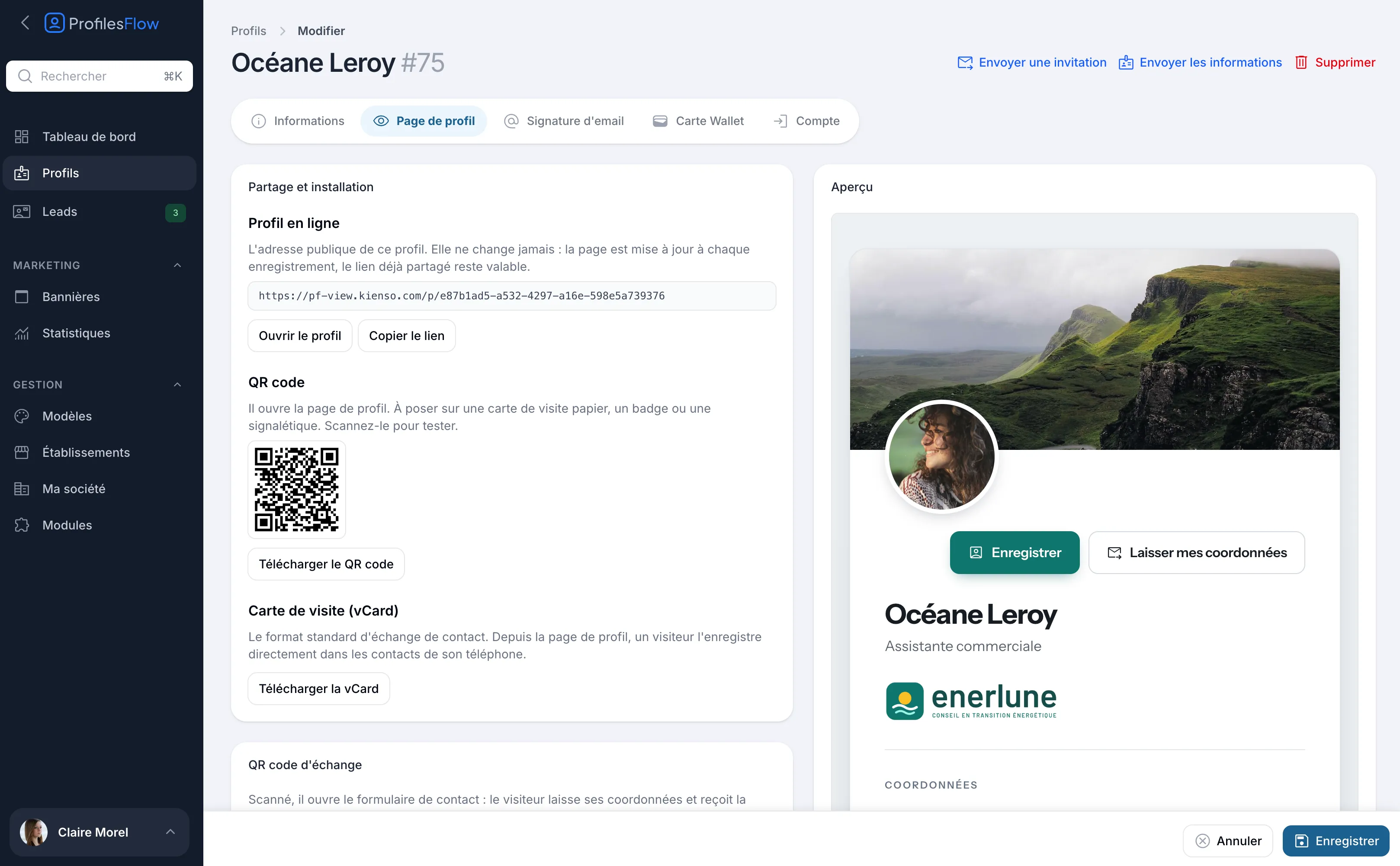
Common uses: paper business card, badge, roll-up banner, shop window, booth, reception signage.
Since the page's address never changes, a printed QR code stays valid: if the job title, the number or the establishment changes, the page is updated and the QR code still leads to it. There is nothing to reprint.
This is also the QR code shown next to the profile page when it is opened on a computer, with the words “Enregistrer sur votre téléphone” (“Save on your phone”).
The exchange QR code
Further down the same tab, the Exchange QR code block offers a second QR code. When scanned, it does not open the page: it opens the contact form directly. The visitor leaves their contact details there (first name, last name, company, email, phone, with their consent) and receives your business card (vCard) right away.
It is a real card exchange: you get their contact details, they get yours. Their request arrives in Leads with the source Card exchange. See Leads.
Common uses: trade show, booth, face-to-face meeting, reception desk.
To download it, click Download the QR code in the Exchange QR code block.
Which QR code should you choose?
| Situation | Recommended QR code |
|---|---|
| Paper business card, badge, signage | Profile page QR code |
| You want to collect the person's contact details | Exchange QR code |
| You want to show your work, links, social networks | Profile page QR code |
Printing a QR code well
QR codes are downloaded in SVG format, a vector format: they can be enlarged without losing sharpness. Send this file as is to your printer or your designer, rather than a screenshot.
A few general rules, valid for any QR code:
- Size. Allow at least 2 cm per side for close-up scanning (business card, badge). For scanning from a distance, make it bigger: a common rule is at least 1 cm per side for every 10 cm of scanning distance.
- Contrast. Print the dark modules on a light, plain background. Avoid pale colors, photographic backgrounds and inversion (light QR code on a dark background), which some readers do not recognize.
- Quiet zone. Leave an empty, light margin all around the QR code. Do not place text, a border or an image right against it.
- Integrity. Do not put a logo on top of it, do not distort it, do not trim it when cutting.
- Material. Avoid very glossy or curved surfaces, which create reflections.
- Test. Before any print run, print a proof and scan it with an iPhone and an Android phone.
Troubleshooting
The QR code block says “No QR code yet”
The QR code is created as soon as a template applies to the profile. Check that the assignment rules give this profile a template.
The QR code opens a page that cannot be found
The profile may be disabled, or the company's subscription suspended. See Share your profile page.
The phone does not react to the QR code
Check the size, the contrast and the margin around the code (see above). On some Android phones, QR code scanning is turned on in the camera settings or goes through the Google Lens app.