

Enable a module
The catalog of Profiles Flow modules, who can enable them, and what happens when you disable a module.
Modules connect Profiles Flow to your tools: email (automatic installation of signatures) and directory (creating profiles in bulk or from the directory). This page presents the catalog and explains how to enable or disable a module. You need the Administrator role.
All modules are included in the subscription, at no extra cost.
The catalog
Open Management › Modules. The All, Email and Directory filters sort the modules by family. Each card shows whether the module is active or Inactive.
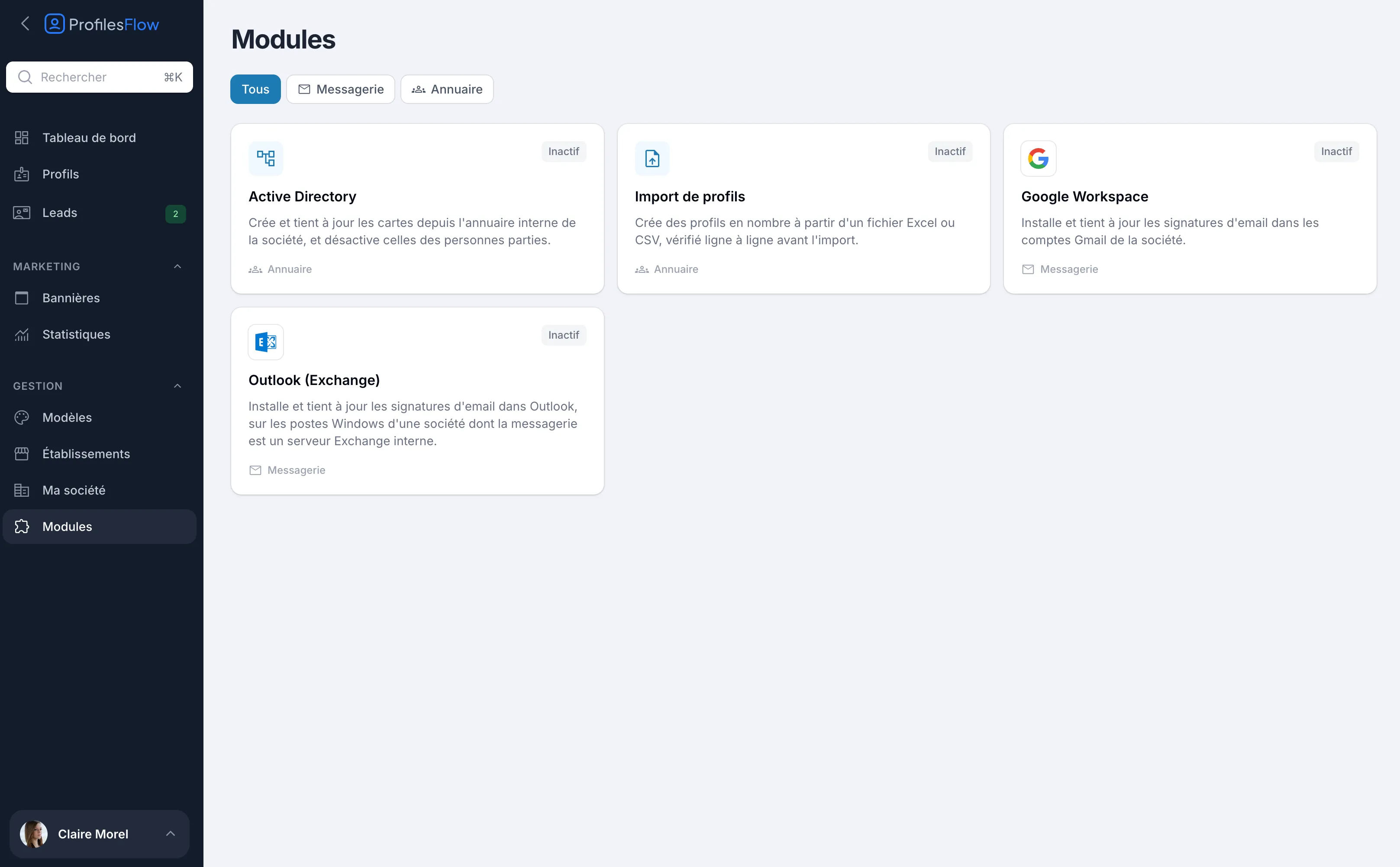
| Module | Family | What it does | Page |
|---|---|---|---|
| Profile import | Directory | Creates profiles in bulk from an Excel or CSV file, checked line by line before the import. | Profile import |
| Google Workspace | Installs and keeps email signatures up to date in the company's Gmail accounts. | Google Workspace | |
| Outlook (Exchange) | Installs and keeps signatures up to date in Outlook, on the Windows computers of a company whose email runs on an on-premises Exchange server. | Outlook (Exchange) | |
| Microsoft 365 | Directory | Creates and keeps profiles up to date from the company's Microsoft 365 users, and deactivates those of people who have left. | - |
| Outlook (Microsoft 365) | Adds and keeps email signatures up to date in Outlook, for a company whose email runs on Microsoft 365: web, Windows, Mac and mobile. | - | |
| Active Directory | Directory | Creates and keeps profiles up to date from the internal directory, and deactivates those of people who have left. | Active Directory |
Enable a module
- Open Management › Modules.
- Click the module's card.
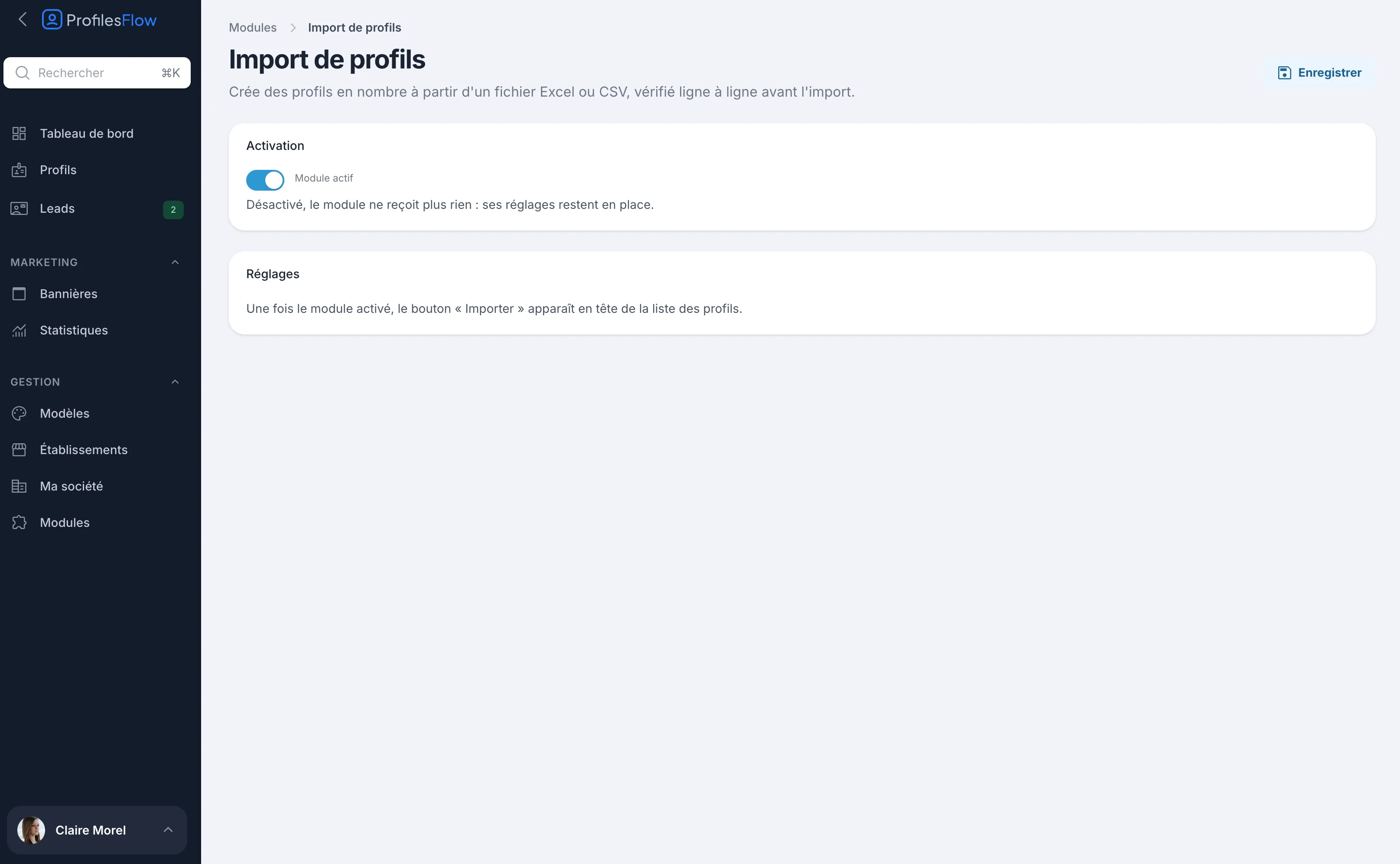
- In Activation, turn on the Module enabled switch.
- Fill in the module's own Settings, if it has any.
- Click Save at the top right.
Some modules then require action from your IT department (Google authorization, Windows script, network access). Each module page describes this, with the steps to pass on. The pages of this documentation devoted to modules can be sent as is to your IT person.
Disable a module
- Open the module's page.
- Turn off Module enabled, then click Save.
A disabled module no longer receives anything, but its settings are kept: you can re-enable it later without entering everything again.
What disabling does not do:
- Google Workspace: signatures already set in Gmail stay as they are; they are simply no longer updated.
- Outlook (Exchange): the script on the computers no longer receives a signature and leaves the installed one in place.
- Active Directory: the directory is no longer read; existing profiles remain.
- Profile import: the Import button disappears from the profile list; profiles already imported remain.
Who does what
| Action | Who |
|---|---|
| Enable, configure, disable a module | A Profiles Flow Administrator |
| Authorize Google access (Google Workspace module) | The Google Workspace super administrator of the domain |
| Deploy the signature script (Outlook module) | The Windows domain administrator |
| Open access to the directory (Active Directory module) | The directory administrator and network administrator |
Troubleshooting
I can't see the Modules menu
The Modules menu is shown only to Administrators. Ask an administrator of your company to give you this role: see Access and roles.