

Profile import
Create profiles in bulk from an Excel or CSV file, in four checked steps, with the template file and common errors.
The Profile import module creates your employees' profiles in one go from an Excel or CSV file. This page describes the four steps of the import and the most common errors. Enabling the module requires the Administrator role; the import itself is open to Editors and Administrators, from the profile list.
Before you start
- Enable the module: Management › Modules › Profile import, Module enabled switch, then Save. See Enable a module.
- Create your establishments before the import: the file refers to them by name. See Establishments.
- Prepare your templates and their assignment rules: imported profiles get their template through these rules. See Assignment rules.
Once the module is enabled, the Import button appears at the top of the Profiles list.
Step 1: File
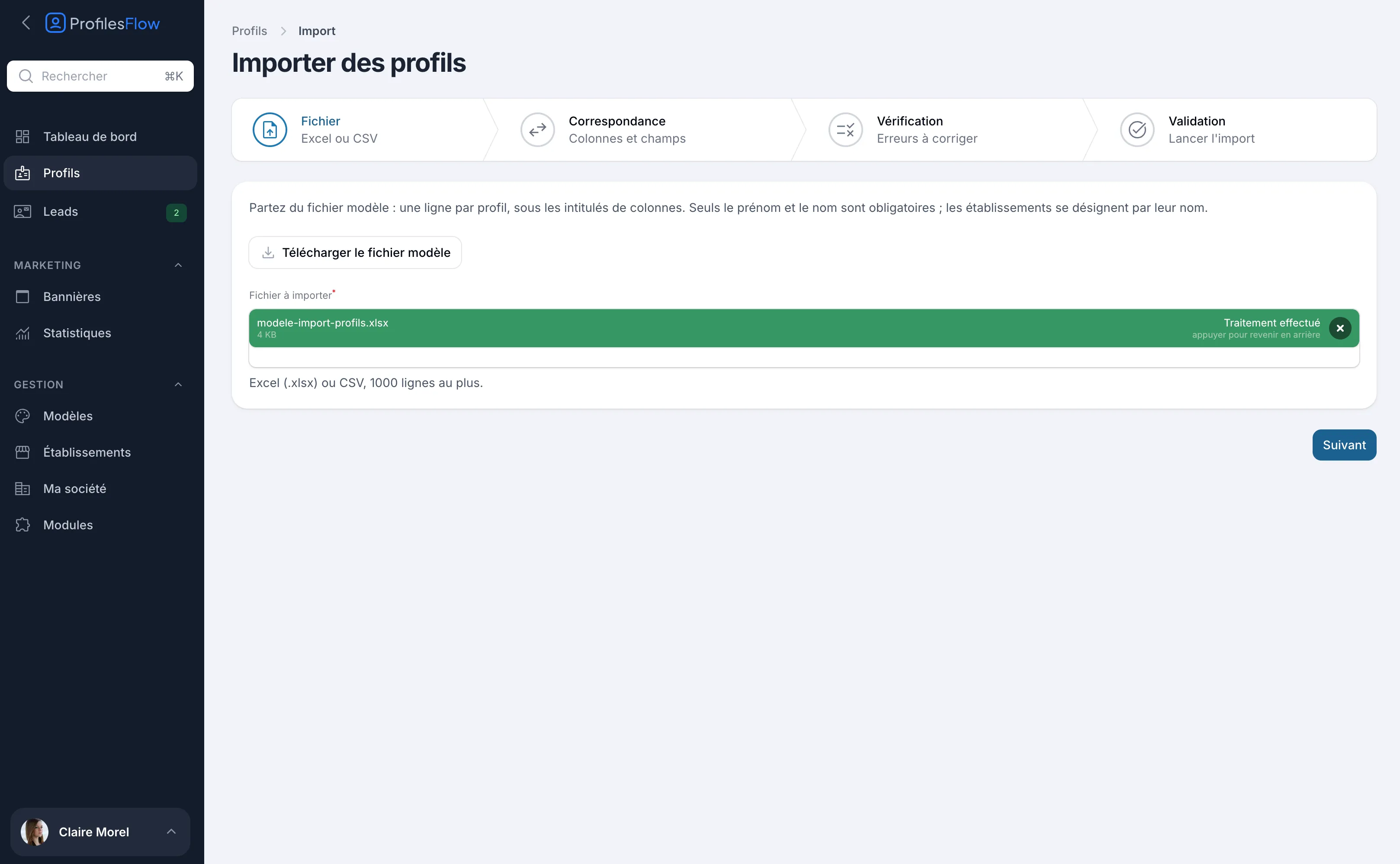
- Open Profiles and click Import.
- Click Download the template file and fill it in: one row per profile, under the column headers.
- Upload your file in File to import, then click Next.
Accepted formats: Excel (.xlsx) or CSV, up to 1000 rows. Only the first sheet of an Excel file is read. Only the first name and last name are required.
Step 2: Mapping
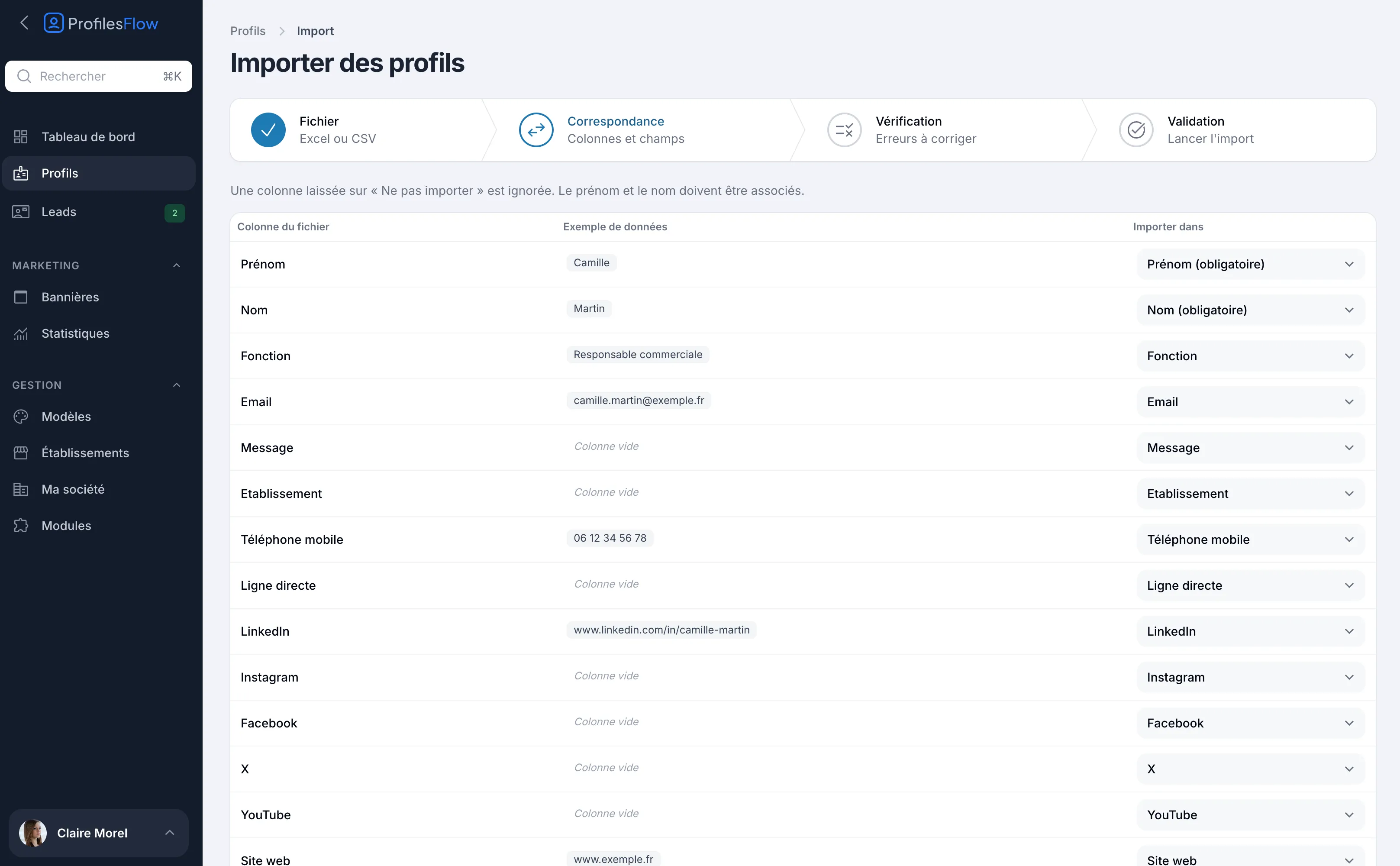
Profiles Flow matches each column of your file to a profile field, based on its header. Check the Import into column and correct it if needed.
Available fields: First name, Last name, Job title, Email, Message, Establishment, Mobile phone, Direct line, LinkedIn, Instagram, Facebook, X, YouTube, Website.
- A column left on Do not import is ignored.
- The first name and last name must be mapped to a column.
- The same field can only be filled in by one column.
Step 3: Review
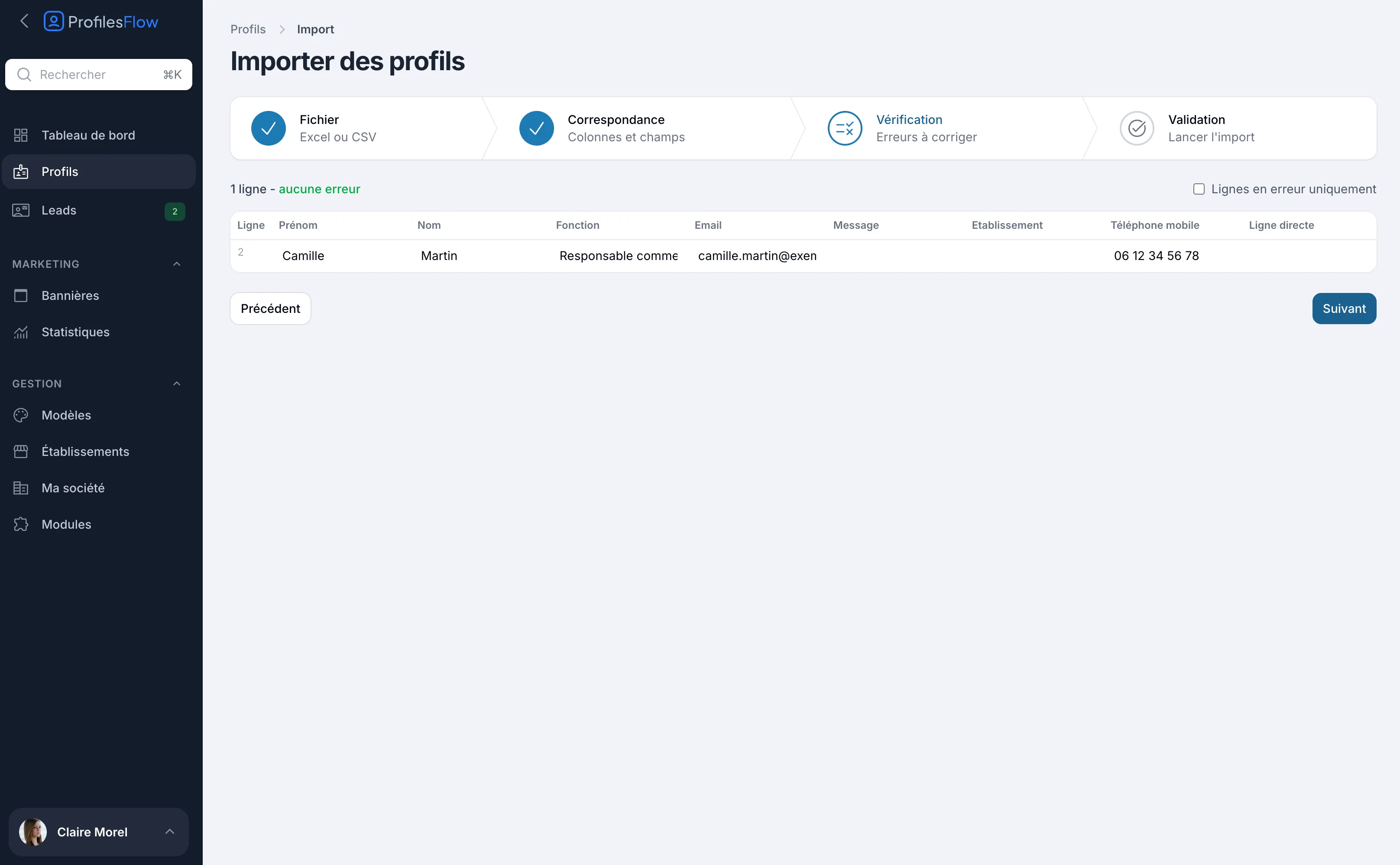
The table shows the rows as they will be saved, with their row number in the file. Cells with errors are flagged with their message.
- Correct a cell directly in the table: the check runs again immediately.
- Remove a row from the import with the trash icon at the end of the row.
- Check Rows with errors only to see only what remains to be fixed.
You can only move on to the next step when there are no errors left.
Step 4: Confirmation
A summary shows the number of profiles that will be created. Click Import N profiles.
- Profiles are created all or none.
- They are active and get no access to the management interface. To give access, see Access and roles.
- Their template is set by the assignment rules.
Each active profile is counted in the subscription: see Subscription and billing.
Next step: send each person their links with Send details. See Invite and send information.
Preparation tips
- Always start from the template file: its headers are recognized automatically.
- Headers are compared ignoring accents, capitals and punctuation: “Mobile phone” and “MOBILE_PHONE” are equivalent.
- Write establishment names exactly as in Profiles Flow (accents and capitals don't matter).
- Phones: “06 12 34 56 78” is read as a French number; for another country, include the country code, for example “+32 4 12 34 56 78”.
- Social networks: a full address for LinkedIn and Facebook, an account name (for example camille.martin) or an address for the others.
- A CSV saved by Excel in French (semicolon separator) is recognized.
- More than 1000 people: split them into several files.
Common errors
| Message | What to do |
|---|---|
| Required. | The first name or last name is empty on this row. |
| Column not mapped. | The first name or last name is not mapped to any column: go back to the Mapping step. |
| Establishment unknown to the company. | The name does not match any establishment: correct the spelling or create the establishment. |
| Number not recognised, e.g. 06 12 34 56 78 or +32 4 12 34 56 78. | Check the number and its country code. |
| Invalid email address. | Correct the address. |
| A profile of the company already uses this address. | This employee already has a profile: remove the row. |
| Address found on several lines of the file. | Duplicate in the file: keep only one row. |
| Address not recognised, e.g. www.example.com. | The website is malformed. |
| Account name not recognised, e.g. camille.martin. | The social network is entered incorrectly. |
| 255 characters maximum. | Shorten the text (first name, last name, job title or message). |
At step 1, the file itself can be rejected: “Only Excel (.xlsx) and CSV files are accepted.”, “The file has more than 1000 lines: split it into several imports.” or “The file contains no lines to import below its column headers.”. In the last case, check that the first row contains the headers.