

Shared contact details
A template's General tab, its name, the company name displayed, and the contact details shared by all its profiles.
A template's General tab holds what is common to all the profiles it styles: the company name displayed and its contact details (switchboard, emails, social networks, links). You enter them once, and every profile page shows them. Role required: Editor or Administrator.
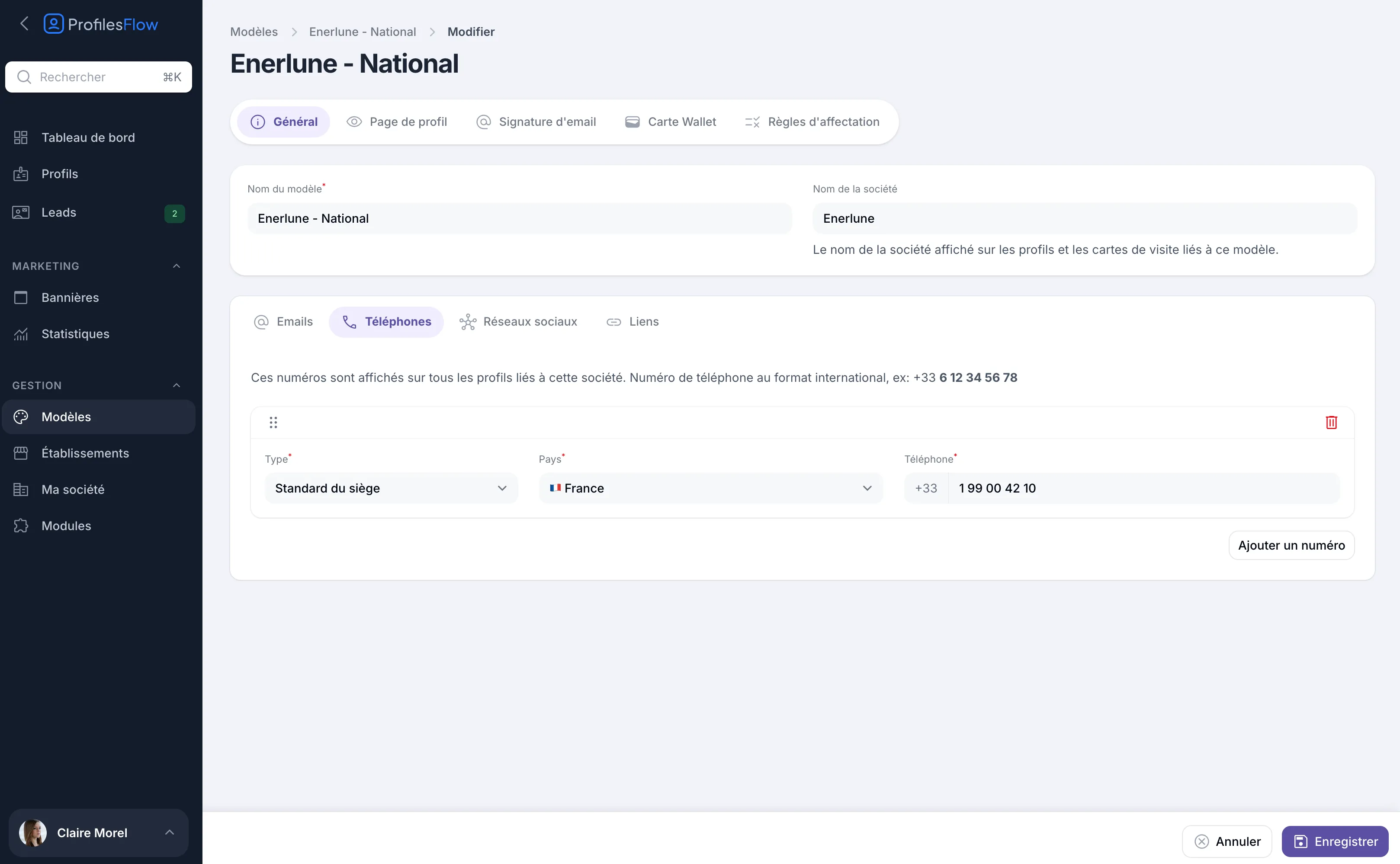
Name the template
- Template name (required): an internal name, only visible in the interface. Make it meaningful if you have several templates, for example “Enerlune - National” and “Enerlune - Agences régionales”.
- Company name: the name shown on the profiles and business cards linked to this template. It appears as the title of the Organization block on the profile page, in the signature and on the back of the Wallet card. If left empty, the name in My company is shown.
The company name can differ from one template to another: useful for a trade name or a subsidiary.
Add the shared contact details
The four sub-tabs work the same way:
- Open Management › Templates, then the template, General tab.
- Choose the sub-tab: Emails, Phones, Social networks or Links.
- Click the add button (Add an email, Add a number, Add an account or Add a link).
- Fill in the row, then click Save.
Emails
A Name (for example “Contact” or “Careers”) and the Email. The name is shown in front of the address.
Phones
The Type, the Country and the Phone number in international format. The Head office switchboard type is made for this use. See Phones, social networks and links for the list of types and the format.
Social networks
The company's accounts: LinkedIn, Instagram, Facebook, X, YouTube.
Links
A Name, which will be the button text, and the URL. For example “Our website”, “Our work”, “Join us”.
In each sub-tab, drag a row by its handle to change the order, or click the trash icon to remove it.
Where these contact details appear
On the profile page, in the Organization block, at the bottom of the page: the company name, then its emails, phone numbers, social networks and links. This block comes after the person's contact details and those of their establishment.
In the email signature, the Networks and links block uses the template's social networks and links when the employee's profile has none.
A change here applies immediately to the profile page of every profile linked to the template.
What to put here, and nowhere else
| Contact detail | Where to enter it |
|---|---|
| Head office switchboard, general email, company social networks and website | here, in the template |
| Address, reception and switchboard of a branch | in the establishment |
| Mobile, direct line, personal LinkedIn | on the employee's profile |
Avoid copying the company switchboard or website onto each profile: it would be shown twice, and would need correcting everywhere the day it changes.