

Customize the signature
Set the email signature logo and its light background, and choose a starting layout for all the profiles of a template.
A template's Email signature tab controls the signature of all linked profiles. The logo is set in the tab; the layout is composed in the signature editor. Role required: Editor or Administrator.
The principle
The signature is composed once per template. The layout, colors and logo come from the template; the name, job title, photo and contact details come from each employee's profile. So you never have to create a signature for each person.
Set the signature logo
- Open Management › Templates, then the template, Email signature tab.
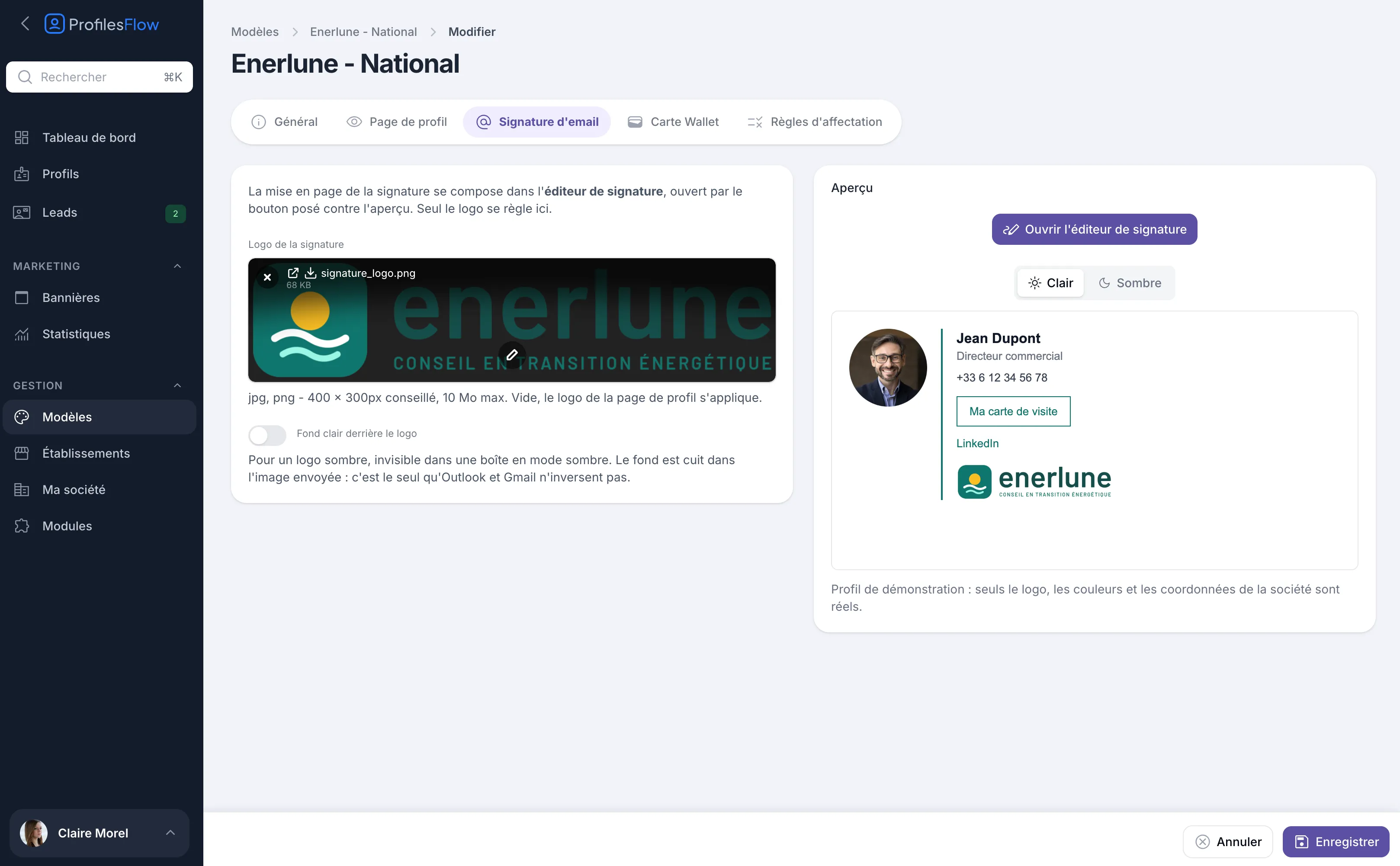
- In Signature logo, upload your logo: jpg or png, 400 × 300 px recommended, 10 MB maximum.
- If needed, turn on Light background behind the logo (see below).
- Check the Preview in Light and Dark mode, then click Save.
If left empty, the Signature logo uses the logo from the Profile page tab. Only upload a different one if the signature needs a different version, for example a more compact one.
The light background behind the logo
Many email clients display messages in dark mode. A dark logo on a transparent background becomes invisible there.
Turn on Light background behind the logo to place a light background behind it. This background is built into the image sent: it is the only one that Outlook and Gmail do not invert in dark mode. A light or colored logo does not need it.
The preview
The preview shows the signature on a sample profile (Jean Dupont, Sales Director): only the logo, colors and company details are real. To see a specific employee's signature, open their profile, Email signature tab.
Change the layout
Click Open the signature editor, above the preview. The editor opens full screen.
To start from a familiar shape, choose a layout from the editor's Starting point list:
| Layout | Description |
|---|---|
| Text only | a single column, on the message background |
| Photo on the left | the person's photo, with the text beside it |
| Photo and logo | the photo on the left, the logo set apart on the right |
| Logo on top | the logo above, the text below |
| Standalone card | a white frame and a block of color behind the photo |
Applying a layout replaces the signature being composed: you are asked to confirm. Everything it adds can then be adjusted freely, and the editor's Undo button goes back.
The editor is explained in detail in The signature editor.
The template list shows a Signature theme column. The layout is now set in the editor, starting from the layouts above.
After a change
- The previews, on the template and on each profile, follow immediately, as does the signature offered by each employee's link.
- Signatures already installed by hand in an email client keep the layout and text from the day they were copied. After a layout change, each employee needs to reinstall theirs: send them their links with Send details (see Invite and send information).
- With the Google Workspace or Outlook (Exchange) modules, the signature is reapplied in the employees' mailboxes, without any action on their part.
- The marketing banner, on the other hand, changes in all signatures without reinstallation: see Banners.
For installation on the employee's side, see Install your email signature.