

Customize the profile page
Choose the theme, main color, logo and header image of the profile pages, in light and dark mode.
A template's Profile page tab controls the look of the profile pages of all linked profiles: theme, color, logo and header image. Role required: Editor or Administrator.
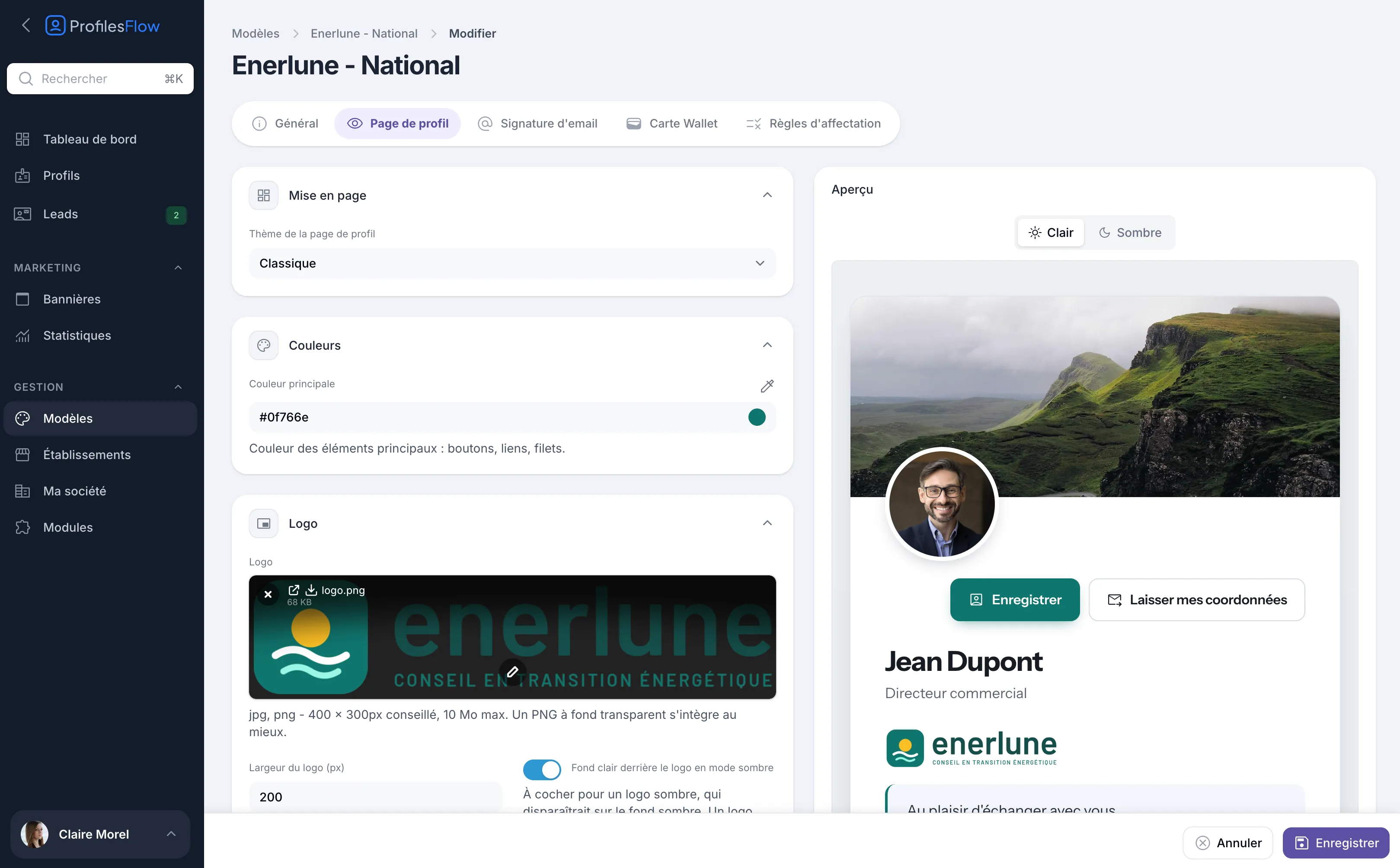
Change the look
- Open Management › Templates, then the template, Profile page tab.
- Set up the Layout, Colours, Logo and Images sections (details below).
- Check the result in the Preview, on the right, in Light and then Dark mode.
- Click Save.
All the profile pages linked to the template change immediately, at the same address. No link or QR code needs to be sent out again.
Layout: the theme
Choose the Profile page theme:
- Classic
- Editorial
- Social network
- Vivid
The four themes show the same information, in the same order; only the style changes. Try them in the preview to choose.
Colors: the main color
The Main color applies to the main elements of the page: buttons, links, dividers. Enter its code (for example #0f766e) or use the eyedropper.
Choose a color dark enough for the white text of the buttons to remain readable.
This color is also used elsewhere: it is the default background color of the Wallet card, and some signature layouts use it.
Logo
- Logo: jpg or png formats, 400 × 300 px recommended, 10 MB maximum. A PNG with a transparent background blends in best.
- Logo width (px): the display width of the logo at the top of the page, next to the identity. Its height follows.
- Light background behind the logo in dark mode: turn this on for a dark logo, which would disappear on a dark background. A light or colored logo does not need it.
This logo is also used by default for the signature and the Wallet card, if you do not give them a different one.
Images
- Banner: the header image at the top of the page, behind the photo. Formats jpg, png, webp or gif, 1200 × 400 px recommended, 10 MB maximum. Without an image, a plain header is shown.
- Favicon: the small icon shown in the browser tab. Formats png or ico, 64 × 64 px recommended.
Be careful not to mix them up: the template's Banner is the header image, fixed, at the top of the page. The marketing banners, scheduled in Marketing › Banners, are shown at the bottom of pages and under signatures. See Banners.
Light mode and dark mode
The profile page follows the setting of the visitor's phone or computer: it is shown in light or dark mode depending on their device. You do not have to choose, but check both in the preview:
- a dark logo on a transparent background: turn on Light background behind the logo in dark mode;
- a very dark main color: check that it remains visible on a dark background.
What the template does not control
The content of the page (name, job title, photo, contact details) comes from the employee's profile, their establishment and the template's General tab. See Phones, social networks and links and Shared contact details.
To share the page, see Share your profile page.