

Share your profile page
Find the permanent link to your profile page, know what it shows and how your contacts save your contact details.
The profile page is your digital business card online. This page explains where to find its link, what it shows your contacts and how they save your contact details. Anyone with a profile can share it; you need at least the User role to open it from the management interface.
Find your page's link
- Open Profiles, then your profile (or the one of the employee concerned).
- Click the Profile page tab.
- In the Online profile block, click Copy the link to paste it wherever you want, or Open the profile to see the page as your contacts see it.
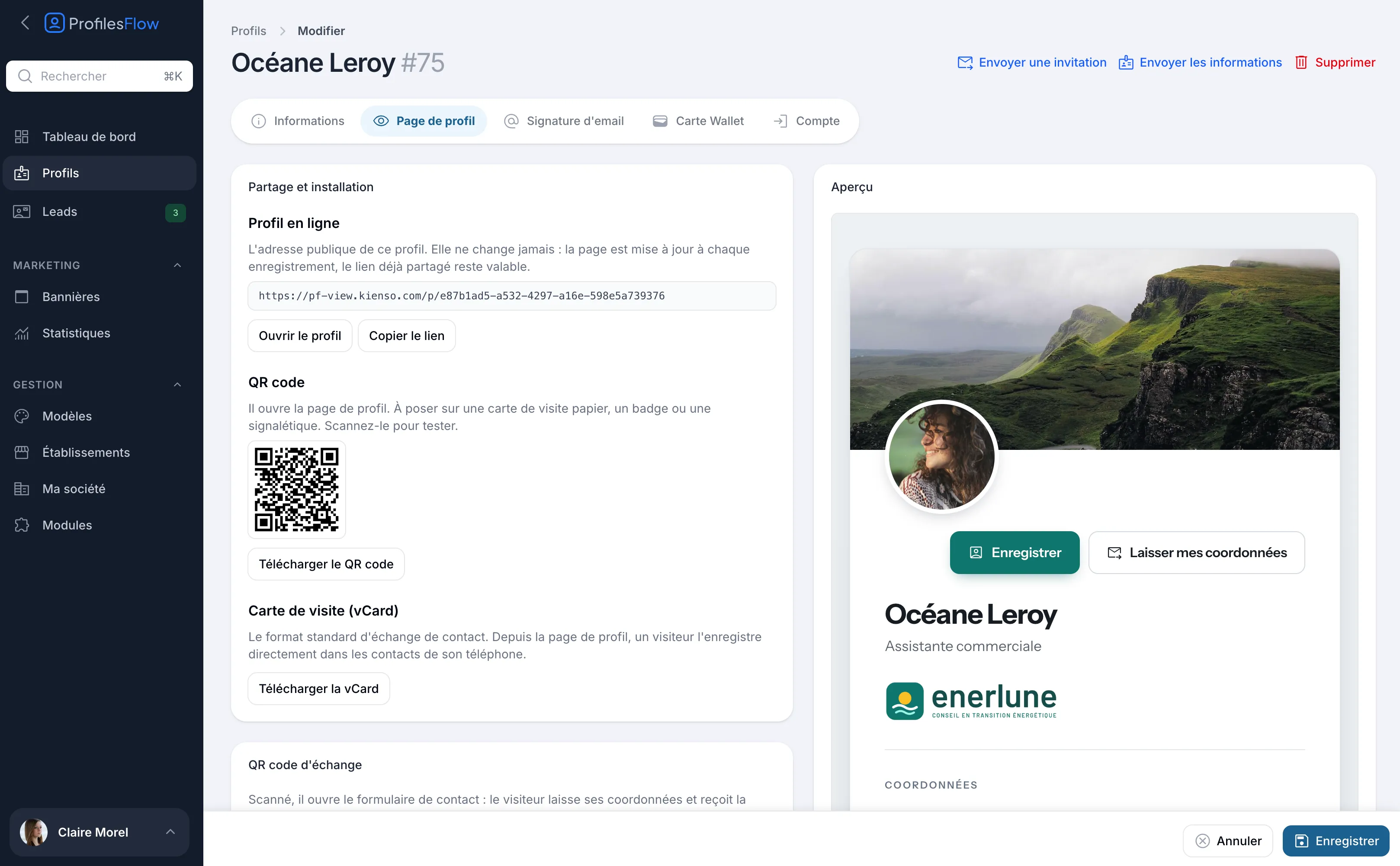
The address looks like view.profilesflow.com/p/<identifier>. It never changes: the page is updated each time the profile or the template is saved, and a link already sent, printed or published stays valid, even if your job title or your number changes.
You don't have access to the management interface? Ask your administrator to click Send details at the top of your profile: you receive the email “Your digital profile” with the link to your page, the one to your Wallet card and the one to your signature. See Invite and send information.
Where to share this link
- in your email signature (the template can include a button for it, such as “Ma carte de visite”, “My business card”);
- in your LinkedIn profile or on your social networks;
- in a message to a contact you have met;
- as a QR code on a paper card, a badge or a booth: see QR codes.
What the page shows
From top to bottom:
- the header image, the photo and the Enregistrer (“Save”) and Laisser mes coordonnées (“Leave my contact details”) buttons;
- the name, the job title, the company logo, and under the name the tagline (Message) if it is filled in;
- Coordonnées (“Contact details”): your email and your phones, clickable to write or call, then your social networks;
- Établissement (“Establishment”): name, address with the Voir sur la carte (“View on the map”) button, emails and phones of your establishment;
- Organisation (“Organization”): contact details and social networks shared by the company, then the links (for example “Our website”, “Our work”);
- the current marketing banner, if there is one.
Your personal information comes from your profile; the look (theme, color, logo, header) and the shared contact details come from the template. To change what is displayed, see Create a profile and Customize the profile page.
On a computer, a QR code “Enregistrer sur votre téléphone” (“Save on your phone”) is displayed next to the page: your contact scans it to reopen the page on their phone.
The Enregistrer button: the vCard
Enregistrer (“Save”) downloads your contact card in vCard format, the standard format for exchanging contacts, compatible with iPhone and Android. The phone then offers to add the contact to its address book, with your name, job title, company, email and phones.
You can also download this file yourself: Profile page tab, Business card (vCard) block, Download the vCard button. Handy for sending it as an attachment or importing it into a CRM.
The Laisser mes coordonnées button
Laisser mes coordonnées (“Leave my contact details”) opens a short form: the visitor enters first name, last name, company, email and phone, and checks the consent box. Their request arrives in Leads and you receive an email “New contact request”. See Leads.
Dark mode
The page automatically follows the light or dark setting of the visitor's phone or computer. There is nothing to do on your side.
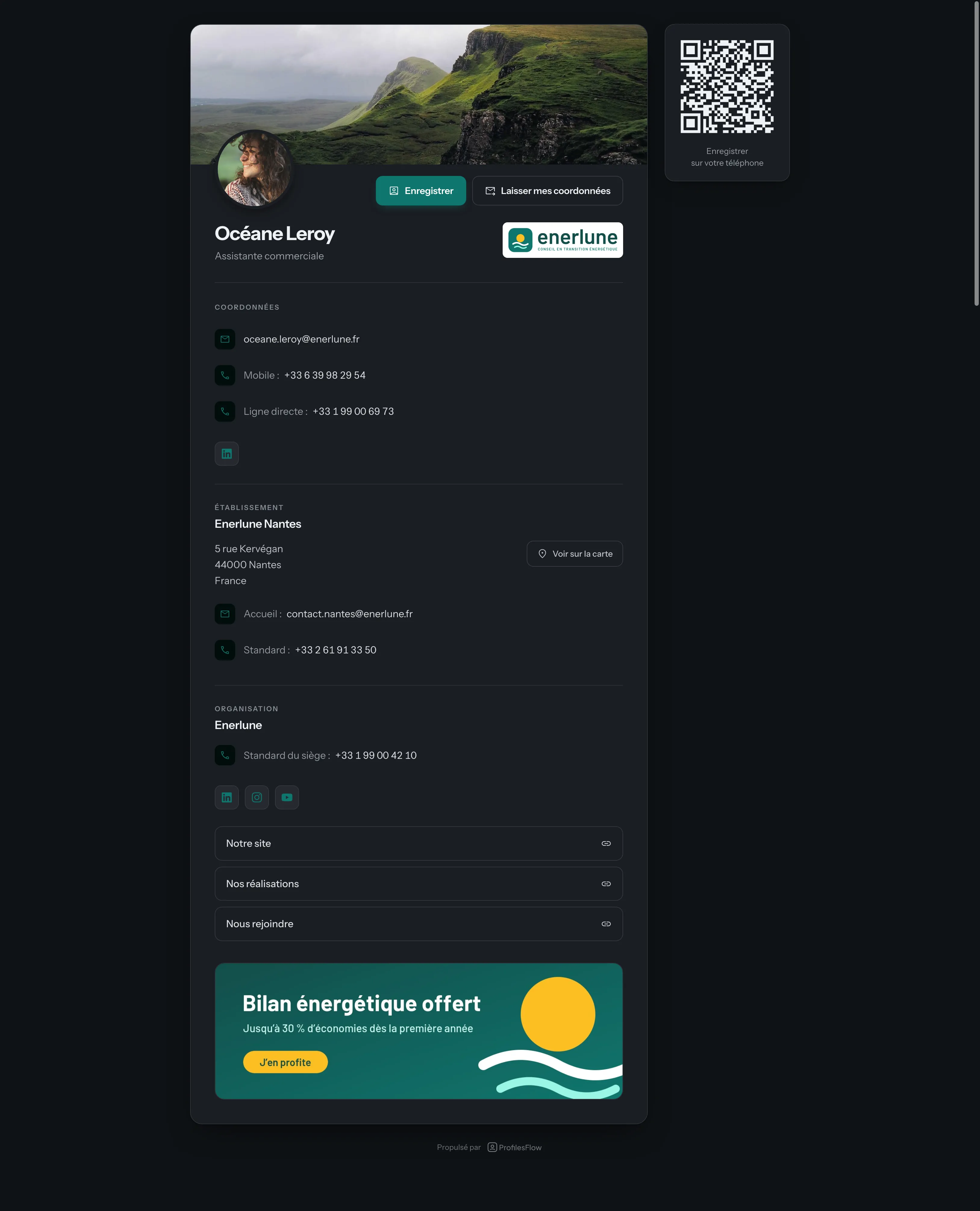
If your logo is dark on a transparent background, it can become hard to read on a black background. The template's Light background behind the logo in dark mode option fixes this: see Customize the profile page.
Troubleshooting
The page shows old information
Check that the profile has been saved (Save button at the bottom of the profile), then reload the page in the browser. If the information comes from the template (logo, shared contact details), it is the template that needs to be changed.
The page no longer opens
The page is not displayed in three cases:
- the profile is disabled (Enabled switch in the Account tab): see Enable or disable a profile;
- no template applies to the profile: check the Template box in the Information tab and the assignment rules;
- the company's subscription is suspended: see Subscription and billing.