

Sign in and manage your account
Sign in without a password, with a code received by email or a passkey, and keep the My account page up to date.
Profiles Flow does not use passwords. You sign in with a code received by email, or in one gesture with a passkey saved on your device. This page applies to anyone who has access to the management interface.
Sign in with a code received by email
- On www.profilesflow.com, click Log in.
- Enter your email address, then click Get a code.
- Open the email “Your sign-in code”: the 6-character code appears in the subject line and in the message.
- Enter it in Code received by email, then click Sign in.
Faster: click Sign me in in the email. The sign-in page opens with the code already filled in, and you only have one click left.
Good to know:
- the code is valid for 15 minutes, can only be used once and allows 5 attempts;
- a new code can be requested after one minute with Send a new code;
- Use another address takes you back to entering your email;
- for security, the page never says whether an address has an account: the message “If an account exists for…” is shown in every case.
If you see “This account does not have access to the interface.”, your profile exists but access to the management interface has not been granted to you. Contact an administrator of your company (see Access and roles).
Sign in with a passkey
A passkey signs you in with your device's fingerprint, face or PIN, without waiting for an email. It is added once per device.
Add a passkey for this device
- Sign in a first time with a code.
- Open the account menu, at the bottom of the sidebar, then My account.
- Under Passkeys, click Add a passkey for this device.
- Confirm with the device's fingerprint, face or PIN.
Sign in afterwards
On the sign-in page, click Sign in with a passkey, then confirm on the device. The button only appears if your browser supports passkeys. The browser may also offer the passkey directly in the email field.
Remove a passkey
In My account › Passkeys, click the delete icon next to the passkey, then confirm. That device will no longer be able to use it to sign in. Remember to do this if you change phone or computer.
The My account page
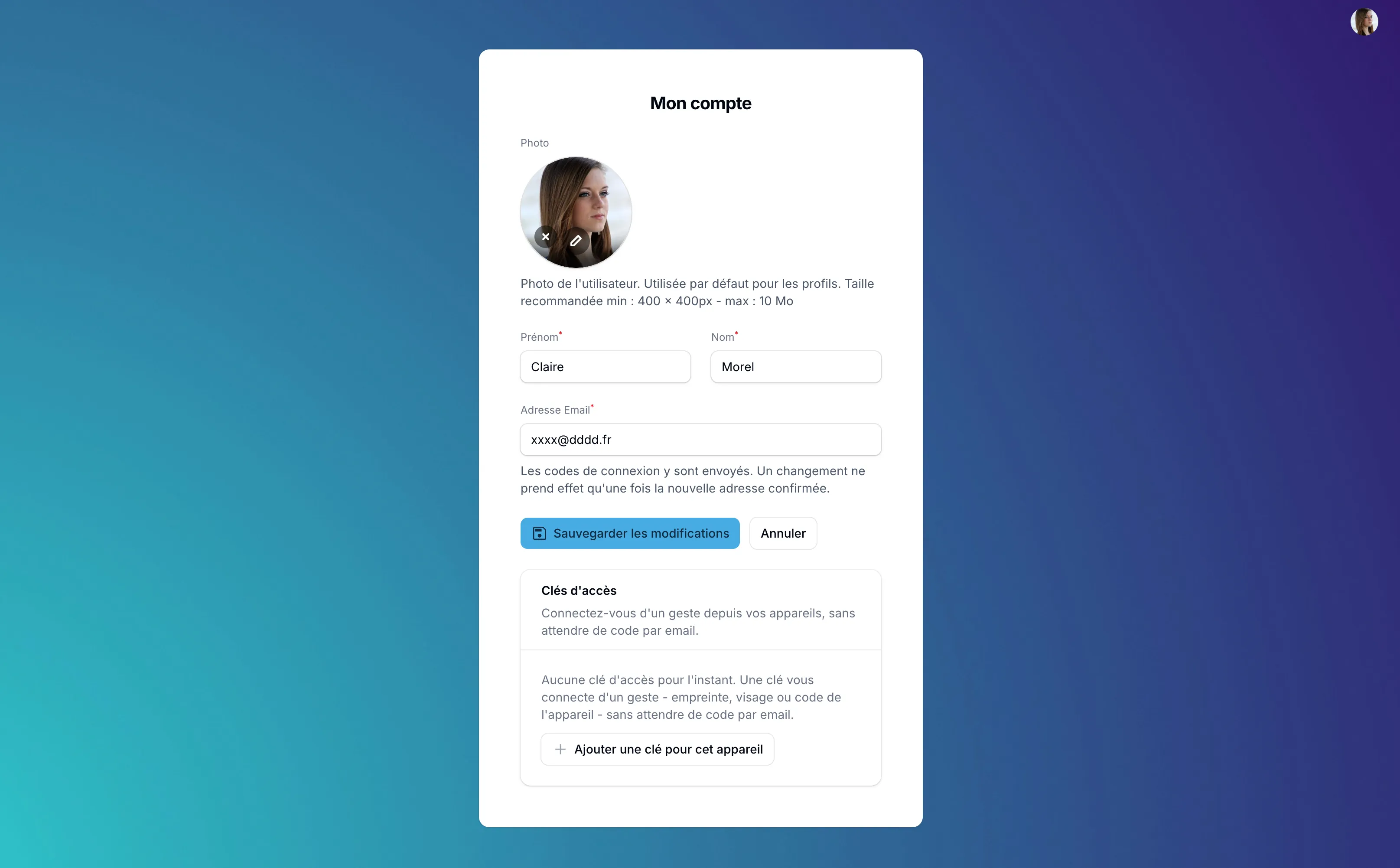
Open the account menu at the bottom of the sidebar, then My account. There you can change:
- Photo: used by default for your profiles. Recommended size: at least 400 × 400 px, 10 MB maximum.
- First name and Last name.
- Email address: the address where you receive your sign-in codes.
Click Save changes to save.
Change your email address
- Enter the new address in Email address, then save.
- A confirmation email is sent to the new address, and a notice to the old one.
- Click the confirmation link received at the new address.
The change only takes effect once the new address is confirmed. Until then, your codes keep arriving at the old one.
The address in My account is used to sign in. The one shown on your profile page and your signature can be different: it is the Displayed email of your profile (see Create a profile).