

Install your email signature
Install your Profiles Flow signature by hand in Gmail, Outlook (web, Mac, Windows) or Apple Mail, and solve common problems.
Your email signature is generated from your profile and the company's template. This page explains how to install it yourself in your email client. It is intended for the profile holder (User role or higher); if you don't have access to the interface, use the “signature” link in the email “Your digital profile” sent by your administrator.
Get the signature
- Open Profiles, then your profile.
- Click the Email signature tab.
- Check the Preview on the right: the layout, colors and logo come from the template; the identity and contact details, from your profile.
- Depending on your email client, click Copy the signature or Download the .htm file (Outlook on Windows only).
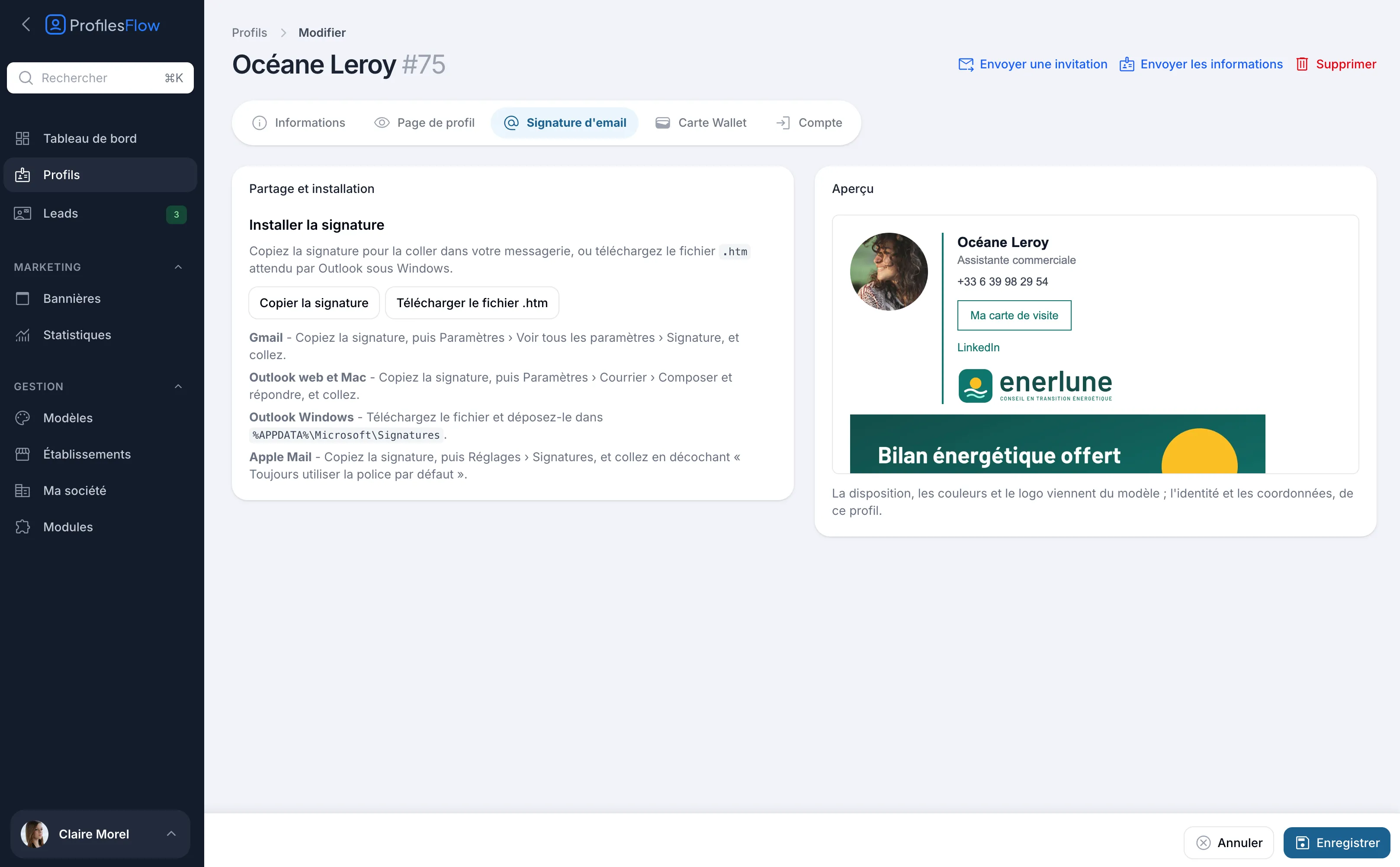
Always use the Copy the signature button rather than selecting the preview with the mouse: the button copies the full formatting.
Gmail
- Click Copy the signature.
- In Gmail, open Settings (gear icon) › See all settings.
- In the General tab, scroll down to Signature and create a new signature (or edit the old one).
- Paste into the text box (Ctrl + V or Cmd + V).
- Under Signature defaults, select it for new emails and, if you wish, for replies and forwards.
- Click Save Changes at the bottom of the page.
Outlook on the web and new Outlook
- Click Copy the signature.
- In Outlook, open Settings › Accounts › Signatures. In the old interface, the path was Settings › Mail › Compose and reply.
- Create a new signature, give it a name and paste into the text box.
- Select it as the default signature for new messages and, if you wish, for replies and forwards.
- Save.
This path also applies to the “new Outlook” for Windows.
Outlook for Mac
- Click Copy the signature.
- In Outlook, open Outlook › Settings › Signatures.
- Create a new signature, paste it, then select it as the default signature for your account.
Outlook for Windows
Outlook for Windows reads its signatures from a folder on the computer: you put the provided file there.
- Close Outlook.
- Click Download the .htm file.
- Open File Explorer, type
%APPDATA%\Microsoft\Signaturesin the address bar and press Enter. If the folder does not exist, create it. - Put the downloaded file in it.
- Reopen Outlook, then File › Options › Mail › Signatures: select the new signature for new messages and, if you wish, for replies and forwards.
This method applies to classic Outlook. For the “new Outlook” for Windows, proceed as for Outlook on the web.
Apple Mail
- Click Copy the signature.
- In Mail, open Settings › Signatures.
- Select your account and add a signature with the + button.
- Uncheck “Always match my default message font”.
- Paste the signature in the right-hand area, replacing the suggested text.
- Select it in the Choose Signature menu below the list.
When should you reinstall?
A signature installed by hand is a copy. If your contact details, your job title or the template change, reinstall it by repeating the steps above.
Exception: the marketing banner. Its image is loaded from Profiles Flow each time an email is opened, so a campaign change appears without reinstalling. See Banners.
Troubleshooting
Images do not appear (photo, logo, banner)
- Many email clients block remote images from an unknown sender by default. On the recipient's side, clicking “Show images” or adding the sender to their contacts is enough.
- If you pasted the signature into a message rather than into the signature settings, start again from the settings.
- If images have disappeared everywhere overnight, the company's subscription may be suspended: signature images then stop being served. See Subscription and billing.
The font is not the right one
- Apple Mail: check that “Always match my default message font” is unchecked.
- Email clients only display the fonts available on the reader's device: a slight font difference from one recipient to another is normal.
The logo is unreadable in dark mode
In dark mode, Gmail and Outlook can invert the email's colors. To keep a logo readable, turn on the Light background behind the logo option in the template's Email signature tab: this background is part of the image and is not inverted. Then reinstall the signature. See Customize the signature.
The layout is off after pasting
Delete the old signature completely before pasting, paste directly into the signature area of the settings, and do not use “Paste as plain text”.
Outlook for Windows does not offer the signature
Check that the file is in %APPDATA%\Microsoft\Signatures (and not in a subfolder), then restart Outlook.