

Outlook (Exchange)
Install and keep Outlook signatures up to date on Windows computers connected to an on-premises Exchange server, through a logon script.
The Outlook (Exchange) module installs each employee's Profiles Flow signature in Outlook, on the Windows computers of a company whose email runs on an on-premises Exchange server. A script run at logon sets the signature and updates it at each session. This page can be passed on as is to the Windows domain administrator.
Who does what
| Step | Who |
|---|---|
| Enable and configure the module, download the script | A Profiles Flow Administrator |
| Place the script and create the group policy | The Windows domain administrator (computers and group policies) |
Prerequisites
- Email on an on-premises Exchange server.
- Domain-joined Windows computers, with Outlook 2010 to Microsoft 365 installed and connected to this email server.
- The computers can reach Profiles Flow over HTTPS (the script calls the Profiles Flow address it contains).
- Each user's account in the directory carries their email address (
mailattribute). - In Profiles Flow, each employee has an active profile, with a template, whose Sign-in email or Displayed email is that same address.
Out of scope: Outlook for Mac, the “new Outlook” for Windows and Outlook on the web. For these, the signature is installed by hand from the profile: see Install your email signature. For email on Microsoft 365, use the Outlook (Microsoft 365) module.
1. Enable and configure the module
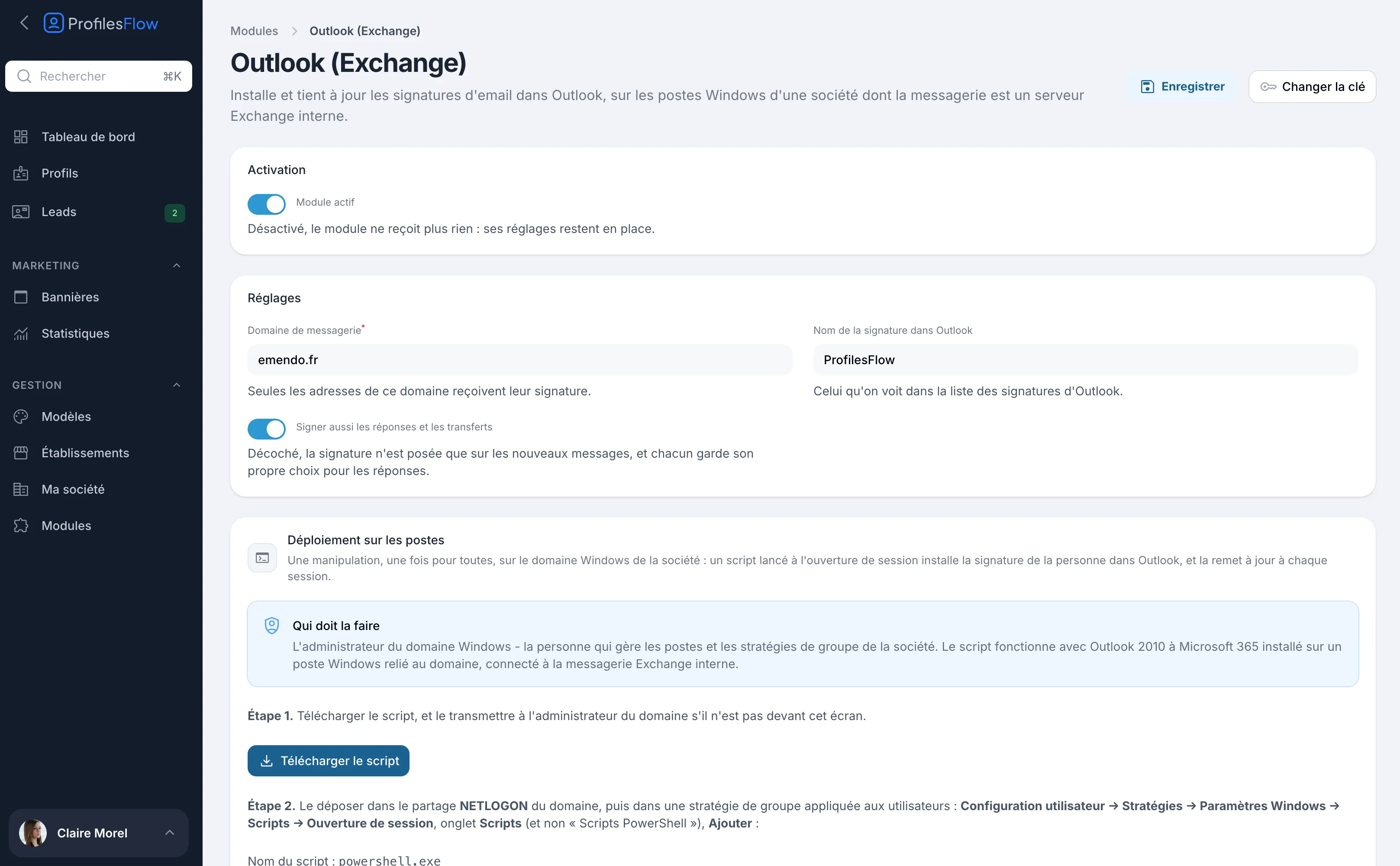
- Open Management › Modules › Outlook (Exchange).
- Turn on Module enabled.
- Fill in the Settings:
- Email domain (required): for example
enerlune.fr. Only addresses in this domain receive their signature. - Signature name in Outlook: the name shown in Outlook's list of signatures (
ProfilesFlowby default). - Also sign replies and forwards: when unchecked, the signature is only added to new messages, and everyone keeps their own choice for replies.
- Email domain (required): for example
- Click Save. The first save creates the company's access key, which the script carries.
2. Deploy the script (Windows domain administrator)
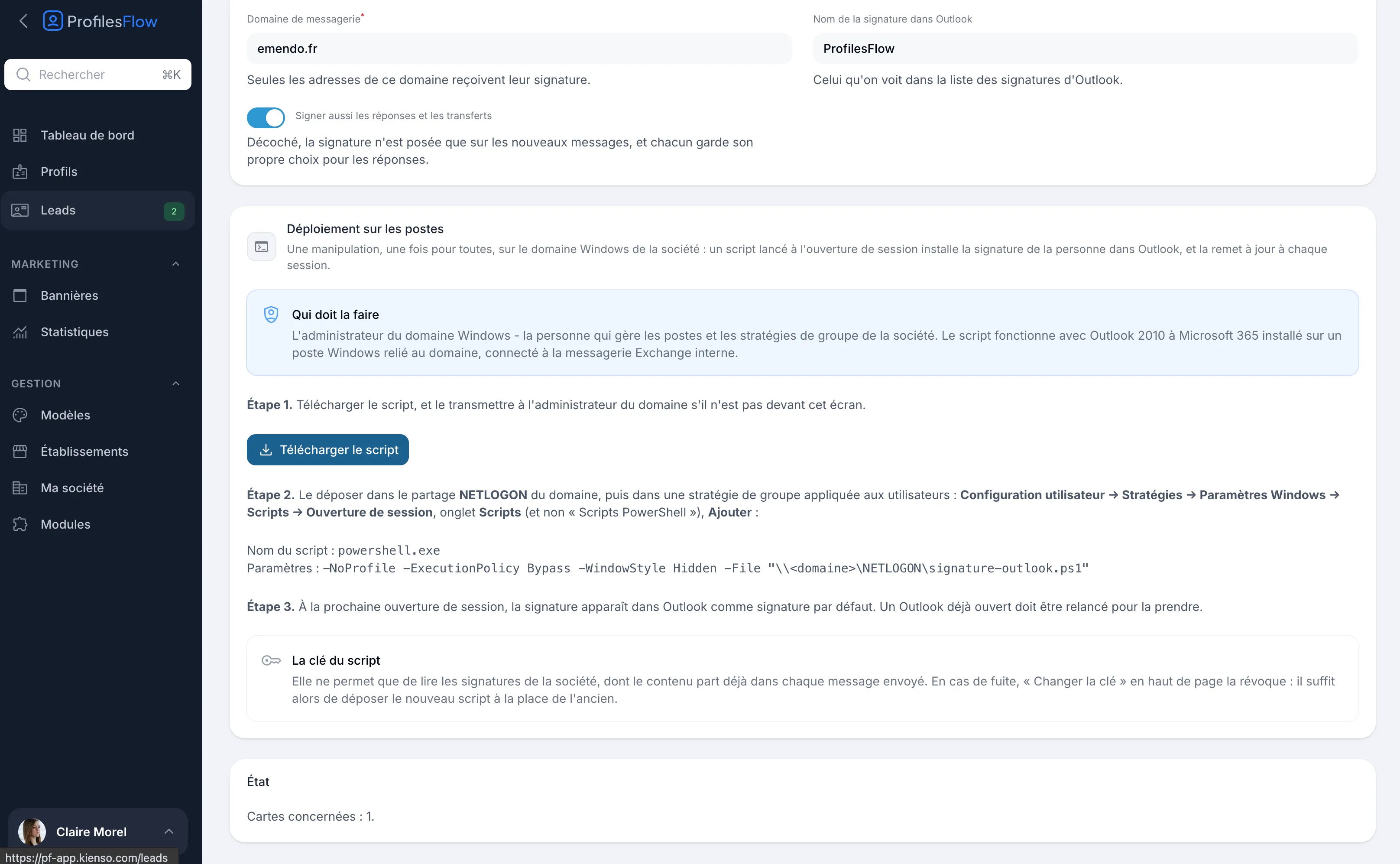
- Step 1. In the Deployment on computers section, click Download the script. You get the file
signature-outlook.ps1. - Step 2. Place it in the domain's NETLOGON share.
- In a group policy applied to users, open User Configuration › Policies › Windows Settings › Scripts › Logon.
- In the Scripts tab (not “PowerShell Scripts”), click Add and fill in:
- Script Name:
powershell.exe - Script Parameters:
-NoProfile -ExecutionPolicy Bypass -WindowStyle Hidden -File "\\<domain>\NETLOGON\signature-outlook.ps1"replacing<domain>with the name of your domain.
- Script Name:
- Step 3. At the next logon, the signature appears in Outlook as the default signature. An Outlook that is already open must be restarted to pick it up.
The Scripts tab is required because it runs powershell.exe with its parameters: -ExecutionPolicy Bypass only applies to this run, without changing the computers' execution policy.
What the script does on the computer
At each logon, in the user's context:
- it reads the person's email address in the directory;
- it requests their signature from Profiles Flow, over HTTPS, with the company's key;
- it writes the signature (HTML and text versions) to
%APPDATA%\Microsoft\Signatures; - it sets it as the user's default Outlook signature (
HKCUregistry, Office mail settings), for new messages and, depending on the setting, for replies and forwards.
Without an address, without a network, or without a matching profile, it changes nothing: the signature already in place stays. The script does not require any administrator rights on the computer.
Check
- On a computer, after logon, open Outlook: File › Options › Mail › Signatures. The signature with the configured name (for example “ProfilesFlow”) is selected by default.
- On the module page, the Status block shows the number of Profiles concerned and the date of the last signature served.
Updates follow without any action: a changed profile or template is picked up at the next logon.
Security: the script key
- The key contained in the script only allows reading the company's signatures, whose content already goes out in every message sent. It gives access to no other data.
- No password or access to the Exchange mailbox is requested: the module does not connect to the Exchange server.
- In case of a leak, click Change the key at the top of the module page: the old key is revoked immediately. Computers keep their current signature, but no longer receive updates until the new script has replaced the old one in NETLOGON.
- Disabling the module has the same effect: signatures in place stay, without updates.
Troubleshooting
The signature does not appear
- Was Outlook open during logon? Restart it.
- Does the group policy apply to this user? Check with
gpresult /r, force it withgpupdate /forcethen log on again. - Is the script in the Scripts tab and not “PowerShell Scripts”? Is the path
\\<domain>\NETLOGON\signature-outlook.ps1correct? - Does the user's account carry an email address in the directory, in the configured Email domain?
- Does this address match an active profile, with a template, in Profiles Flow?
- Can the computer reach Profiles Flow over HTTPS (proxy, firewall)?
To test on a computer, run the same command in the user's session, from a command prompt:
powershell.exe -NoProfile -ExecutionPolicy Bypass -File "\\<domain>\NETLOGON\signature-outlook.ps1"
then check that the files are in %APPDATA%\Microsoft\Signatures.
Signatures are no longer updated
The key may have been changed, or the module disabled. Download the script again and replace the one in NETLOGON.
The user has Outlook for Mac, the new Outlook or Outlook on the web
These versions are not covered by the module. Install the signature by hand: see Install your email signature.