

Add your card to Wallet
Install your business card in Apple Wallet or Google Wallet, show it to a contact and know when to reinstall it.
Your business card also exists as an Apple Wallet (iPhone) and Google Wallet (Android) card. This page explains how to install it, show it and keep it up to date. It is intended for the profile holder: from the interface (User role or higher), or from the email “Your digital profile” if you don't have access.
What the card does
The card shows the company logo, your photo, your name, your job title and a QR code. Your contact scans this QR code with their phone and lands on your contact card, which they save in one tap (or on your profile page, depending on the template setting).
- No app to install: Apple Wallet and Google Wallet come with the phone.
- On the back of the card: the “Ma fiche contact” (“My contact card”) link and the company name.

Get the installation link
The installation link is personal: it is separate from the public link to your profile page, which cannot be used to install someone else's card. Do not share it.
Two ways to get it:
- From the interface: Profiles, your profile, Wallet card tab.
- By email: your administrator clicks Send details at the top of your profile. You receive “Your digital profile”, with the link to your Wallet card. See Invite and send information.
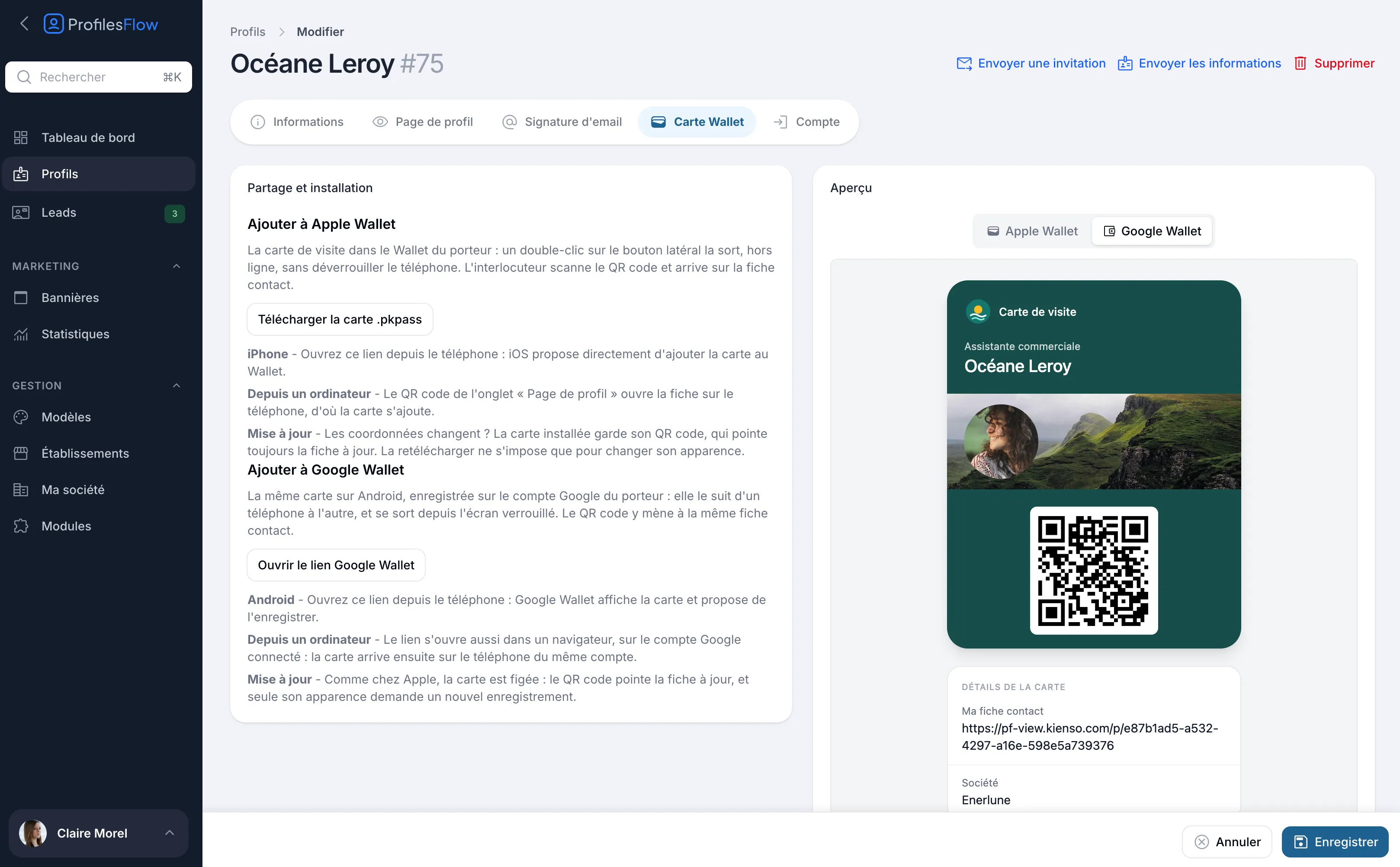
On iPhone: Apple Wallet
- On the iPhone, open the email “Your digital profile”, or your profile in the interface, Wallet card tab.
- Tap the Apple Wallet card link, or the Download the .pkpass card button.
- iOS shows the card and offers to add it: tap Add.
The card is then in the Wallet app.
On Android: Google Wallet
- On the Android phone, open the email “Your digital profile”, or your profile in the interface, Wallet card tab.
- Tap the Google Wallet link, or the Open the Google Wallet link button.
- Google Wallet shows the card and offers to save it: confirm.
The card is saved to your Google account: it follows you if you change phones.
From a computer
- Google Wallet: click Open the Google Wallet link in the browser, signed in to the same Google account as your phone. The card then arrives on that account's phone.
- Apple Wallet: the card is installed from the iPhone. The simplest way is to open the email “Your digital profile” on the iPhone and tap the card link there.
Show your card
- iPhone: double-clicking the side button brings up the card, without unlocking the phone. Scroll to your business card if you have other cards.
- Android: open Google Wallet, or bring up the card from the lock screen.
Hold out the screen to your contact: they scan the QR code with their phone camera.
Update your card
Your contact details change? There is nothing to do. The installed card keeps its QR code, which always points to your up-to-date contact card.
What is printed on the card itself (name, job title, photo, logo, colors) is fixed at installation. To show a change of this kind, reinstall the card: delete the old one from Wallet, then repeat the steps above.
The card's appearance (colors, logo, banner, QR code destination) is set in the template: see Customize the Wallet card.
Troubleshooting
The iPhone does not offer to add the card
Open the link in Safari rather than in another app's built-in browser (email app, social network). Also check that the link is the one for your profile.
The card's QR code leads to a page that cannot be found
The profile may have been disabled, or the company's subscription is suspended. See Share your profile page.
Good to know
The card is stored by Apple or Google in the phone's Wallet: these two companies are necessarily involved in this feature. There is no contactless (NFC) feature: the exchange is done through the QR code.