

Banners
Create and schedule a banner shown under every email signature and at the bottom of every profile page, then track its clicks.
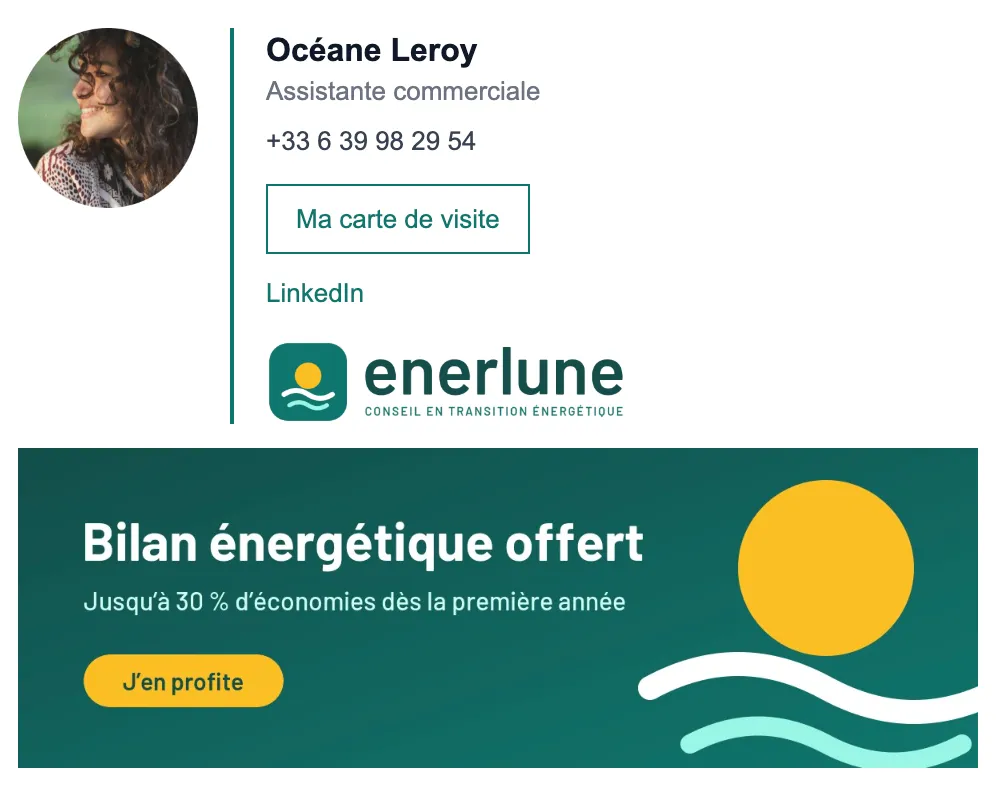
A banner is a clickable image shown under every email signature and at the bottom of every profile page of the company. This page explains how to create it, schedule it and track its results. You need the Editor or Administrator role.
How it works
- Only one banner is shown at a time, for the whole company.
- Changing campaigns means changing the banner once: all signatures and all pages follow, without anyone having to reinstall their signature.
- Each banner has a display period. So you can prepare several campaigns in advance.
Create a banner
- Open Marketing › Banners, then click New banner.
- In Details:
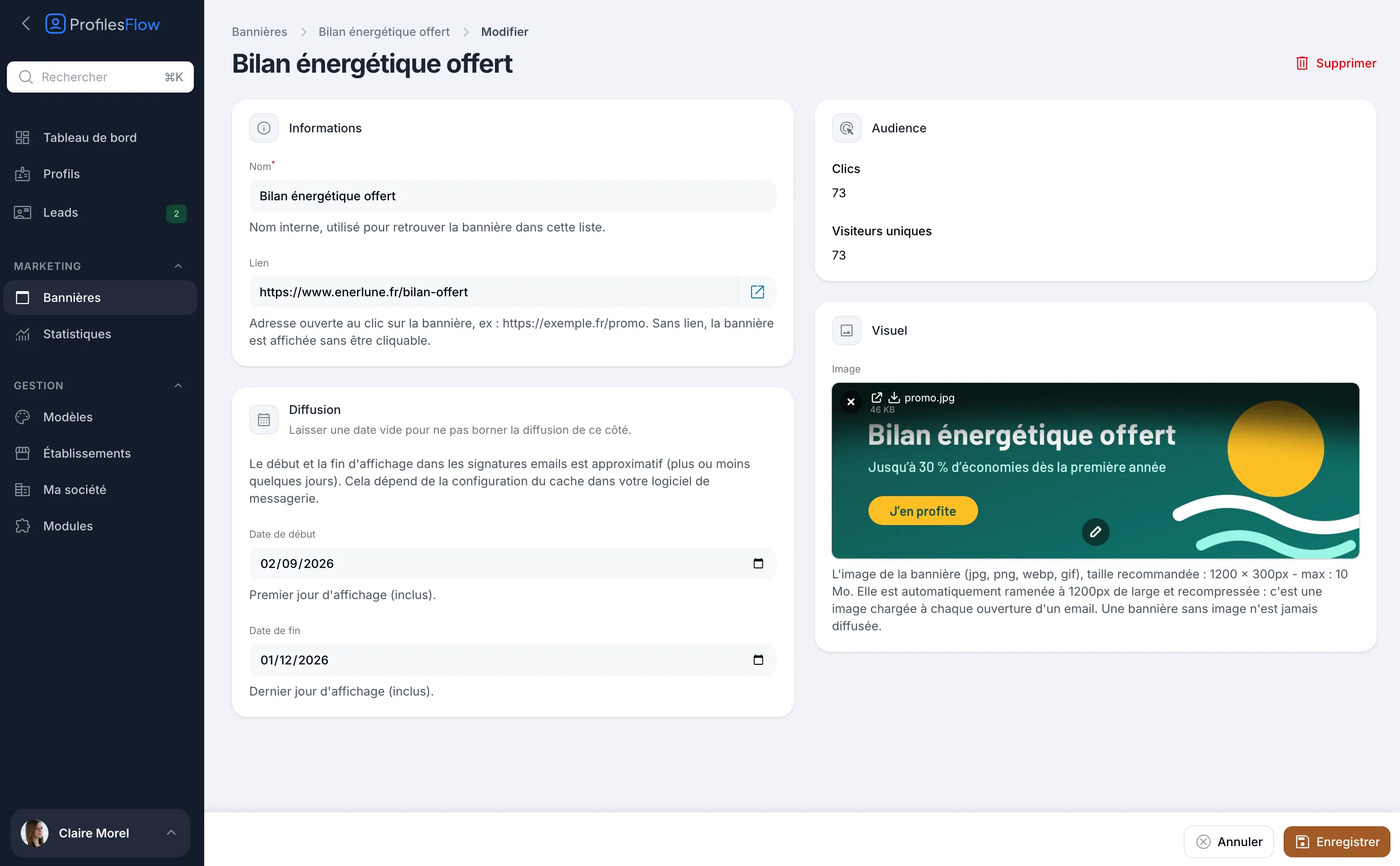
- Name: internal name, to find the banner in the list (it is not shown to recipients);
- Link: the address opened on click, for example the page for your offer. Without a link, the banner is shown without being clickable.
- In Schedule, fill in the Start date (first day of display, inclusive) and the End date (last day of display, inclusive). Leave a date empty for no limit on that side.
- In Image, upload the banner's Image.
- Click Save.
Prepare the image
- Accepted formats: jpg, png, webp, gif.
- Recommended size: 1200 × 300 px. Maximum file size: 10 MB.
- The image is automatically resized to 1200 px wide and recompressed: it is loaded each time an email is opened, so it must stay light.
- Put the main message in the center and in large type: the banner is often read on a phone, at a small size.
- A banner without an image is never shown.
Schedule and track the status
The banner list shows for each one its image, its dates, its clicks, its link and its Status:
| Status | Meaning |
|---|---|
| Scheduled | The start date has not arrived yet. |
| Running | The banner is within its display period. |
| Ended | The end date has passed. |
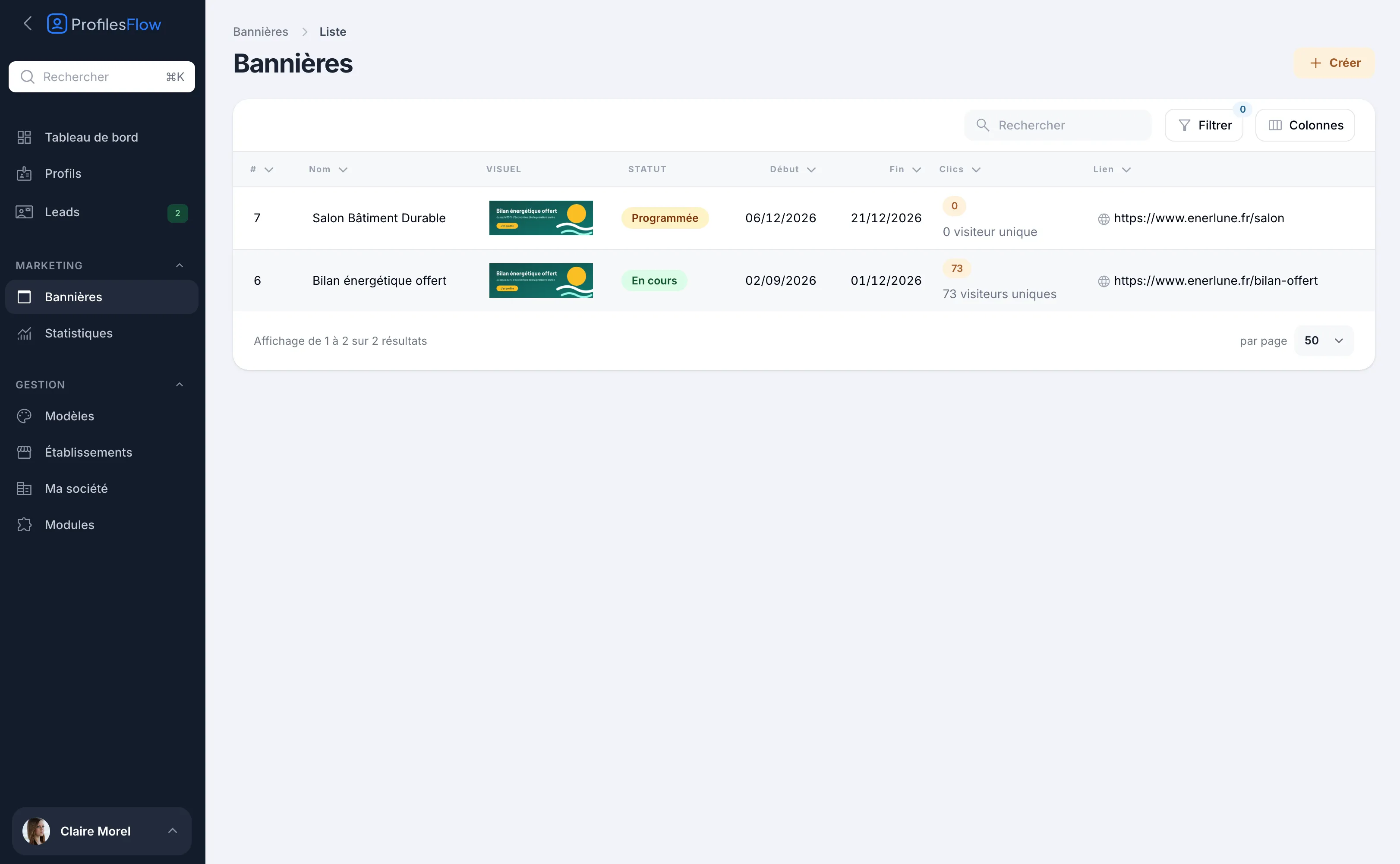
If several banners are running over the same period, the one whose start date is the most recent is shown. A banner without a start date comes after dated banners. This way you can keep a permanent banner, without dates, that a dated campaign replaces for the time it runs.
To stop a banner before its end date, bring its End date forward, or delete it (Delete button on its page).
Delay in email clients
On profile pages, the change is immediate. In email signatures, the start and end of display are approximate, give or take a few days: email software keeps images in cache according to its own configuration.
Special case of Gmail: when sending, Gmail copies the signature images to its own servers. An email already sent from Gmail therefore keeps the original banner; only emails sent afterwards carry the new one.
Track clicks
The Audience block of the banner's page shows:
- Clicks: the number of clicks on the banner, from profile pages and signatures;
- Unique visitors: the number of distinct people who clicked.
The same figures appear in the Clicks column of the list. For an overview over a period, see Analytics. The dashboard also shows the Running banners.
Troubleshooting
The banner is not shown
- Check that an image has been uploaded in Image.
- Check its status: a Scheduled or Ended banner is not shown.
- Check that no other running banner has a more recent start date.
- If the banner appears on the profile page but not in a signature installed by hand, compare with the preview in the profile's Email signature tab, then reinstall the signature if needed: see Install your email signature.
The old banner still appears in some emails
This is the cache of the recipient's email client, or an email already sent from Gmail (see above). The change happens on its own within a few days.