

The dashboard
Read the dashboard indicators and spot the profiles to complete.
The dashboard is the first page shown after signing in. It summarizes the activity of the last 30 days, the state of your profiles and what remains to be completed. Administrators and editors see the whole company there.
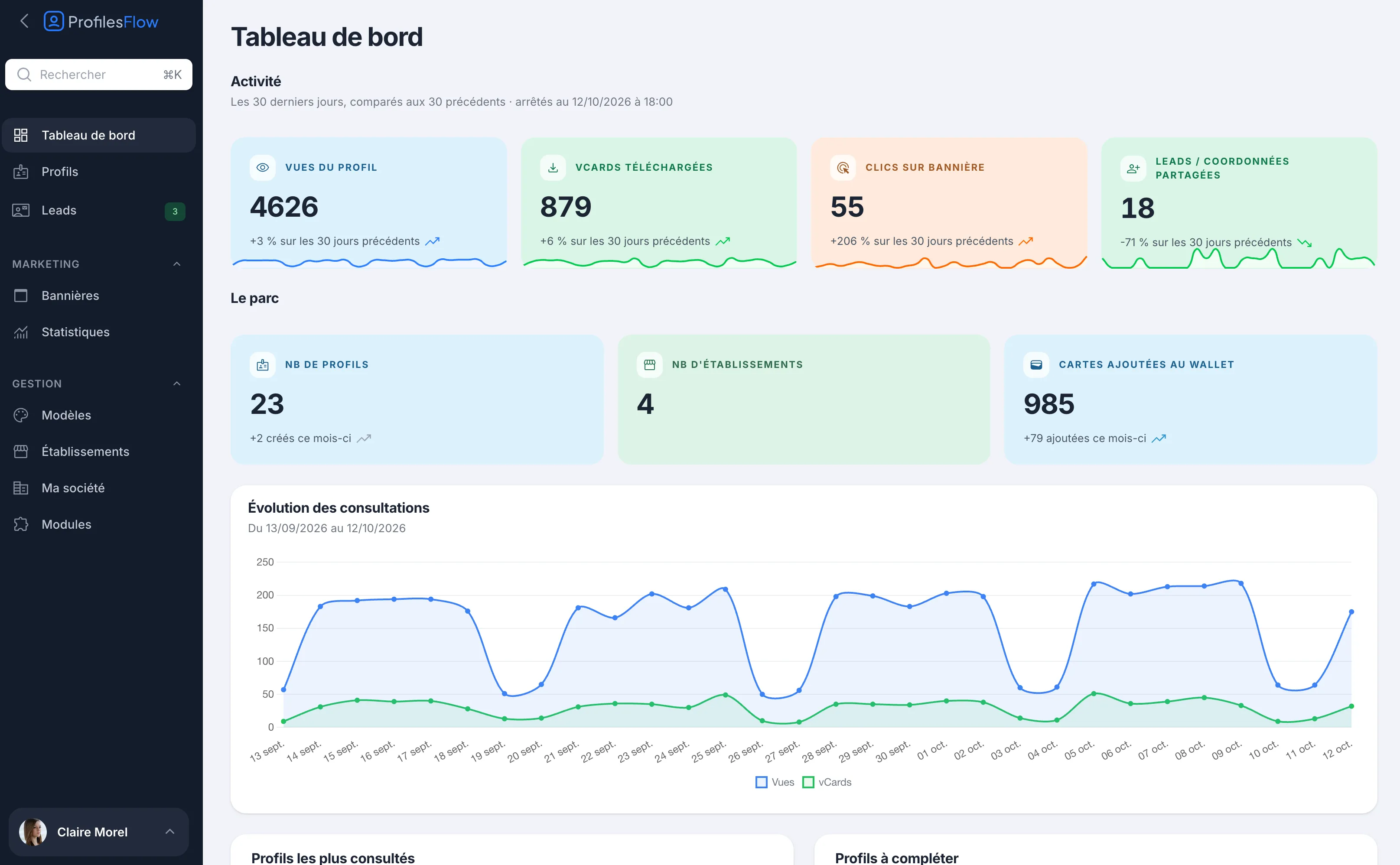
Activity
The four indicators at the top cover the last 30 days, compared with the previous 30 days. The trend (for example “+6% vs. the previous 30 days”) and the small curve show which way things are moving.
- Profile views: number of times the profile pages were viewed.
- vCards downloaded: number of times a visitor saved an employee to their phone's contacts.
- Banner clicks: clicks on the marketing banner, in signatures and on profile pages.
- Leads / Shared contact details: contact details left by visitors.
The “as of …” mention shows the time of the last calculation. The figures are refreshed about every 5 minutes.
Overview
- Profiles: active profiles, with the number created this month.
- Establishments.
- Cards added to Wallet: cards installed in Apple Wallet or Google Wallet, with those added this month.
Visits over time
The curve shows, day by day over the period, the profile page views and the vCards downloaded.
Most viewed profiles
The ranking of profiles by number of views over the period, with the number of vCards downloaded. Click the Views or vCards header to change the sort order, and Next to see more.
Profiles to complete
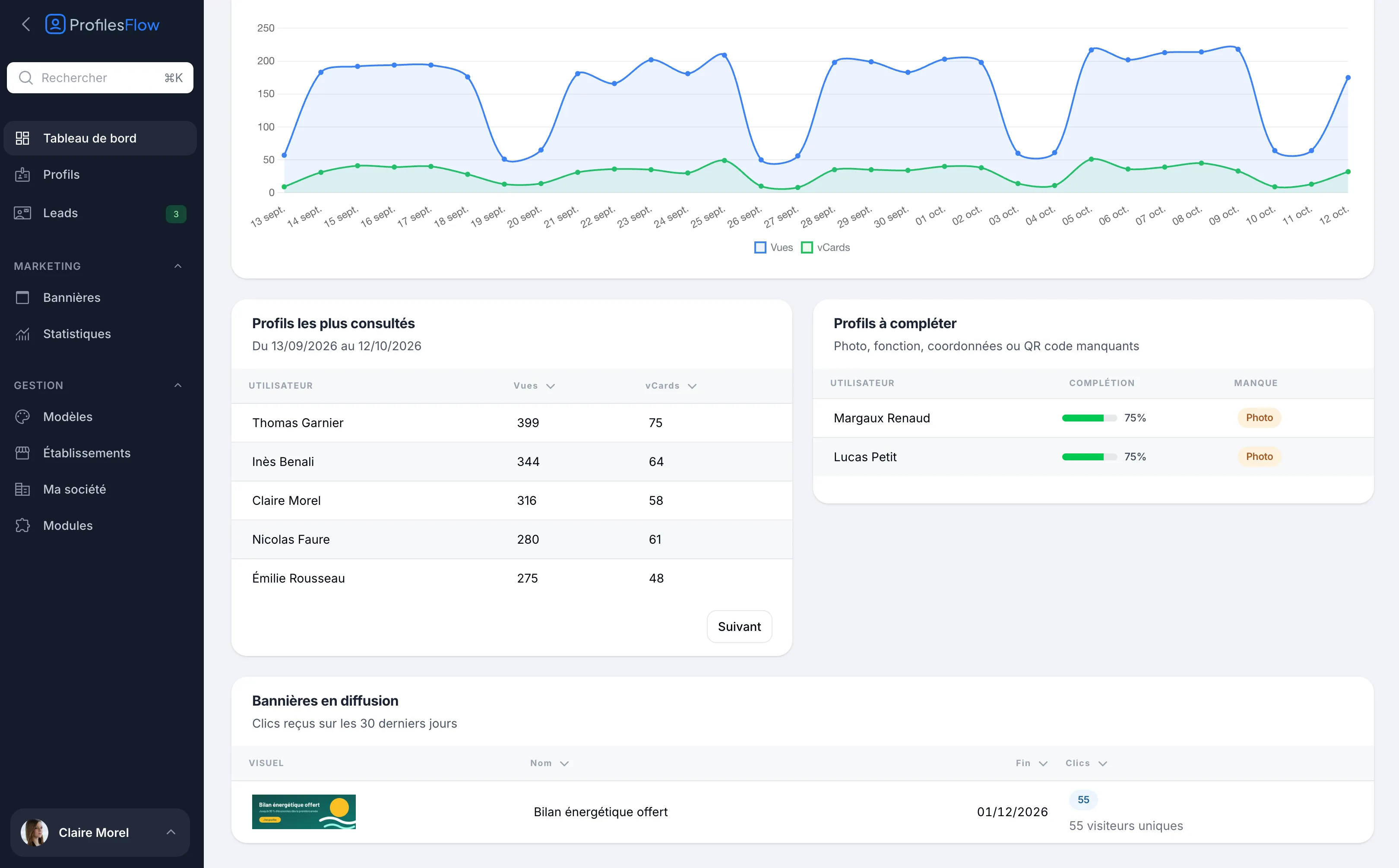
This box lists the profiles that are missing an item. For each one:
- Completion: the percentage of items present;
- Missing: what is lacking.
Four items are checked:
| Missing | How to complete it |
|---|---|
| Photo | Add a photo in the profile's Information tab, or ask the employee to upload it from My account. |
| Job title | Fill in the profile's Job title field. |
| Contact details | Add at least one displayed email, phone number, social network or link. |
| QR code | The profile has no template: check your templates' assignment rules. |
When everything is complete, the box shows “All profiles are complete”.
To fix a profile, open it from Profiles: see Create a profile and Phones, social networks and links.
Running banners
The marketing banner or banners currently running, with their end date and the clicks received over the last 30 days (and the number of unique visitors). See Banners.
For an employee with the User role
A person who only has access to their own profile sees a My profile box instead of the overview figures. It shows their views over the period, a View my page button, and a Share menu: download their vCard, open their email signature or their QR code, add their card to Apple Wallet or Google Wallet.
Going further
To filter by period or by profile, and see the devices and systems your visitors use, open Marketing › Statistics: see Analytics.