

The signature editor
Compose a template's email signature with blocks, columns, variables, cell settings and an exact preview.
The signature editor composes the layout of a template's signature, with drag-and-drop blocks. What you compose there applies to all the profiles linked to the template, each with its own data. Role required: Editor or Administrator.
To open it: Management › Templates, open the template, Email signature tab, then Open the signature editor.
Overview
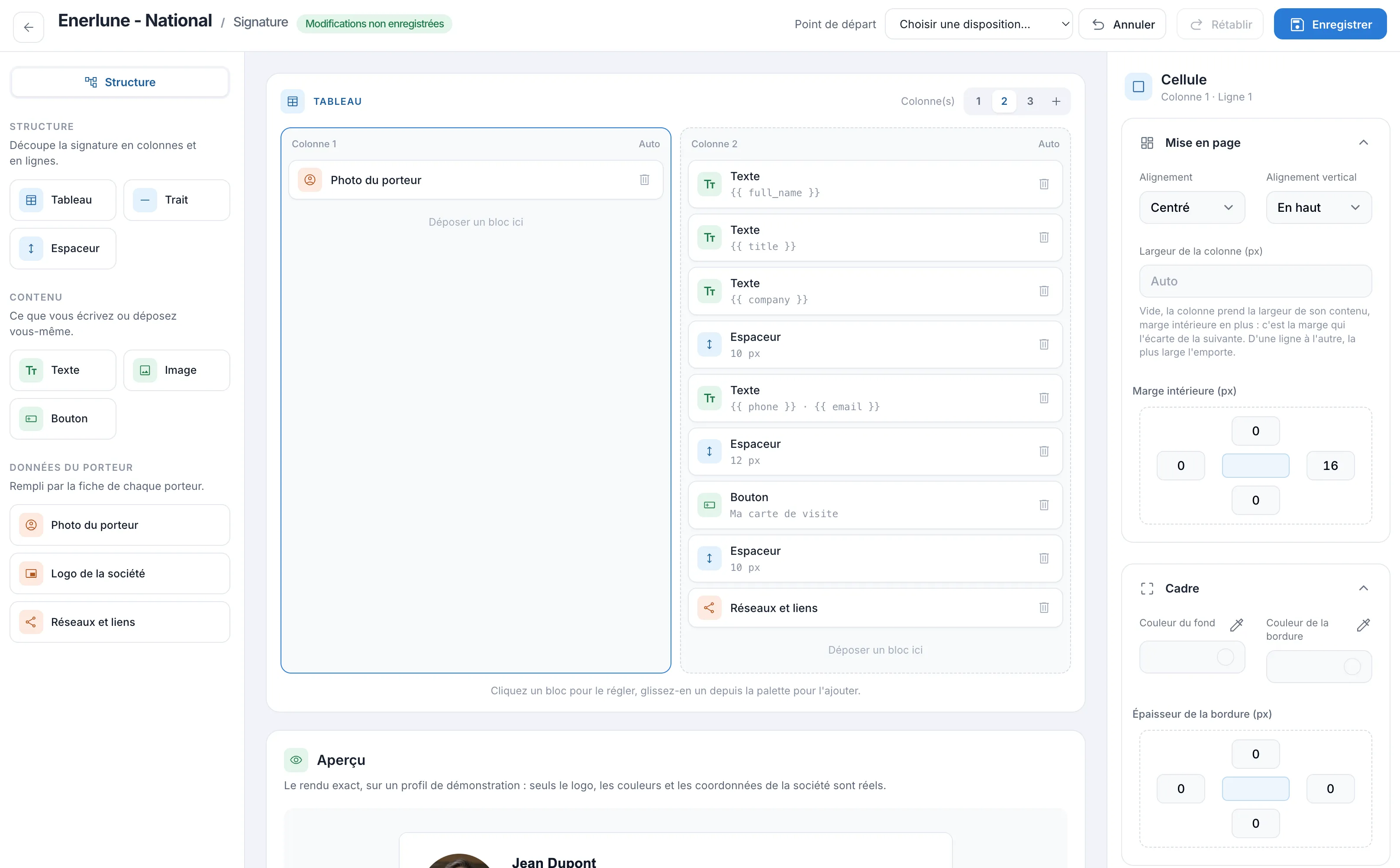
The editor takes up the whole screen: the block palette on the left, the canvas in the center (the signature table, then the Preview), the settings of the selected block or cell on the right. At the top: the Starting point list and the Undo, Redo and Save buttons. The “Unsaved changes” notice reminds you that there is still something to save.
Start from a layout
The Starting point list offers five ready-made layouts (Text only, Photo on the left, Photo and logo, Logo on top, Standalone card). Choose one, then confirm: it replaces what was composed, and can then be adjusted freely.
The palette
Three families of blocks:
| Family | Blocks | Use |
|---|---|---|
| STRUCTURE | Table, Line, Spacer | split the signature into columns and rows, draw a divider, add space |
| CONTENT | Text, Image, Button | what you write or upload yourself |
| PROFILE DATA | Profile photo, Company logo, Networks and links | filled in from each person's profile |
To add a block:
- drag it from the palette and drop it into a column, where you want it (“Drop a block here”);
- or click it: it is added to the selected cell.
Data blocks fill themselves in: the Profile photo disappears when the profile has none; the Company logo is the template's signature logo, or else the profile page logo; Networks and links uses those of the profile, or else the template's, written out in full because Gmail removes vector icons.
Columns and blocks
The TABLE in the center holds the signature. The Column(s) selector (1, 2, 3, or + for more) sets its number of columns. Reducing the number of columns deletes the blocks in the removed columns: you are asked to confirm.
On the canvas, click a block to configure it, drag it to move it (within its column or to another one), and use its trash icon to delete it. The Structure button, at the top of the palette, shows the tree of tables, columns and blocks.
Variables in a Text block
A Text block can contain variables, replaced for each person by the data from their profile. For example:
| Variable | Replaced by |
|---|---|
{{ full_name }} |
the first and last name |
{{ title }} |
the job title |
{{ company }} |
the template's company name |
{{ phone }} |
the mobile number, or else the direct line |
{{ email }} |
the displayed email, or else the account's |
There are others: first name, last name, mobile, direct line, establishment, address, city, postcode, profile page URL. To insert one, select the Text block and choose it in Insert a token, on the right: it is added at the end of the text.
A line whose variables are all empty disappears, separators included. Example: the line {{ phone }} · {{ email }} stays clean for an employee without a phone number.
Settings
Depending on what is selected, the right-hand panel offers:
- Cell: Alignment, Vertical alignment, Column width (px) (when empty, the column takes the width of its content), Padding (px) on each side, Background colour, Border colour, Border width (px).
- Text: size, line height, bold, italic, color, alignment, and Hide if empty.
- Image: uploaded image or URL of an online image, alt text, Link on click, width.
- Button: Label (by default “Ma carte de visite”), Destination (profile page, vCard contact file or custom URL), colors and corner radius.
- Profile photo: width and Photo shape (round or square).
- Line: color and thickness. Spacer: height.
A few email client limitations, flagged in the settings: Outlook on Windows ignores rounded corners and shadows.
Check the preview
Below the canvas, the Preview shows the exact rendering on a sample profile (only the logo, colors and company details are real). It follows every change.
Undo, redo, save
- Undo reverses the last change, including applying a layout. Redo applies it again.
- Save applies the signature to all the template's profiles.
Signatures already copied by hand into an email client do not change by themselves: see Customize the signature.