

Create a profile
Find your employees in the profile list, create a profile and fill in the Information tab.
A profile is an employee's record. From it, Profiles Flow generates their profile page, their email signature and their Wallet card. Creating and editing the company's profiles requires the Editor or Administrator role. A User only sees and edits their own profile.
The profile list
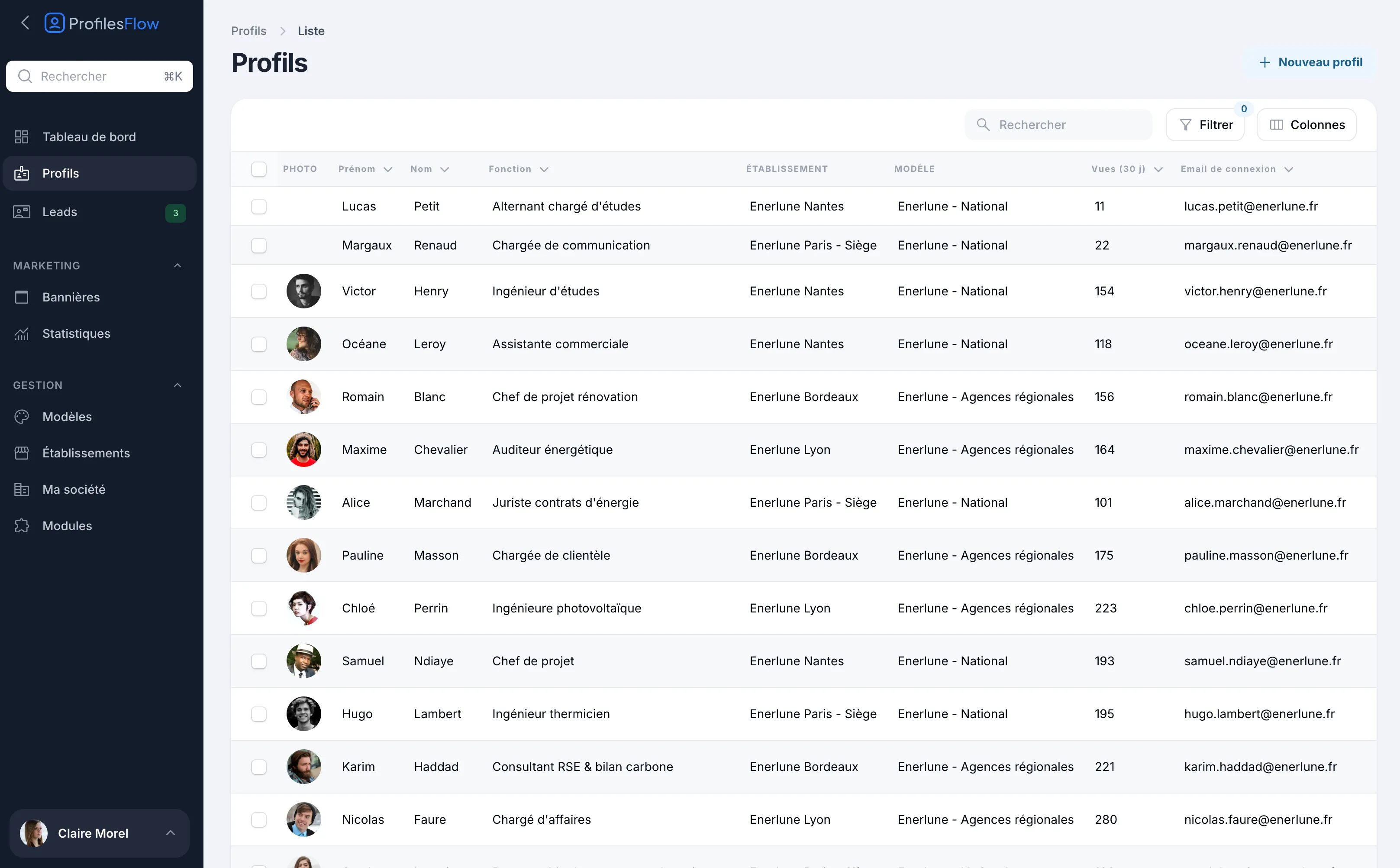
Open Profiles in the sidebar. For each profile, the list shows:
- Photo, First name, Last name, Job title;
- Establishment and the Template applied;
- Views (30 d): views of their profile page over the last 30 days;
- Sign-in email.
To find your way around:
- Search: by last name or first name;
- Filter: by establishment, template, role, or active profiles;
- Columns: choose which columns are shown;
- click a column header to sort.
Check several profiles to send them their details or an invitation in one go (see Invite and send information).
The Import button appears at the top of the list when the import module is enabled: see Profile import.
Create a profile
- In Profiles, click New profile.
- Fill in the Information tab (at least First name and Last name).
- If the person needs to sign in to the interface, set up the Account tab (see Access and roles). Otherwise, leave it as it is: by default, the person has their card but does not sign in.
- Click Save.
The profile then opens in edit mode. This is when:
- the template is applied, according to the assignment rules;
- the Photo box appears;
- the Profile page, Email signature and Wallet card tabs become available.
The Information tab
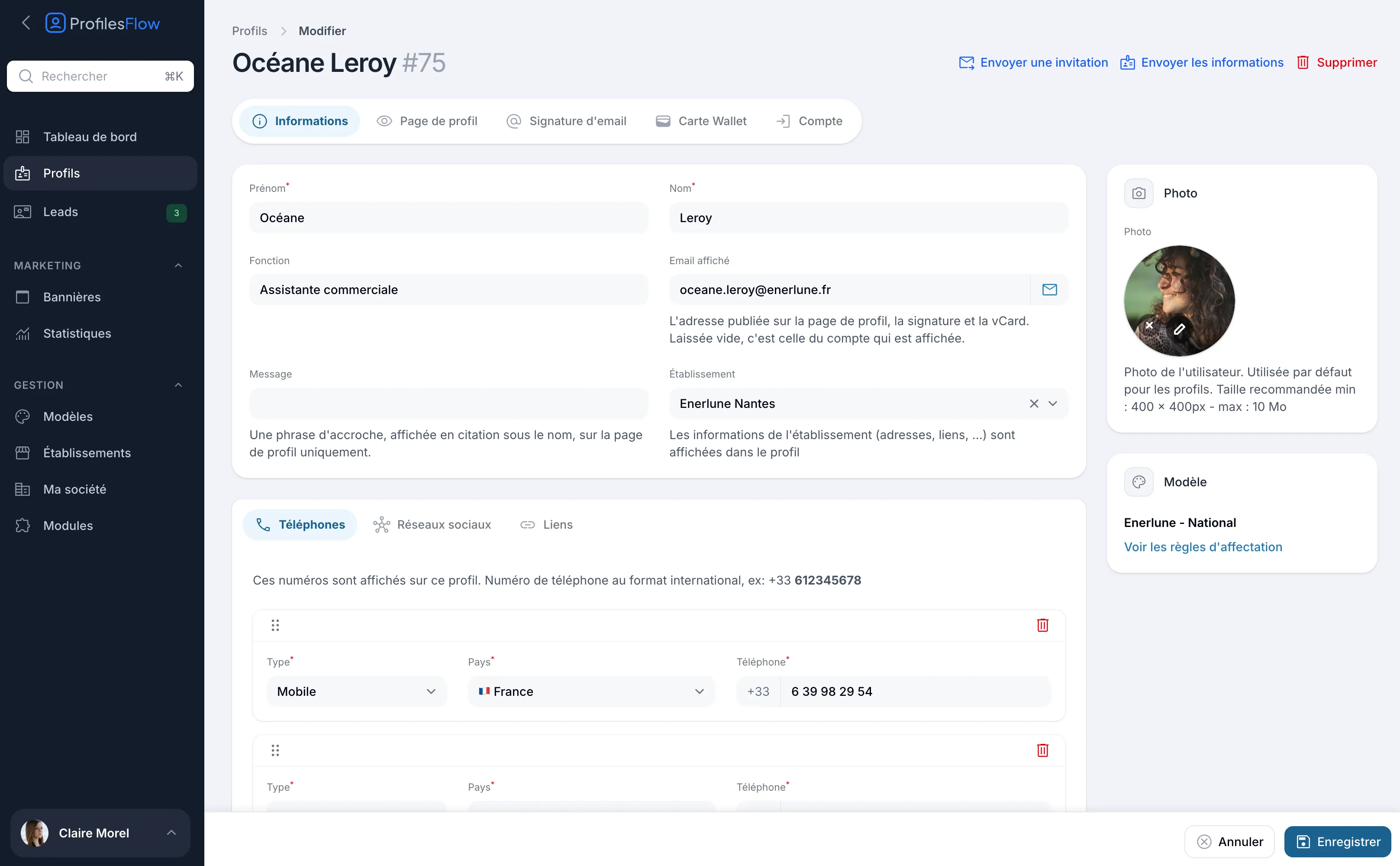
- First name and Last name (required).
- Job title: shown under the name, on the profile page, the signature and the Wallet card.
- Displayed email: the address published on the profile page, the signature and the vCard. If left empty, the account's sign-in email is shown. Useful to show an address different from the one used to sign in.
- Message: a tagline, shown as a quote under the name, on the profile page only. For example “Looking forward to talking with you”.
- Establishment: the site the person is attached to. Its address and contact details are shown on the profile page (see Establishments).
Below these fields, three tabs hold the person's own contact details: Phones, Social networks and Links. See Phones, social networks and links.
Add a photo
- Open the profile (the photo can be added once the profile is saved).
- In the Photo box, on the right, drop the image or click to choose it.
- Save.
Accepted formats: jpg, png, gif, webp. Recommended size: at least 400 × 400 px, 10 MB maximum. The photo is cropped to a square and shown as a circle on the profile page, the signature and the Wallet card: center the face well.
The employee can also upload their photo themselves from My account if they have access to the interface (see Sign in).
The Template box
It shows the template that styles this profile. The template is not chosen on the profile: it follows from the templates' assignment rules. The View the assignment rules link opens the rules of the applied template directly.
If the box shows “No rule claims this card”, the profile has no public page, no signature and no Wallet card. Adjust a template's rules to include it.
Save and keep track of your changes
Every change is saved with Save, at the bottom right. Cancel discards the changes in progress.
After saving, the profile page is updated immediately, at the same address: a link already shared or a QR code already printed remains valid.
Grayed-out fields marked “Directory”
If your company syncs its profiles with its directory (Active Directory module), some fields are managed by the directory and can no longer be edited from the profile. Edit them in the directory: the next sync will pick them up.