

Access and roles
Grant access to the management interface, choose a role and tell the sign-in email apart from the displayed email.
Having a card and signing in to the management interface are two separate things. By default, a profile has its page, its signature and its Wallet card, without access to the interface. The profile's Account tab controls this access. It is visible to editors and administrators; only administrators assign roles.
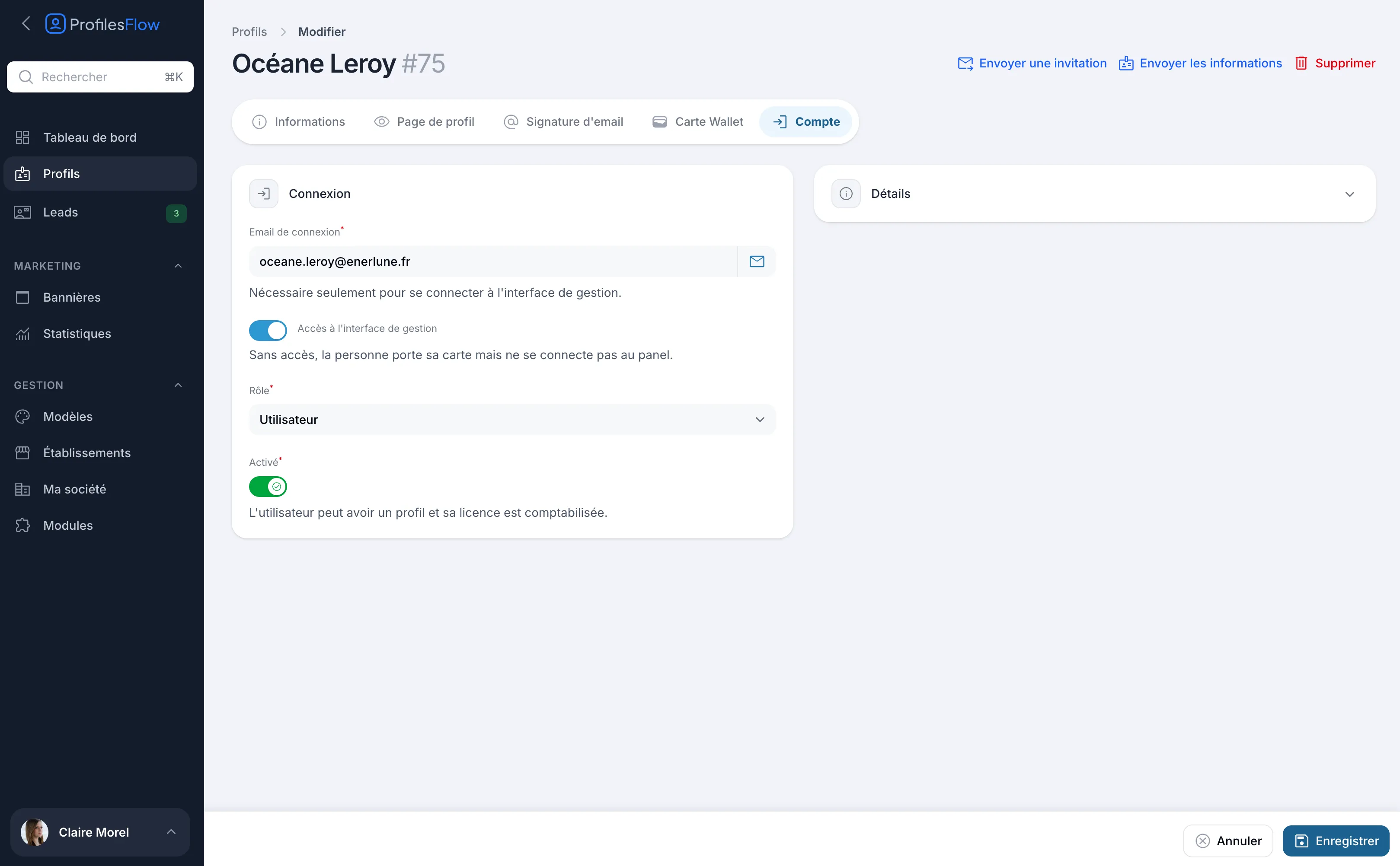
Roles
| Role | What it allows |
|---|---|
| None (access to the interface turned off) | The person has their profile page, their signature and their Wallet card, but does not sign in. This is the case for most employees. |
| User | Signs in, sees and updates their own profile: photo, job title, contact details. |
| Editor | Manages all the company's profiles, templates, banners and establishments. Does not assign roles. |
| Administrator | Everything the Editor does, plus: My company, Modules, Subscription, and assigning roles. |
An administrator cannot assign a role higher than their own. The person who registered the company is its first administrator. Plan for at least a second administrator, so you do not depend on a single person.
Grant access to the interface
- Open the profile in Profiles, Account tab.
- Fill in the Sign-in email (required as soon as access is granted).
- Turn on Access to the management interface. The role switches to User.
- If needed, choose another Role from the list.
- Click Save.
- Click Send an invitation to let the person know (see Invite and send information).
The person then signs in with a code received at their sign-in email, or with a passkey: see Sign in.
Change the role or remove access
- Change the role: choose the new Role, then save.
- Remove access: turn off Access to the management interface, then save. The role goes back to None. The person keeps their page, their signature and their Wallet card, but can no longer sign in.
For an employee who leaves the company, see Enable or disable a profile instead.
An editor sees the role as read-only. No one can change their own role from their profile.
Sign-in email and displayed email
A profile can hold two addresses:
| Field | Tab | Used to |
|---|---|---|
| Sign-in email | Account | sign in to the interface (sign-in codes, invitation). Nothing else. |
| Displayed email | Information | be published on the profile page, the signature and the vCard. |
If the Displayed email is empty, the sign-in email is published.
Examples:
- Claire signs in with claire.morel@enerlune.fr and displays it too: fill in only the sign-in email.
- A salesperson must display the shared address commercial@enerlune.fr but sign in with their own: fill in both.
- An employee without access to the interface: the sign-in email is not required, fill in only the Displayed email.
A sign-in address can only belong to one account.
The Enabled toggle
The Account tab also holds the Enabled toggle, which decides whether the profile is published and billed. It is explained in Enable or disable a profile.
The Details panel
The Details panel, to the right of the Account tab, shows the date the profile was created, its last update and the person's last sign-in.