
Microsoft 365
Create and keep profiles up to date from the company's Microsoft 365 users, and disable those of people who have left.
The Microsoft 365 module reads the users of the company's Microsoft 365 account (Microsoft Entra ID) and keeps their profiles up to date: it creates those of newcomers, updates information and disables those of people who have left. This page can be passed on as is to the Microsoft 365 administrator.
Who does what
| Step | Who |
|---|---|
| Enable and configure the module, test, synchronize | A Profiles Flow Administrator |
| Authorize Profiles Flow to read the users, once and for all | A Global Administrator of the company's Microsoft 365 |
If the Global Administrator has no account in Profiles Flow, send them the link of the Authorise in Microsoft 365 button.
Prerequisites
- Email and accounts on Microsoft 365.
- A Global Administrator of the company's Microsoft 365, for the authorization.
- In Profiles Flow, a verified login address of the company that is an account of this Microsoft 365: this is what proves that the Microsoft account really belongs to the company.
- The establishments exist in Profiles Flow, under the name carried by the Office field in Microsoft 365 (see below). See Establishments.
1. Authorize Profiles Flow in Microsoft 365
- Open Management › Modules › Microsoft 365.
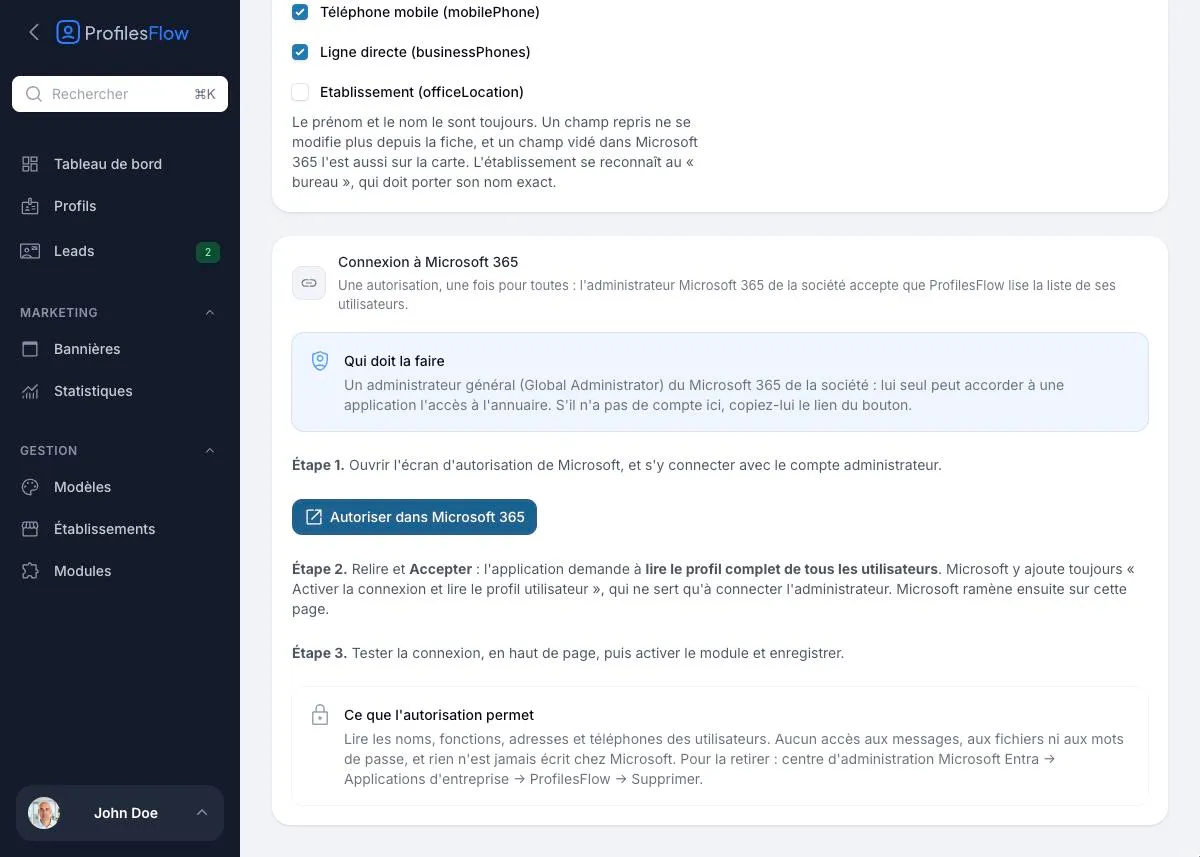
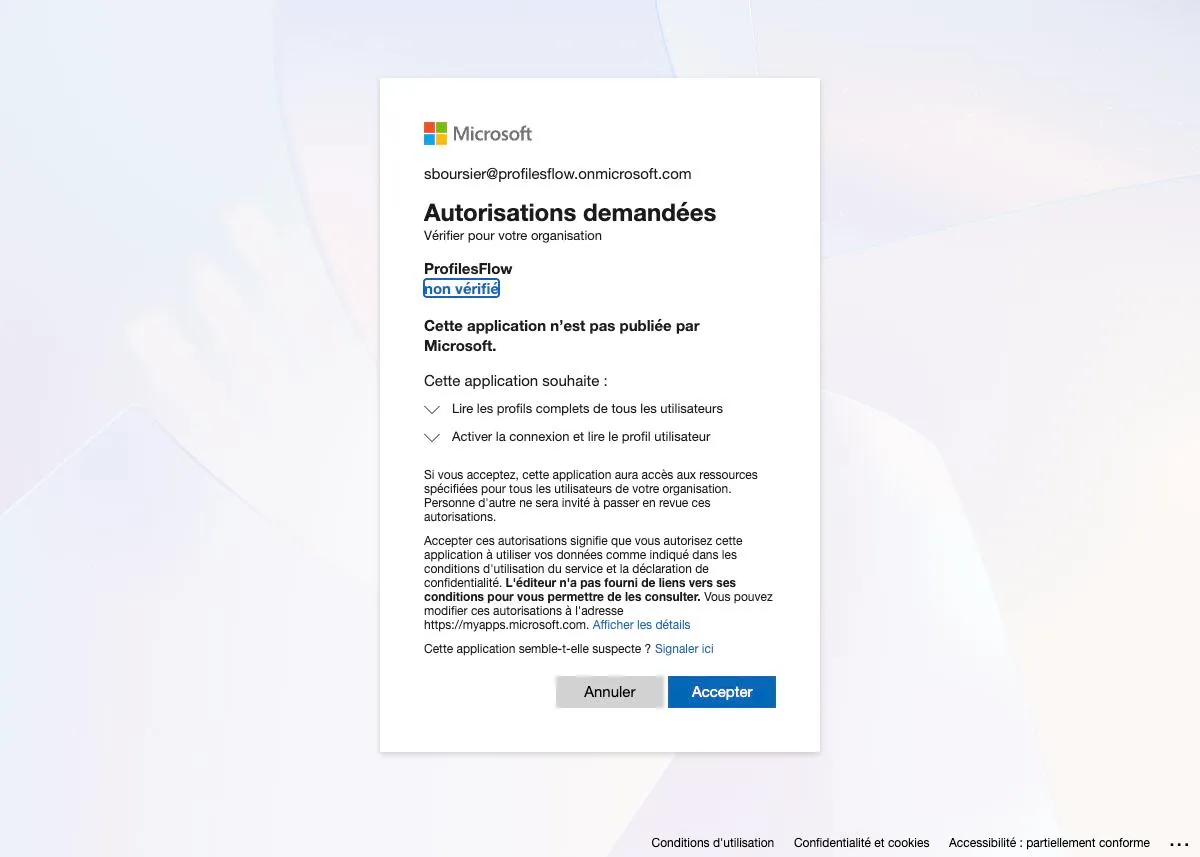
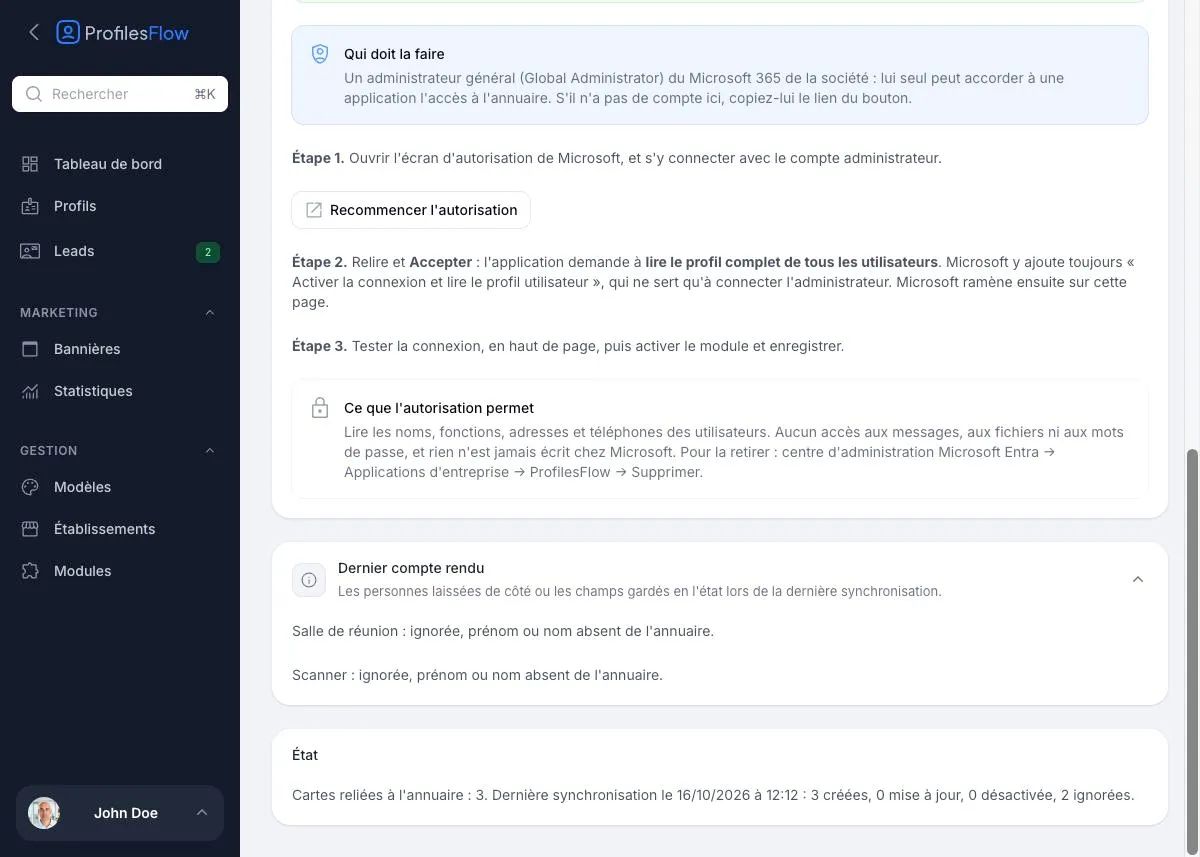
- In the Connection to Microsoft 365 section, click Authorise in Microsoft 365, and sign in at Microsoft with the Global Administrator account.
- Review the request, then click Accept. Profiles Flow asks to read all users' full profiles. Microsoft always adds “Sign you in and read your profile”, which is only used to sign the administrator in. The “unverified” notice shown by Microsoft is normal.
- Microsoft brings you back to the module page, with the notification Microsoft 365 linked. The section then shows Linked to Microsoft 365 and the Microsoft account identifier (tenant).
Microsoft may take a few minutes to apply the authorization: if the connection test fails straight away, try again a little later.
2. Choose the fields taken over
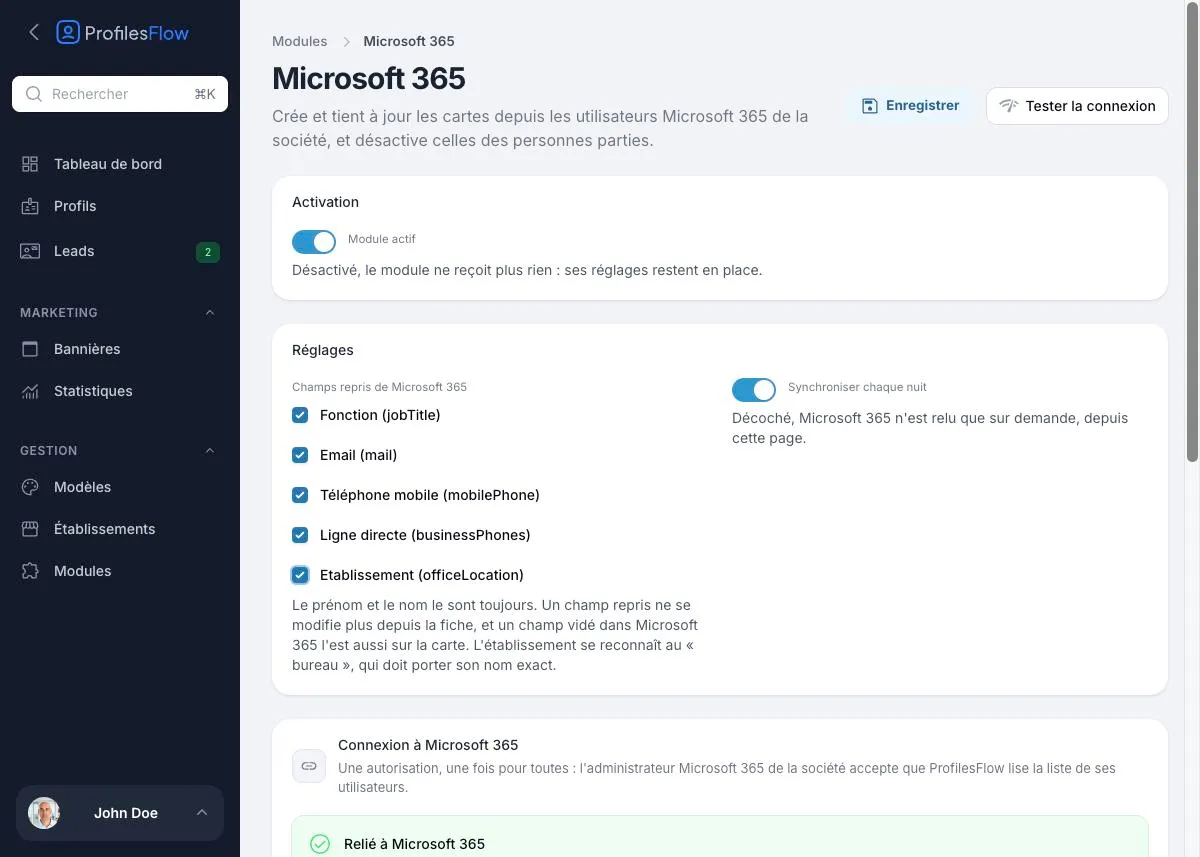
In Fields taken from Microsoft 365, check what the profiles take over:
| Profile field | Microsoft 365 field | Default |
|---|---|---|
| First name | First name (givenName) |
always taken over |
| Last name | Last name (surname) |
always taken over |
| Job title | Job title (jobTitle) |
checked |
Email address (mail) |
checked | |
| Mobile phone | Mobile phone (mobilePhone) |
checked |
| Direct line | Office phone (businessPhones, the first one) |
checked |
| Establishment | Office (officeLocation) |
unchecked |
- A field taken over can no longer be edited from the profile form, and a field emptied in Microsoft 365 is emptied on the profile too.
- The establishment is matched by the Office, which must carry the exact name of a Profiles Flow establishment.
- Synchronise every night: when unchecked, Microsoft 365 is only read on demand, from this page.
3. Test, enable, then synchronize
- Click Test the connection, at the top of the page. The test reads the users without writing anything and shows Connection established with the number of people the synchronization will take over, and a few examples as their profile will show them. Accounts without a first or last name, which will not get a profile, are counted separately: “2 accounts without a first or last name will be skipped”.
- Turn on Module enabled, then click Save.
- Click Synchronise now, then confirm: the profiles of the people in Microsoft 365 will be created or updated, and those of people no longer in it will be disabled.
- The report is shown at the bottom of the page once Microsoft 365 has been read: the Status block shows the profiles created, updated, deactivated and skipped, and the Latest report lists the people left out and the rejected values.
With Synchronise every night, synchronization then runs every night at around 2:30 a.m.
Who gets a profile
- Taken over: the active accounts that are members of the company's Microsoft 365, with a first and last name.
- Left out: disabled accounts (former employees, shared mailboxes) and guests, who come from another organization.
- Skipped and flagged in the report: active accounts without a first or last name, such as a meeting room or a scanner. To give one of them a profile, fill in its first and last name in Microsoft 365.
Billing: each person taken over has an active profile, counted in the subscription. See Subscription and billing.
How synchronization behaves
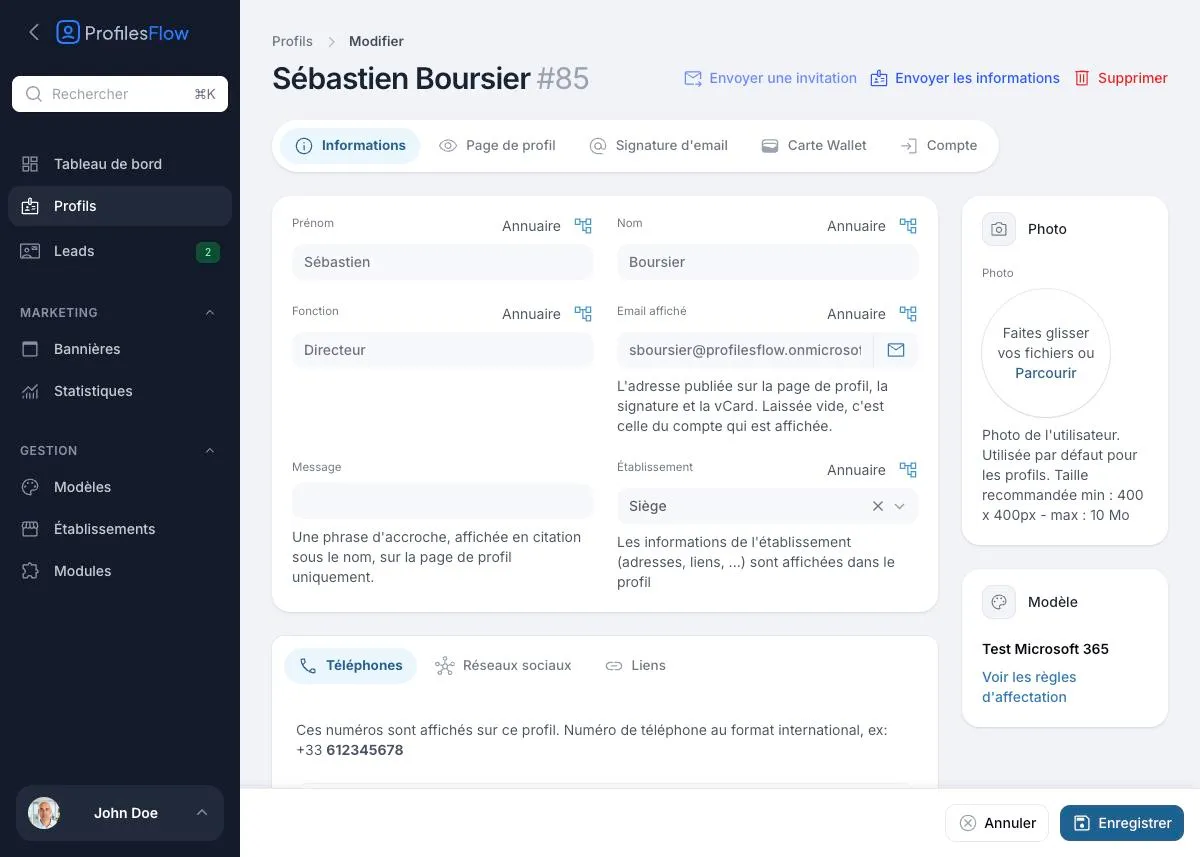
- Microsoft 365 prevails. Fields taken over carry the Directory mention on the profile form and can no longer be edited there: they are edited in Microsoft 365 and follow at the next synchronization.
- No duplicates. On the first synchronization, an existing profile with the person's email address is linked to them instead of being created again. A company moving from Active Directory to Microsoft 365 keeps its profiles.
- Disabling, never deleting. A person no longer returned by Microsoft 365 (account deleted or disabled) has their profile disabled. It comes back as it was if the person comes back. A profile deleted by hand is never created again.
- Safeguard. If Microsoft 365 returns no one, nothing is disabled.
- Rejected values. A malformed or already used address, an unknown establishment, an unrecognized number: the field keeps its previous value and the issue appears in the report.
- One directory at a time. Microsoft 365 cannot be enabled while another directory module (Active Directory) is active.
- Created profiles have no access to the management interface; their template comes from the assignment rules.
Security
- Profiles Flow reads the users' names, job titles, addresses and phone numbers. No access to messages, files or passwords, and nothing is ever written at Microsoft.
- No Microsoft password is entered or stored in Profiles Flow: access relies on the authorization granted by the Global Administrator.
- A Microsoft 365 account can only be linked to a single company in Profiles Flow.
- Revoke access: Microsoft Entra admin center › Enterprise applications › ProfilesFlow › Delete. Profiles stay in place, without updates.
Troubleshooting
| Message | What to do |
|---|---|
| Authorisation not granted | Microsoft did not confirm the authorization. Start again with a Global Administrator account. |
| No verified login address of your company is an account of this tenant | First sign in to Profiles Flow with an address of this Microsoft 365, then run the authorization again. |
| This Microsoft 365 tenant is already linked to another company | This Microsoft account is already used by another Profiles Flow company: contact support. |
| The application has not received consent from this tenant, or the authorization has been revoked | Click Run the authorisation again. |
| The test fails just after the authorization | Microsoft may take a few minutes to apply it: try again a little later. |
A person has no profile
Check in Microsoft 365 that their account is active, that it is a member of the organization and not a guest, and that it carries a first and last name. The Latest report shows why a person was skipped.
A field can no longer be edited on the profile
This is normal: it is taken from Microsoft 365. Change it in Microsoft 365; it will be picked up at the next synchronization.
An establishment is not picked up
The Office carried by Microsoft 365 must match the establishment's name in Profiles Flow, and the Establishment box must be checked. Correct it, then run Synchronise now again.