

Assignment rules
Decide which profiles a template applies to, with scope, exceptions and tie-breaking, illustrated by an example with two templates.
Assignment rules decide which profiles use a template. The template is not chosen on an employee's profile: it follows from these rules, set once for the whole company. Required role: Editor or Administrator.
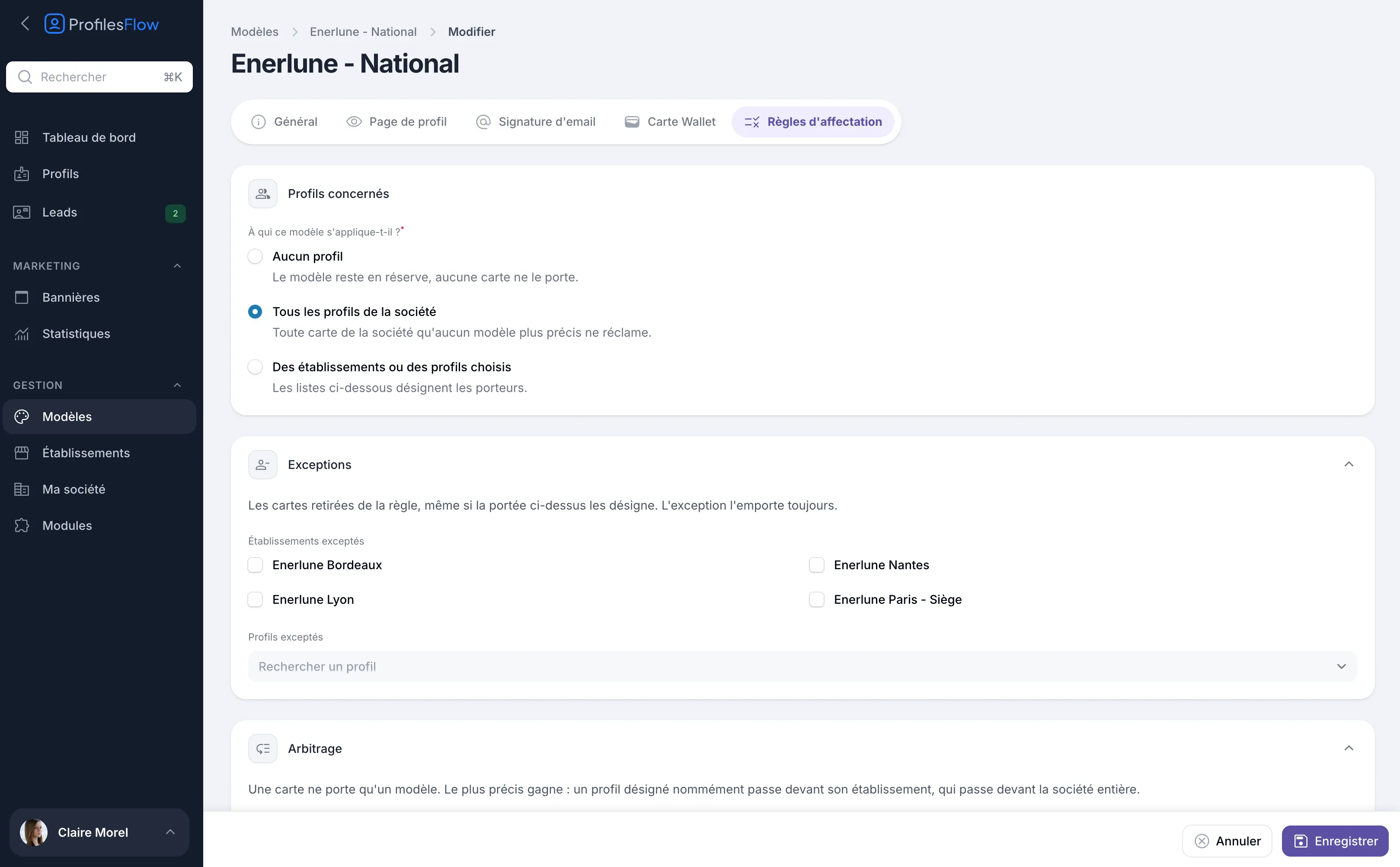
Set a template's rules
- Open Management › Templates, then the template, Assignment rules tab. From the list, the icon at the end of the row takes you straight there.
- Choose the scope in Profiles concerned (see below).
- Add Exceptions if needed.
- Set the Priority if needed, under Tie-breaking.
- Click Save.
A notification shows how many cards have changed template. The Cards using it field gives the number of profiles that use this template.
Profiles concerned: the scope
To the question “Who does this template apply to?”, there are three answers:
- No profile: the template is kept in reserve, no card uses it. This is the setting of a new template.
- All the company's profiles: every card in the company not claimed by a more specific template. This is the default template.
- Selected establishments or profiles: two lists appear.
- Establishments: check them; all cards attached to these establishments use the template.
- Profiles: search for people and add them one by one. They take precedence over any other rule.
Exceptions
Exceptions remove cards from the rule, even if the scope includes them. The exception always wins.
- Excluded establishments: check the establishments to exclude.
- Excluded profiles: search for the people to exclude.
A card excluded from a template is picked up by another template that claims it, most often the one set to All the company's profiles.
Tie-breaking: when two templates claim the same card
A card uses only one template. When several templates claim it, the most specific one wins:
- a profile named individually comes before...
- ... its establishment, which comes before...
- ... the whole company.
When they are equally specific (two templates that name the same establishment, for example), the Priority decides: the lowest number wins. By default, it is 0.
When the rules apply
- when a template's rules are saved;
- when a profile is created, once the profile is saved;
- when a profile's establishment changes.
On the profile, the Template box shows the result. If it says “No rule claims this card”, the profile has no profile page, no signature and no Wallet card: adjust the rules to include it.
Example: two templates at Enerlune
The fictitious company Enerlune has four establishments: Paris - Siège (head office), Lyon, Bordeaux and Nantes. It wants one look for the head office and another, more editorial, for its Lyon and Bordeaux branches.
| Template | Scope | Exceptions |
|---|---|---|
| Enerlune - National | All the company's profiles | none |
| Enerlune - Agences régionales | Selected establishments or profiles: Enerlune Lyon, Enerlune Bordeaux | none |
Result:
- an employee in Lyon is claimed by both templates. “Agences régionales” names them through their establishment, “National” only through the company: Agences régionales wins;
- an employee in Nantes or Paris is claimed only by National;
- a new employee created in Bordeaux automatically gets Agences régionales.
An exception
Claire Morel, attached to Lyon, represents the company nationally and must keep the head office look. In Enerlune - Agences régionales, add her to Excluded profiles, then save. Excluded from this template, she is picked up by National, which claims all the company's profiles.
An establishment that changes template
Nantes joins the regional branches: check Enerlune Nantes in the Establishments of the “Agences régionales” template, then save. All the Nantes profiles change template at once, without opening a single profile.
After a template change
Profile pages change immediately. Signatures copied by hand and Wallet cards already installed keep their old look until they are reinstalled: see Customize the signature and Customize the Wallet card.