

Leads
Receive, handle and export the contact details left by visitors to your profile pages, with their consent kept on record.
A lead is a contact request: a visitor to your profile page has left you their contact details. This page explains where leads come from, how to handle them and how to export them. A User sees the requests received through their own profile; an Editor or an Administrator sees all of the company's.
Where leads come from
Two sources, shown in the Form column and field:
- Form: the visitor clicked Laisser mes coordonnées (“Leave my contact details”) on the profile page.
- Card exchange: the visitor scanned the exchange QR code, left their contact details, and received the employee's vCard in return. See QR codes.
In both cases, the visitor fills in first name, last name, company, email and phone, and checks a consent box.
Getting notified
For each request, the employee whose page was viewed receives an email “New contact request: <prospect name>”.
To answer, simply reply to this email: the reply goes straight to the prospect.
The Leads menu also shows a counter of unread requests.
View and handle a request
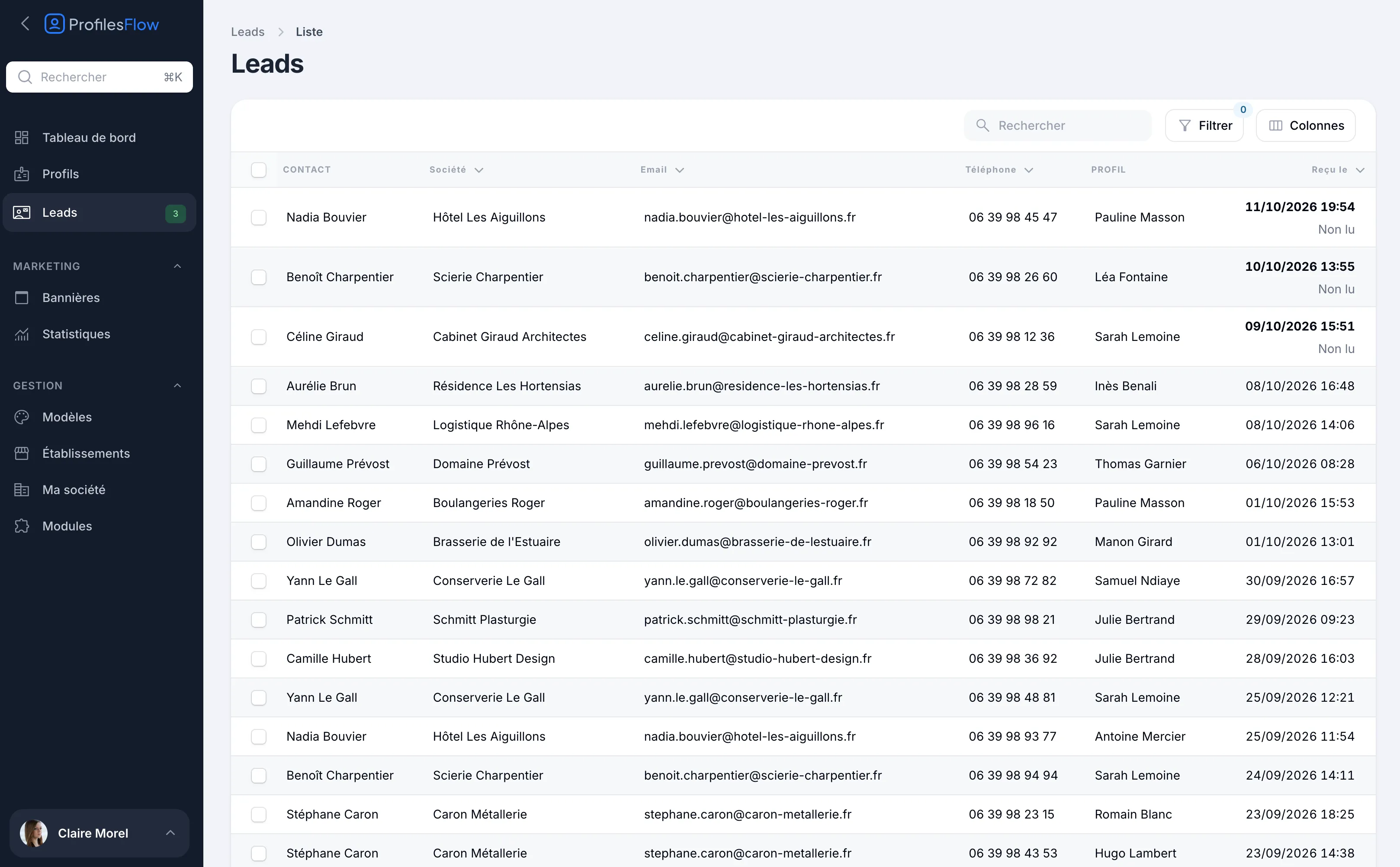
- Open Leads. The most recent requests are at the top; those that have not been opened yet show Unread under their date.
- Click a row to open the request.
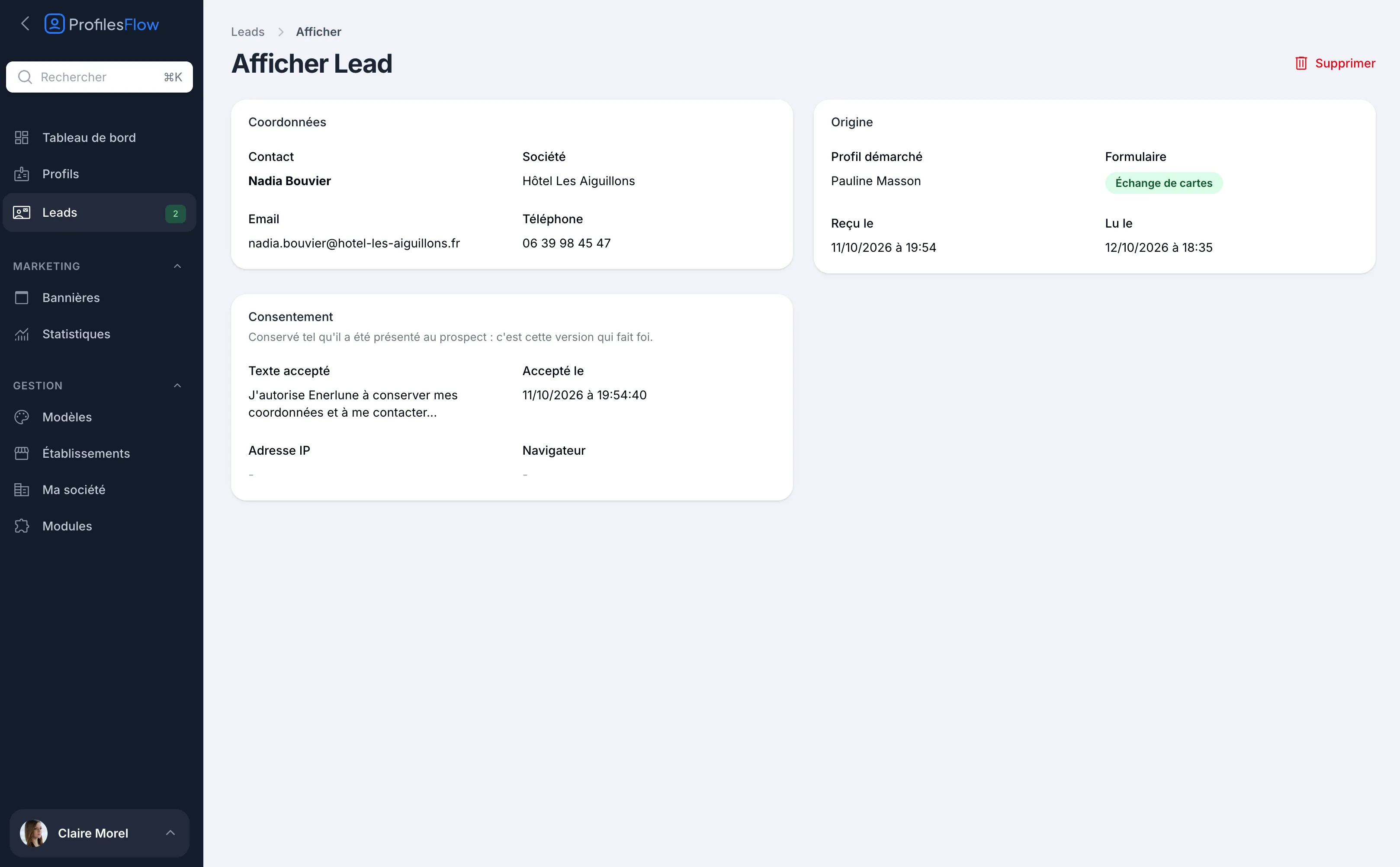
A request's page shows:
- Contact details: contact, company, email, phone;
- Source: Profile contacted (the employee whose page was viewed), Form (Form or Card exchange), Received on, Read on;
- Consent: see below.
Opening a request marks it as read: the date appears in Read on and the menu counter goes down. This status is shared by everyone: a request opened by an administrator no longer appears as unread for the employee.
To find a request, use Search or Filter: by Profile, by Source, Unread only, or by date received (Received on).
Consent
The Consent block keeps the Accepted text exactly as it was shown to the prospect, and the date and time of acceptance (Accepted on). This version is the one that counts: if the form text changes later, the request keeps the one the prospect actually accepted.
Export leads
- In the Leads list, check the requests to export (the header box checks the whole page).
- Open the bulk actions menu, then choose Export to CSV.
You get a file leads-YYYY-MM-DD.csv, with a semicolon separator, that opens directly in Excel. Columns: Received on, Profile, First name, Last name, Company, Email, Phone, Source.
Filter the list first (by profile, source or period) to export only what you need, for example the contacts from a trade show for your CRM.
Delete a request
- One request: Delete button on its page.
- Several: check them in the list, then the bulk delete action.
A request deleted by mistake can be found in the trash (a list filter) and restored.
Who owns the leads?
A request belongs to the company, not to the employee. If the profile is deleted, its requests stay in the list and can still be filtered on that profile.
Leads and GDPR
- For lead data, your company is the data controller; Profiles Flow acts as a processor (Article 28 of the GDPR).
- The consent kept with each request lets you prove the prospect's agreement.
- People exercise their rights (access, rectification, erasure) with your company. For an erasure, delete the request.
- Export and keep only what is useful for your business relationship, and for an appropriate period.
Troubleshooting
The employee does not receive the notification email
Check their spam folder. Requests can in any case be viewed in Leads.
I can't see all the requests
With the User role, you only see the requests received through your own profile. Also check that no filter is active (badge on the Filter button).