

Google Workspace
Install and keep the company's Gmail signatures up to date, thanks to an authorization given once by the Google Workspace administrator.
The Google Workspace module installs each employee's Profiles Flow signature directly in their Gmail account, then sets it again whenever their profile or the template changes. Nobody has to copy and paste their signature anymore. This page can be passed on as is to your Google Workspace administrator.
Who does what
| Step | Who |
|---|---|
| Enable and configure the module in Profiles Flow | A Profiles Flow Administrator |
| Authorize access in the Google console, once and for all | The Google Workspace super administrator of the domain |
| Test, then run the first synchronization | The Profiles Flow Administrator |
Only a super administrator can give this authorization: Google does not entrust it to any lesser admin role.
Prerequisites
- The company's email runs on Google Workspace, on its own domain (for example
enerlune.fr). - In Profiles Flow, each employee concerned has an active profile, with a template, whose Sign-in email (profile's Account tab) is their Gmail address in the domain.
1. Enable and configure the module
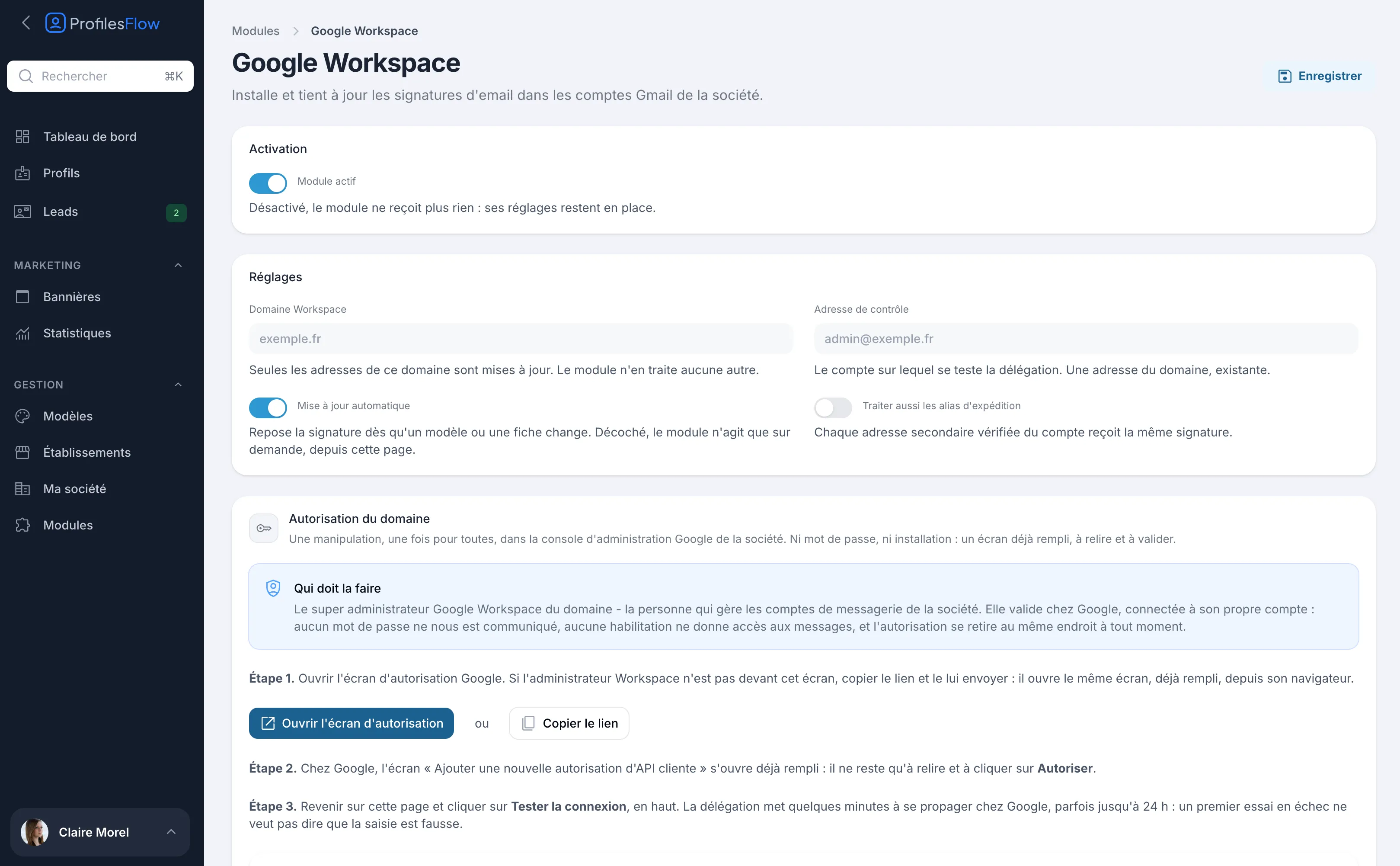
- Open Management › Modules › Google Workspace.
- Turn on Module enabled.
- Fill in the Settings:
- Workspace domain: for example
enerlune.fr. Only addresses in this domain are updated; the module handles no others. - Test address: an existing address in the domain, on which the authorization is tested (yours, for example).
- Automatic update: sets the signature again as soon as a template or a profile changes. When unchecked, the module only acts on demand, from this page.
- Also handle send-as aliases: each verified secondary address of the account receives the same signature.
- Workspace domain: for example
- Click Save.
2. Authorize access (Google super administrator)
The Domain authorisation section guides you through it. It is done once, in the company's Google Admin console: no password, no installation.
- Step 1. Click Open the authorisation screen. If the super administrator is not at the screen, click Copy the link and send it to them: they open the same pre-filled screen from their browser, signed in to their own account.
- Step 2. On Google's side, the “Add a new client ID” screen opens pre-filled. Review the client ID and the two scopes, then click Authorize.
- Step 3. Come back to the module page and click Test the connection, at the top.
The authorization usually takes a few minutes to propagate at Google, sometimes up to 24 hours: a first failed test right after adding it does not mean the entry is wrong.
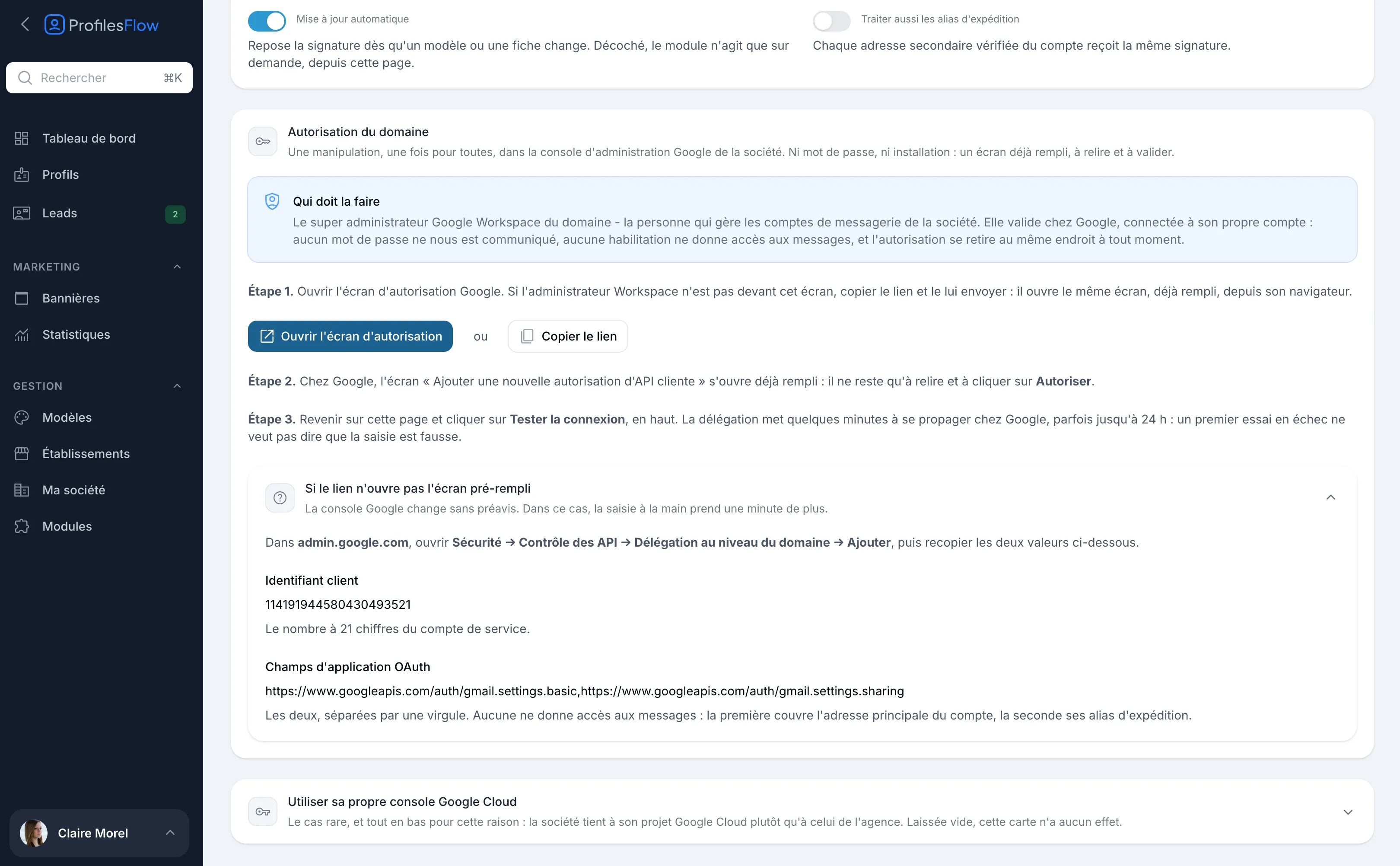
If the link does not open the pre-filled screen
The Google console sometimes changes without notice. Entering the values by hand takes one more minute:
- In
admin.google.com, open Security › API controls › Domain-wide delegation › Add new. - Client ID: copy the 21-digit number shown on the module page, under “If the link does not open the pre-filled screen”.
- OAuth scopes: copy both, separated by a comma:
https://www.googleapis.com/auth/gmail.settings.basic,https://www.googleapis.com/auth/gmail.settings.sharing
- Click Authorize.
3. Check and synchronize
- Click Test the connection. The test reads the sending settings of the test address, without changing anything. The message Connection established confirms that the authorization is in place.
- Click Synchronise all signatures and confirm: the signature is set in each account concerned.
- Open Gmail with an account in the domain, then Settings › See all settings › Signature: the Profiles Flow signature is there.
The Status block shows the number of Profiles concerned, the date of the last synchronization and, if applicable, the last failure.
After that, with Automatic update, there is nothing more to do: every change to a profile or a template sets the signatures concerned again.
Security: what the authorization allows, and what it doesn't
- The two scopes only give access to signature settings:
gmail.settings.basicfor the account's main address,gmail.settings.sharingfor its send-as aliases. - No access to messages, neither for reading nor for sending. The module creates no account and does not touch accounts that have no profile in Profiles Flow.
- No password is shared: the super administrator confirms on Google's side, signed in to their own account.
- The authorization can be revoked at any time in the same place (Security › API controls › Domain-wide delegation), by deleting the client ID.
- Disabling the module does not remove signatures already set: they stay in Gmail as they are.
Advanced option, rarely useful: the Use your own Google Cloud console card, at the bottom of the page, lets a company use its own Google Cloud project instead of the Profiles Flow one. The client ID to authorize then changes, and the authorization must be done again with the new one.
Good to know
- Gmail limits a signature to 10,000 characters. Beyond that, the module refuses to set it rather than install a truncated signature: simplify the template.
- When sending, Gmail copies the signature images to its own servers. They are displayed without being blocked on the recipient's side, but an email already sent keeps the original banner. See Banners.
Troubleshooting
The error message is shown during the test or in the Status block (“Last failure”).
| Message | Probable cause | What to do |
|---|---|---|
| the service account's client ID is not authorised in the Google Admin console, or not all of the declared scopes are listed there | Authorization missing, incomplete, or not yet propagated | Check the client ID and both scopes in the Google console. Wait up to 24 hours after adding them. |
| the delegated address does not exist in this Workspace domain, or the server's clock is off | The test address or a profile's address does not exist | Check the Test address and the profiles' Sign-in email. |
| the service account key is invalid or has been revoked | Case of the “own Google Cloud console” option | Check the uploaded key, or clear this card. |
| Test address missing | The field is empty | Enter an address in the domain, save, then test. |
An employee has not received their signature
- Is their profile active and does it have a template?
- Is their Sign-in email an address in the configured Workspace domain?
- Is Automatic update checked? If not, click Synchronise all signatures.
- Gmail may take a moment to show the new signature: reload the Gmail page.