
Microsoft 365: up-to-date profiles and Outlook signatures, with nothing to type
In a company on Microsoft 365, employee information already exists: name, job title, phone, office. Profiles Flow now builds on it. One module creates and keeps profiles up to date from the directory, another adds everyone's signature in Outlook. Here is what it changes, and for whom.

A new employee arrives. The IT department creates a Microsoft 365 account for them, with their name, job title and number. Then someone has to do it all again elsewhere: make them a business card, install a signature, let the communication team know. And on the day they leave, someone has to remember to undo everything.
For a company whose email runs on Microsoft 365, Profiles Flow removes this double entry. Two modules, included in the subscription, build on what Microsoft 365 already knows.
Two modules, two roles
| Module | What it does | Who sets it up |
|---|---|---|
| Microsoft 365 | Creates and keeps profiles up to date from the Microsoft 365 users, and disables those of people who have left. | The Microsoft 365 Global Administrator, by granting an authorization once and for all. |
| Outlook (Microsoft 365) | Adds everyone's Profiles Flow signature in Outlook, to every message they write. | The Microsoft 365 administrator, by uploading an Outlook add-in once and for all. |
The two work independently: you can keep profiles in sync with Microsoft 365 and install signatures another way, or the other way round. Together, they cover the whole journey, from a person's arrival to their first signed message.
Profiles that follow the directory
The Microsoft 365 module reads the company's list of users every night, or on demand. Microsoft 365 becomes the reference:
- An arrival: the person gets their profile, with their page, their Wallet card and their signature, from the synchronization following the creation of their account.
- A change: a new job title, a new mobile number or a change of office, entered in Microsoft 365, carries over to the profile. No more correcting things twice.
- A departure: once the account is disabled or deleted at Microsoft, the profile is disabled in Profiles Flow. It is not deleted: it keeps its statistics and comes back as it was if the person comes back.
What is taken over is up to you: first and last name always, then job title, email, mobile, direct line and establishment. Accounts that are not people, such as a meeting room or a scanner, are left out: they have no first or last name, and will not get a profile. The connection test tells you so even before the first synchronization.
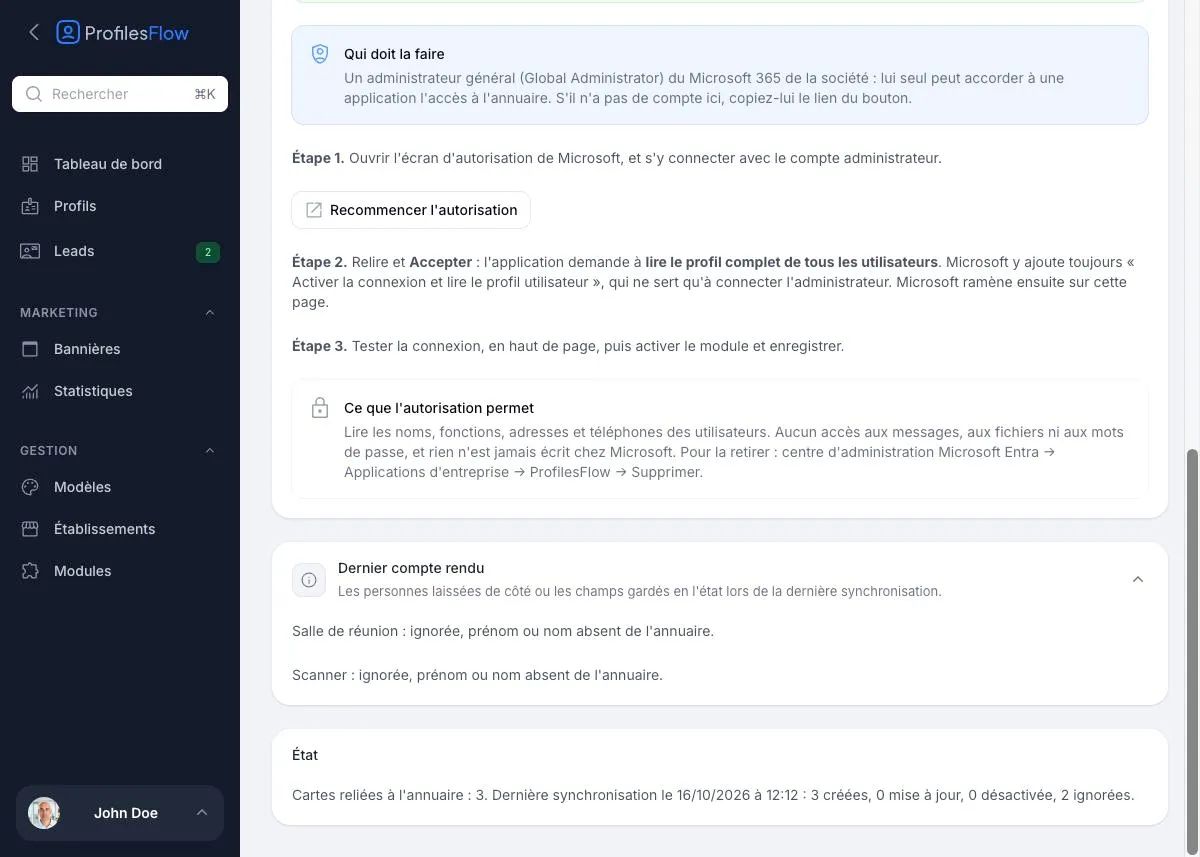
On a profile's form, each field taken from Microsoft 365 carries the Directory mention: it is edited in Microsoft 365, not in Profiles Flow, so there is only ever one version of the information.
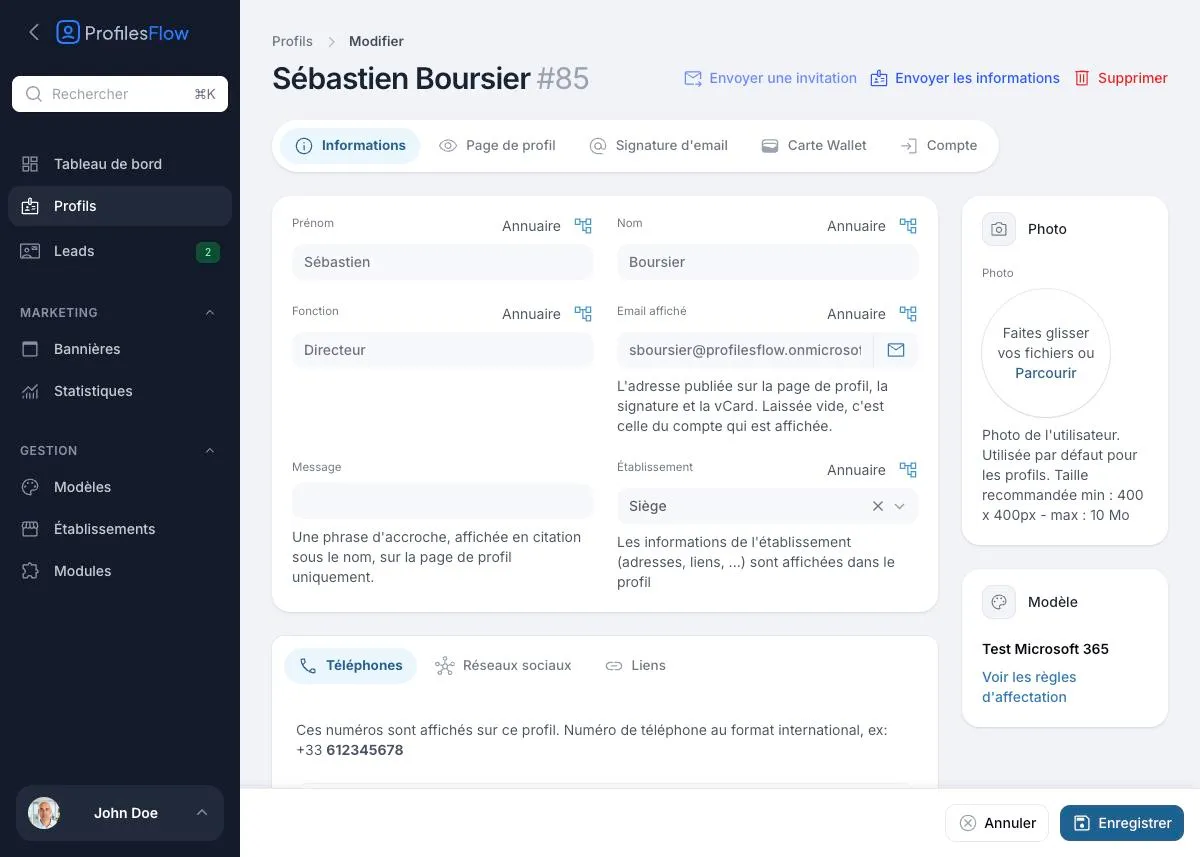
One detail matters for the budget: the subscription is calculated per active profile. Disabled accounts and Microsoft 365 guests do not create a profile, so they cost nothing.
A signature added in Outlook, to every message
The Outlook (Microsoft 365) module works through an Outlook add-in, the route Microsoft offers for adding a feature to Outlook across a whole company. The administrator uploads it once in the Microsoft 365 admin center, and chooses who it applies to.
Then, on every new message, the add-in adds the person's Profiles Flow signature, in place of the one Outlook would have added. Since it is requested at the time of writing, it is always up to date: a changed template, a new logo or a scheduled banner are picked up from the next message, with nothing to redeploy.
According to Microsoft, the add-in works in Outlook on the web, the new Outlook and classic Outlook for Windows, Outlook for Mac, and the Outlook apps for iPhone and Android. We explain what this changes on mobile in Outlook signature: the same on the web, desktop and mobile.
What the administrator authorizes
Connecting a tool to Microsoft 365 always raises the same question: what does it have access to? Here, the answer is short.
-
The Microsoft 365 module reads the users' names, job titles, addresses and phone numbers. It has no access to messages, files or passwords, and never writes anything at Microsoft. The authorization can be revoked at any time in the Microsoft Entra admin center.
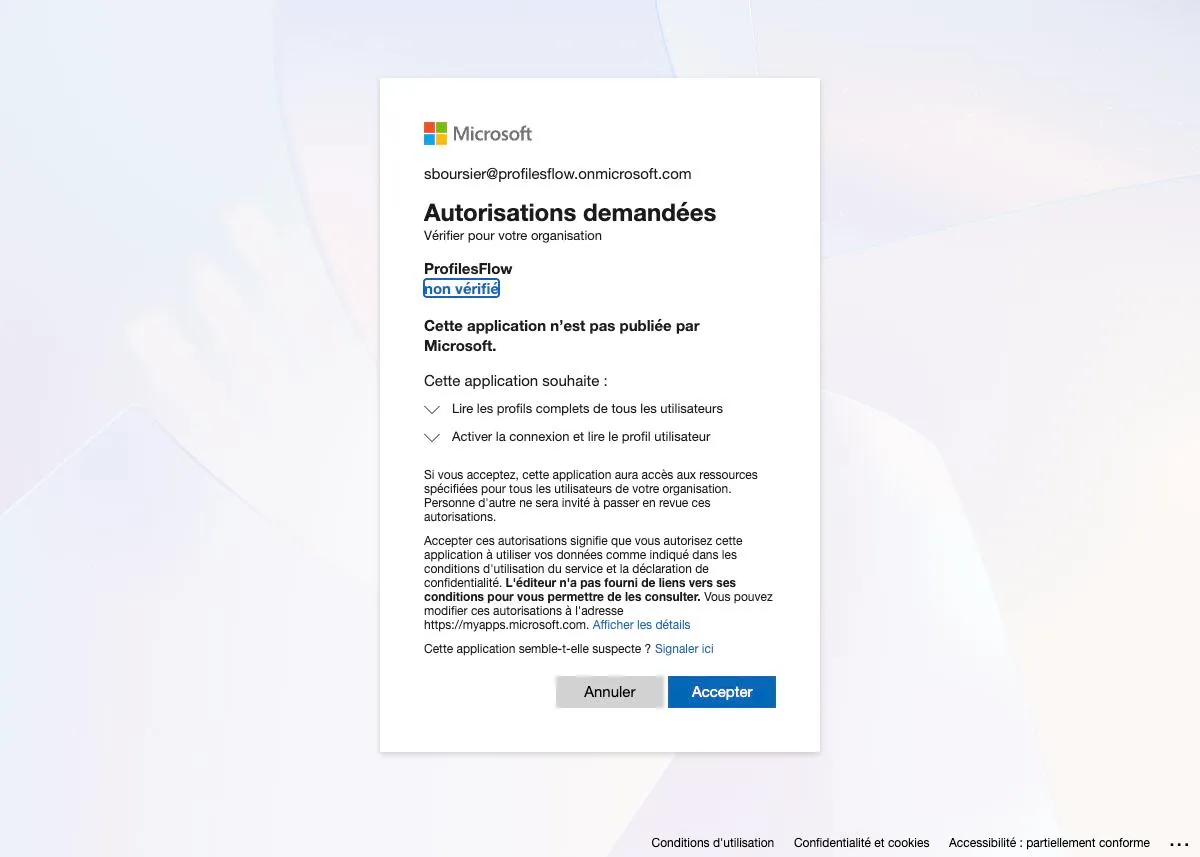
Microsoft “Permissions requested” screen: ProfilesFlow asks to read all users' full profiles -
The Outlook add-in only acts on the message being written, to add the signature. It carries a key specific to the company, which only allows reading its signatures, and can be revoked in one click.
The data taken over is hosted in France, like the rest of Profiles Flow. For the legal framework around employee data, see Employee data and GDPR.
Who is it for?
These two modules are for companies whose email runs on Microsoft 365. Others have their equivalents:
- an on-premises Exchange server: the Outlook (Exchange) module installs the signature on Windows computers through a logon script;
- an on-premises Active Directory: the module of the same name creates profiles from the directory;
- Google Workspace: the module of the same name installs Gmail signatures.
A company follows only one directory at a time. One that moves from Active Directory to Microsoft 365 keeps its profiles: they are taken over by the new module.
Setting it up
A few steps, once and for all, then Microsoft's delay:
- A Profiles Flow administrator opens the Microsoft 365 module and the Global Administrator accepts the authorization at Microsoft.
- You test the connection, choose the fields taken over, then run the first synchronization: the profiles are created.
- In the Outlook (Microsoft 365) module, you download the add-in's manifest, which the administrator uploads to the Microsoft 365 admin center.
- Microsoft takes up to 24 hours to install the add-in in the mailboxes. After that, every message carries its signature.
The full step-by-step guide is in the documentation: Microsoft 365 and Outlook (Microsoft 365). To first define a signature shared by the whole team, see making company email signatures consistent.