Company email signatures: making the whole team consistent
In most companies, each employee has cobbled together their own signature. The result: logos from different eras and outdated contact details. Here is how to set up a company email signature shared by everyone and, above all, keep it up to date.

Try this: ask five colleagues to send you an email, and compare their signatures. Chances are you'll find three different logos, two fonts, an office address that has moved and at least one switchboard number that no longer answers.
It's nobody's fault. Everyone creates a signature when they arrive, then nobody touches it again. For a company, though, it is a communication medium sent thousands of times a month. Making the company's email signatures consistent is therefore a small project with an immediately visible effect.
Company email signatures: why they drift apart
Understanding the cause helps you choose the right solution. Signatures drift for three reasons:
- They are installed computer by computer. Each email client stores its signature locally or in the person's account. There is no “central button” by default.
- Information changes without warning. A promotion, a new number, an office move: the HR record is updated, the signature isn't.
- The brand guidelines evolve. New logo, new color, new slogan: you would have to go back over every computer, which nobody does.
Step 1: define signature guidelines
Before any tool, agree on the content. Signature guidelines fit on one page.
- Required fields: first name, last name, job title, company, at least one phone number, website.
- Optional fields: establishment, address, photo, social networks, legal mentions (SIREN and RCS, which the French Commercial Code requires on the company's correspondence).
- Data format: numbers in international format (+33 1 23 45 67 89), consistent job titles, consistent capitalization.
- Formatting: layout, standard font, accent color, logo size and version, light version for dark mode.
- Usage rules: no personal quotes, no images added by hand, a short version for replies if needed.
For details on content and formatting mistakes, see how to easily create your email signature.
Step 2: choose a deployment method
There are three main approaches, from the most manual to the most automated.
Shared template and procedure
You provide a template (HTML file or document to copy) and an installation procedure for each email client. Each employee fills in their information and installs their signature.
- Advantages: free, quick to launch.
- Limits: anyone can modify the template, typing errors slip through, and updating the guidelines means starting all over again. Provide a clear guide for each email client, like our step-by-step email signatures in Gmail and Outlook.
Email administration features
Google Workspace lets an administrator add a standard footer to outgoing emails (Apps › Google Workspace › Gmail › Compliance). Microsoft 365 offers mail flow rules that can add a disclaimer at the bottom of messages.
- Advantages: nothing to install on computers.
- Limits: these features are designed for shared mentions (confidentiality, legal mentions). The text is the same for everyone, or requires technical settings to be personalized, and the employee doesn't always see their signature while writing.
A signature management tool
A dedicated tool stores each employee's information, applies a shared template and installs or updates signatures, automatically when the email system allows it.
- Advantages: a single source of truth, centralized updates, formatting tested on the main email clients.
- Limits: a cost per user, and a question to ask about where employee data is hosted (see why sovereign hosting).
Step 3: organize updates over time
A signature made consistent on day one and then forgotten will drift apart again within a few months. A few habits:
- Appoint someone in charge: often communications or the office manager, with IT's support for deployment.
- Tie the signature to arrivals and departures: each new arrival receives their signature along with their computer; each departure disables it.
- Start from the most reliable source: if the company directory is up to date, it should feed the signatures, not a separate data entry.
- Check twice a year: a test email from each department is enough to spot discrepancies.
Common mistakes
- Imposing without explaining: a shared signature is better accepted when everyone understands what's at stake and keeps their own information (job title, direct line).
- Forgetting mobile devices: signatures configured in mobile apps often slip through deployments. Remember to include them in the procedure.
- Multiplying variants: a version per department or per office is sometimes justified, but beyond two or three templates, you're back to the original mess.
- Adding a permanent banner: a marketing banner must rotate, otherwise it becomes invisible. Our advice in email banners: best practices.
Making signatures consistent with Profiles Flow
Profiles Flow starts from one principle: one profile per employee, entered once. The email signature is drawn from it automatically, like the profile page and the Wallet card.
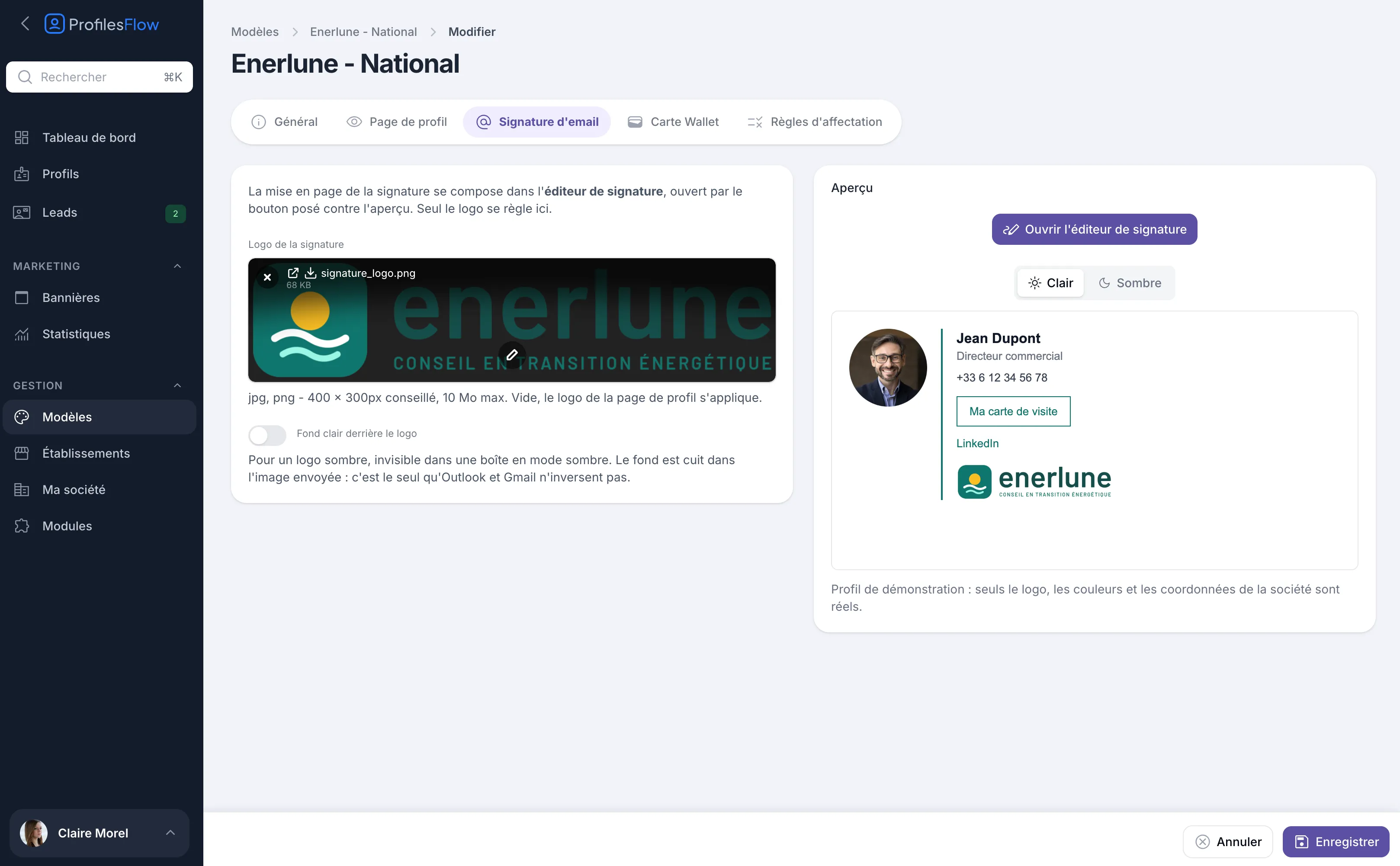
Formatting is carried by templates: color, logo and layout, composed in the signature editor from five starting layouts (Text only, Photo on the left, Photo and logo, Logo on top, Standalone card). Assignment rules decide which template applies to whom: the whole company, certain establishments or certain profiles, with exceptions. A card carries only one template, and the most specific one wins. You can thus have one signature for headquarters and another for a branch office, without choosing it profile by profile.
The information, for its part, comes from the profiles. You can enter it, import it from an Excel or CSV file, or synchronize it every night from your Active Directory.
For installation, there are several routes depending on your email system:
- Google Workspace: after authorization granted once by the domain's super administrator, Profiles Flow installs and keeps signatures up to date in Gmail accounts, without access to messages;
- in-house Exchange with Outlook installed on Windows computers joined to the domain: a script set up by the administrator applies the signature at each login;
- other cases (Outlook on the web, new Outlook, Outlook for Mac, Apple Mail): installation from the profile, by copy and paste or .htm file.
With the Google Workspace and Outlook (Exchange) modules, everything updates automatically. A signature installed by hand keeps the text from the day it was installed: after a change of job title or number, you have to copy it again. The images (photo, logo, banner), however, update on their own.
With Microsoft 365, a module installs and keeps signatures up to date in Outlook. The details are on the email signature page and in the documentation.
Frequently asked questions
Who should lead the signature consistency project?
Generally communications or marketing for the guidelines, with IT for deployment. In an SMB, the office manager or the manager can lead everything with a simple tool.
Can each employee be allowed to personalize their signature?
Yes, for the information that concerns them: job title, direct line, social networks. The layout, logo and colors stay shared; otherwise consistency doesn't hold.
How many signature templates should you plan for?
One is often enough. Two or three can be justified for distinct brands or office networks. Beyond that, maintenance becomes complicated again.
How do you handle employee departures?
Disable the signature and the associated materials as soon as the person leaves. If signatures come from the company directory, deactivation automatically follows the account.
Want to bring order to your signatures? Profiles Flow offers a 30-day free trial, no credit card required.