
Outlook signature: the same on the web, desktop and mobile
A polished signature on the computer, and “Get Outlook for iOS” on the phone: that is daily life for many teams on Microsoft 365. Each version of Outlook keeps its own signature. Here is why, and how a company can add the same up-to-date signature on the web, desktop and mobile.
The same employee writes in the morning from Outlook on their computer, at lunchtime from their phone, and in the evening from Outlook on the web, at home. Three messages, often three different signatures: the full one, an old one, and the one the mobile app adds by default.
This is not a settings mistake. It is the way Outlook stores signatures.
Why the signature changes from one device to another
Outlook comes in several versions, and they do not all share their signatures:
- Outlook on the web and the new Outlook keep the signature in the Microsoft 365 account.
- Classic Outlook for Windows and Outlook for Mac have long kept theirs on the computer, and each has its own settings.
- The Outlook apps for iPhone and Android have their own signature, set in the app, in plain text. By default, it is “Get Outlook for iOS” or “for Android”.
The result: for a person to have the same signature everywhere, it has to be installed several times, and again with every change of job title, number or logo. On mobile, a signature with a logo and layout cannot even be reproduced. For the menus of each version, see Outlook and Gmail email signatures: step-by-step installation.
The solution: add the signature at the time of writing
Rather than installing a signature in each version of Outlook, a company on Microsoft 365 can have the signature added by an Outlook add-in. It is a small module that Outlook loads by itself, deployed by the administrator for the whole company.
This is what the Profiles Flow Outlook (Microsoft 365) module does:
- The person opens a new message, on any device.
- The add-in starts and asks Profiles Flow for this person's signature.
- It adds it to the message, in place of the one Outlook would have added: there are never two.
The signature is no longer stored in Outlook. It is requested with every message, so it is always up to date, and the same everywhere, with the current logo, layout and banner.
What it looks like on each device
| Outlook | With the add-in |
|---|---|
| Outlook on the web | Signature added to every new message, reply and forward |
| New Outlook and classic Outlook for Windows | Compatible according to Microsoft, with an up-to-date Microsoft 365 version |
| Outlook for Mac | Compatible according to Microsoft |
| Outlook for iPhone | Full signature, with logo and layout, instead of the app's plain-text signature |
| Outlook for Android | Compatible according to Microsoft, as on iPhone |
A note on mobile: in a reply or a forward, the app first shows a small compose area. The signature appears once the message is switched to full screen. For a new message, it is there straight away.
Replies and forwards are signed by default. A company that prefers replies without a signature changes it in one click, and the setting applies from the next message.
A one-time setup
The employee has nothing to do. On the company side:
-
A Profiles Flow administrator enables the Outlook (Microsoft 365) module and downloads the add-in's manifest, an
.xmlfile.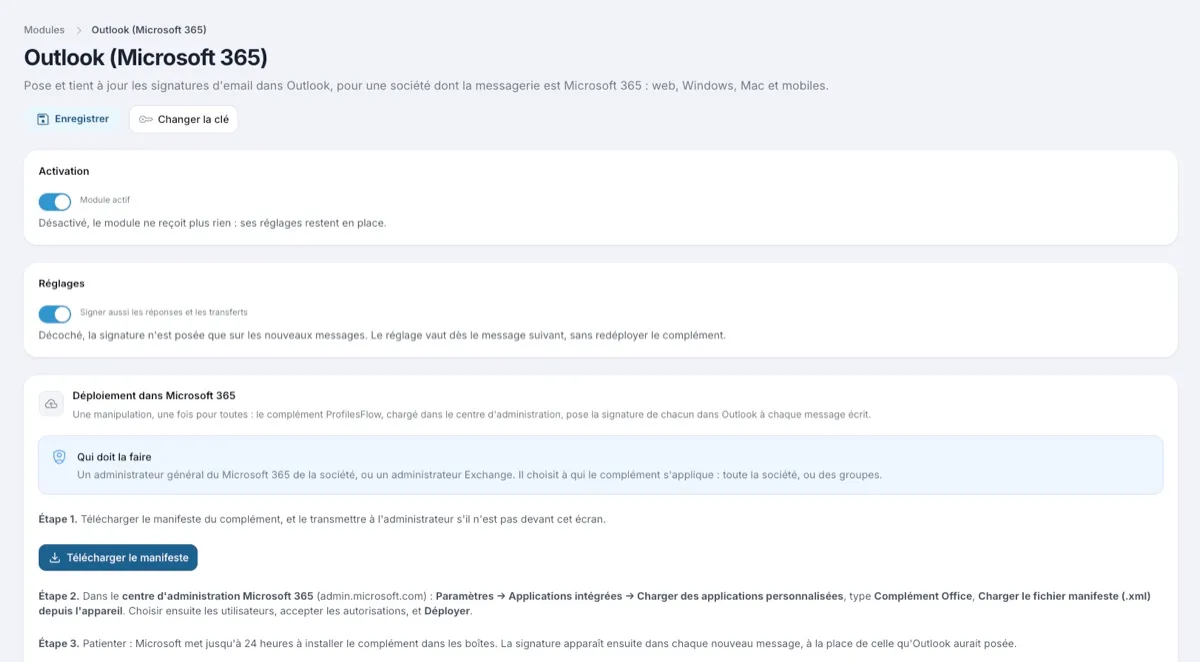
Outlook (Microsoft 365) module page: the replies setting and the Deployment in Microsoft 365 section, with the Download the manifest button -
A Microsoft 365 administrator uploads it in the admin center (Settings › Integrated apps) and chooses who it applies to: the whole company, or groups.
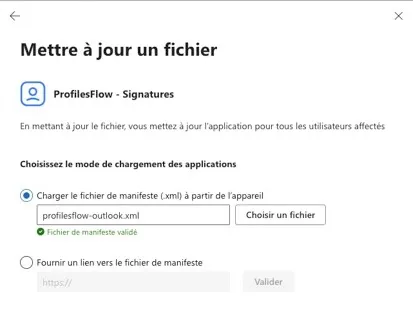
Microsoft 365 admin center: the ProfilesFlow - Signatures add-in, with its manifest uploaded and validated -
Microsoft takes up to 24 hours to install the add-in in the mailboxes.
After that, there is nothing left to redeploy: changing the logo or banner is done in Profiles Flow, and every following message takes it into account. The full step-by-step guide is in the documentation: Outlook (Microsoft 365).
What about security?
The add-in only acts on the message being written, to add the signature: it has no access to the rest of the mailbox. It carries a key specific to the company, which only allows reading its signatures, whose content goes out in every message sent anyway. If in doubt, the key can be changed in one click, and the old add-in immediately stops signing.
A person without a profile in Profiles Flow writes as usual, without a signature and without an error message.
Going further
The add-in relies on Profiles Flow profiles. To have them follow Microsoft 365 too, with nothing to type, see Microsoft 365: up-to-date profiles and Outlook signatures, with nothing to type. And to define a shared signature before deploying it: making company email signatures consistent.