How do you put your business card in Apple Wallet?
Your iPhone already holds your train tickets and loyalty cards. It can also keep your business card, ready to show with a double-click. Here is how an Apple Wallet business card works and how to install it.
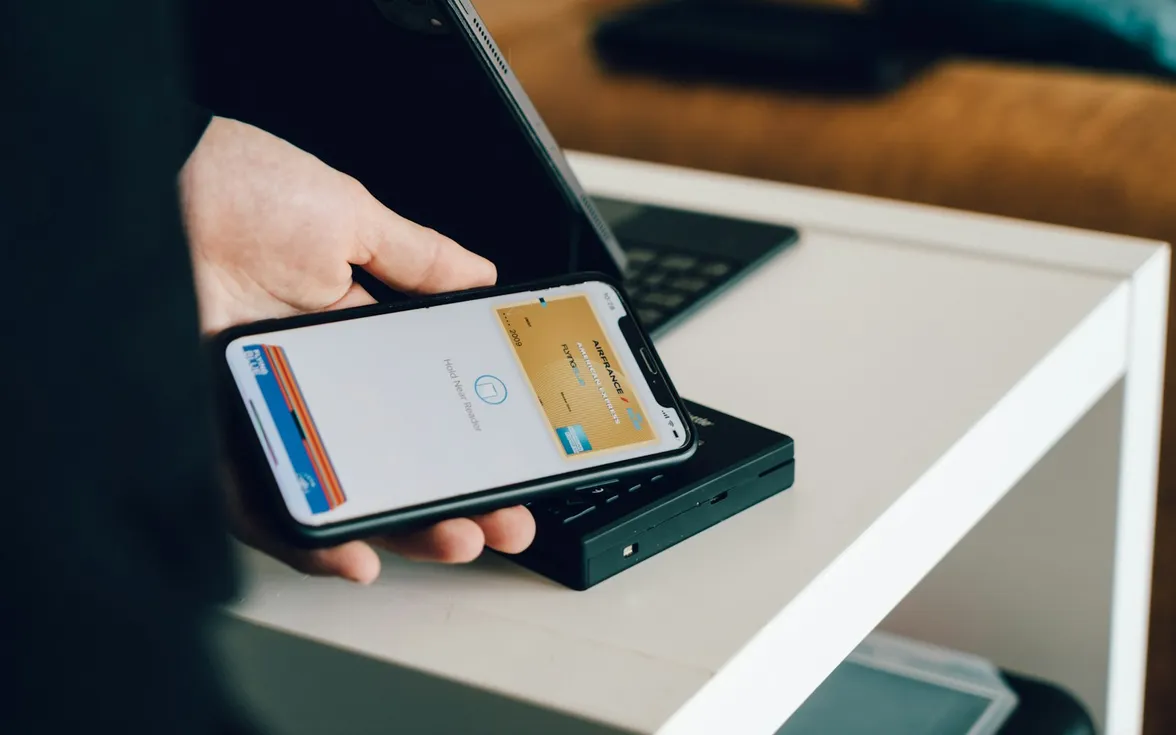
A trade show, a customer meeting, a networking lunch: the moment someone asks “Do you have a card?” always comes when the box of cards has stayed at the office. With a business card in Apple Wallet, your iPhone does the job. The other person scans a QR code and saves your contact details, with no app to install on either side.
You still need to understand how Apple Wallet works, because the app has no “Create my business card” button.
How a card works in Apple Wallet
Apple Wallet (the Wallet app on the iPhone, called “Cartes” on an iPhone set to French) stores payment cards, but also passes: boarding passes, tickets, loyalty cards, coupons. Apple also provides a so-called “generic” pass type for anything that doesn't fit these categories: that is the one business cards use.
In practice, a pass is a small file in .pkpass format. It contains the card's visual (colors, logo, text), possibly a barcode or a QR code, and the issuer's digital signature. This file is produced by a third-party service, then added by the user to their iPhone.
What to remember:
- You cannot create a pass directly in Wallet. You need a tool that generates it for you.
- No additional app is needed to add it: Safari, Mail or Messages offer to add it as soon as you open a .pkpass file.
Adding your business card to Apple Wallet, step by step
Once your card has been generated by your tool, installation takes less than a minute.
- Open the card link on your iPhone, in Safari or from an email received on the phone.
- iOS shows a preview of the card with an “Add” button in the top right.
- Tap “Add”: the card joins your other cards in Wallet.
- If you're on a computer, open the link on your phone, for example by scanning a QR code shown on the screen with the iPhone camera.
To show the card afterwards, the fastest way is to double-click the side button (or the Home button on iPhones that have one). This option is set in the iPhone's “Wallet & Apple Pay” settings. You then choose your business card from among your other cards.
What does the other person see?
This is the key point: the other person doesn't need Apple Wallet. They scan the QR code shown on your card with their phone's camera, iPhone or Android, and land on your contact card. They can then save your contact details to their address book.
The quality of the exchange therefore depends mostly on what the QR code points to: a vCard that saves in one tap, or a more complete profile page with your links and social networks.
Mistakes to avoid
A card frozen in time
An installed pass doesn't always update on its own. If the QR code contains your contact details directly, a change of number makes the card wrong. Prefer a QR code that points to an online address whose content is kept up to date.
An unreadable logo
Apple sets aside a small space for a pass's logo, a narrow horizontal strip at the top of the card. A square or very detailed logo becomes tiny there. Use a horizontal, simplified version.
Colors without contrast
Navy background and dark gray text: the card looks nice on the designer's screen, and is unreadable in full sun at a trade show. Keep a strong contrast between background, text and labels.
Overly curious free generators
Some free pass creation services ask for a lot of information, or keep your data without saying where or for how long. For a company, the question of where employee data is hosted comes up: we cover it in employee data and GDPR.
A card for iPhones only
If part of the team is on Android, also plan a Google Wallet version. A tool that generates both formats from the same information avoids discrepancies.
The Apple Wallet business card with Profiles Flow
In Profiles Flow, the Wallet card is one of the three materials drawn from each employee's profile, along with their profile page and email signature. You don't create a card by hand: it is generated from the profile, in the company's colors.

The appearance is set once for the whole company in the template: background, text and label colors, logo (Apple caps it at 160 × 50 pixels), company name, round photo, banner. You also choose where the QR code leads: the vCard, by default, or the profile page, which also shows links, social networks and the banner.
To install their card, the employee opens the “Wallet card” tab of their profile, or the link received in the “Your digital profile” email, and taps “Add to Apple Wallet” from their iPhone. From a computer, they just scan the QR code on their profile to open it on the phone.
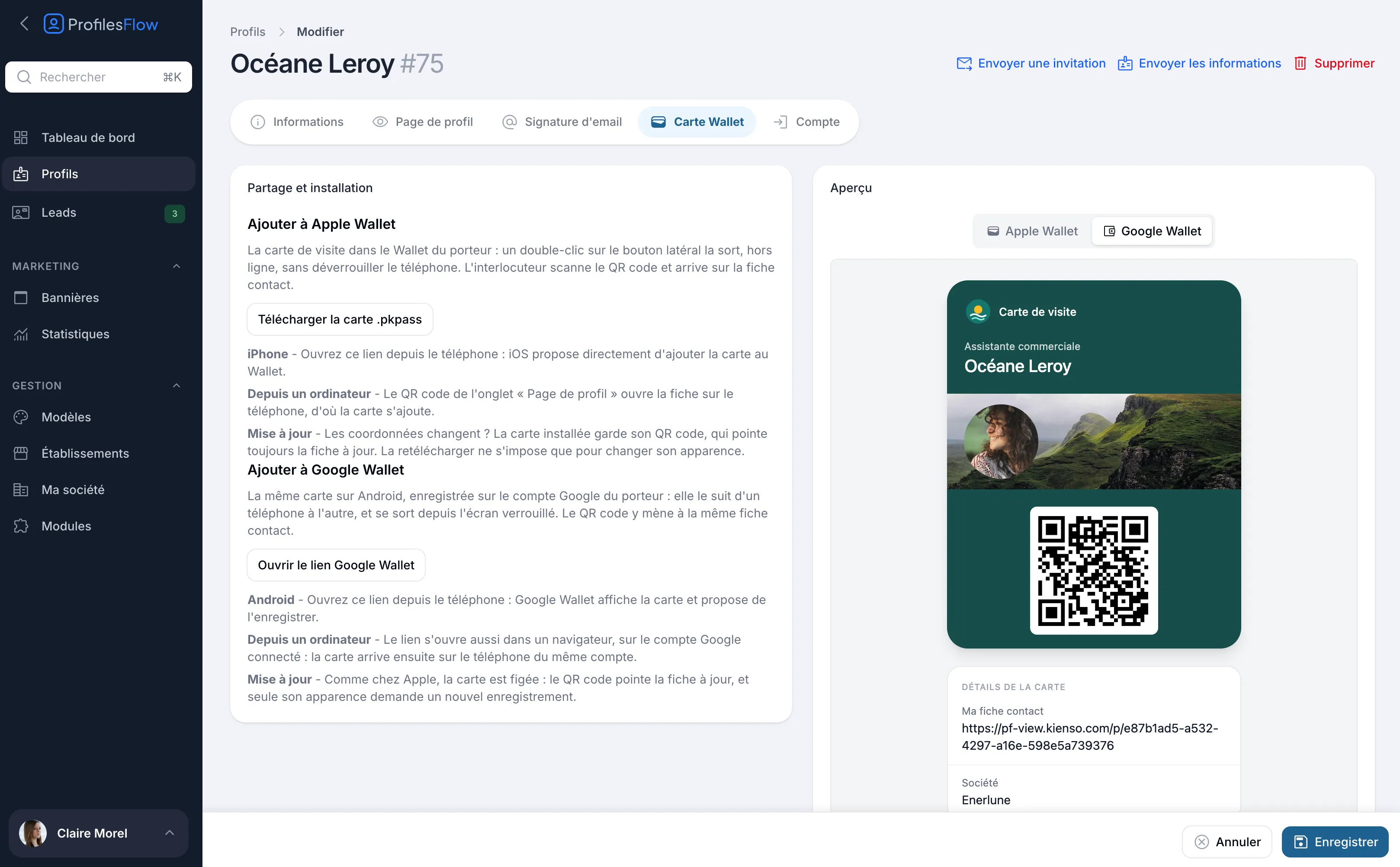
As for updates: the card's QR code always points to the up-to-date profile. A change of job title or number therefore doesn't require reinstalling the card; you only need to do so to change its appearance. The installation link is private: the public link of the profile page cannot be used to install someone else's card. More details on the Wallet card page.
Frequently asked questions
Do you need an app to add a business card to Apple Wallet?
No. Wallet is built into the iPhone, and opening a .pkpass file from Safari, Mail or Messages is enough to offer to add it. You do, however, need a tool to produce this file.
Does the other person need an iPhone?
No. They scan the QR code with the camera of any recent smartphone, iPhone or Android.
How do you remove a card from Apple Wallet?
Open the card in Wallet, tap the “...” button, then choose to remove the pass. You can reinstall it later from the same link.
Want to equip your team? Profiles Flow offers a 30-day free trial, no credit card required.