Google Wallet business card: adding it on Android
On Android, Google Wallet isn't just for payments: it also holds tickets, loyalty cards and business cards. Here is how a Google Wallet business card works, how to add it to your phone and how to present it in a meeting.
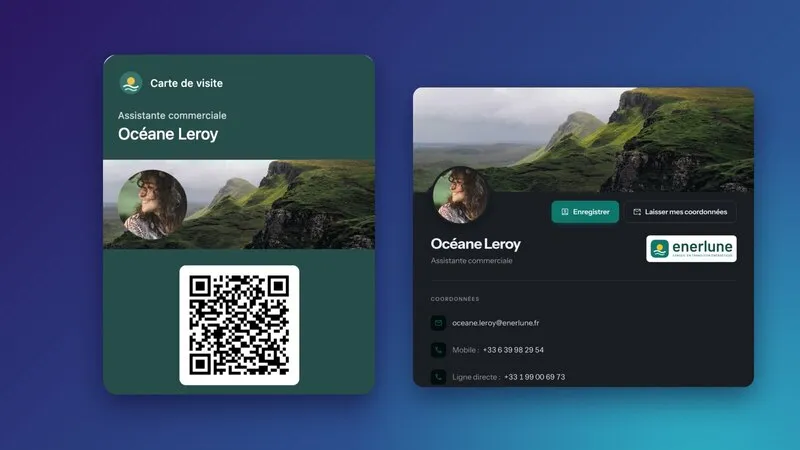
If your team includes Android users, a business card in Apple Wallet isn't enough. Their equivalent is called Google Wallet, Google's app that brings together payment cards, tickets and loyalty cards. It can also hold a business card, presented in a few seconds and scanned by the other person.
It works a little differently from Apple's, mainly because the card is linked to your Google account and not to a single phone.
How a card works in Google Wallet
Google Wallet accepts several families of cards: payment, transit, event tickets, loyalty cards, boarding passes. For anything that doesn't fit these categories, Google offers a “generic” card, which a third-party service can customize with its own labels, logo, colors and a barcode or QR code. This is the format a business card uses.
Key points:
- The card is created by a third-party service, then offered to the user via a link or an “Add to Google Wallet” button. You can't design it yourself in the app.
- It is linked to your Google account. Saved from a computer, it appears on the Android phone signed in to the same account, and follows you if you change phones.
- Google Wallet is an Android app. A colleague on iPhone will use the Apple Wallet business card instead.
Adding your business card to Google Wallet, step by step
- Check that Google Wallet is installed on your Android phone and signed in to your Google account. On most recent phones, it comes preinstalled; otherwise, it can be downloaded from the Google Play Store.
- Open the add link provided by your tool, directly on the phone.
- Google Wallet shows a preview of the card and offers to save it.
- Confirm: the card joins your other cards in the app.
- From a computer, open the link while signed in to the same Google account: the card then arrives on your phone.
To present it, open Google Wallet and tap the card. Depending on the model and settings, Google Wallet can also be reached from the lock screen or quick settings, without opening all your apps.
What does the other person see?
As with Apple Wallet, the other person doesn't need any particular app. They scan the card's QR code with their phone's camera, Android or iPhone, and land on your contact card. They then save your contact details to their contacts.
The real value of the card therefore lies in what the QR code opens. A vCard saves in one tap; a profile page also shows your links, social networks, or company news. To choose and print your codes properly, see QR codes on business cards.
Mistakes to avoid
Thinking only of iPhones (or only of Android)
In a team, both systems almost always coexist. If you choose a tool, check that it produces both cards from the same information. Otherwise, you'll manage two sets of cards that will end up diverging.
Relying on Google to make everything consistent
Google Wallet adapts part of the display itself, for example the text color based on the background. You therefore don't control every pixel as you would on a printed card. Choose a bold background color and a simple logo that remain readable whatever the adaptations.
Hard-coding contact details in the QR code
A QR code that directly contains your number becomes wrong as soon as it changes. A QR code that points to an online address kept up to date stays valid.
Using a personal Google account for a business card
The card is linked to the account that saves it. If the employee uses a personal account, the company controls neither the installation nor the departure. It's not a blocker, but worth keeping in mind in your equipment policy. The broader topic of employee data is covered in employee data and GDPR.
The Google Wallet business card with Profiles Flow
For each employee, Profiles Flow generates a Google Wallet card and an Apple Wallet card from the same profile, with the same profile page and the same email signature. Both cards carry the company's colors, set once in the template.
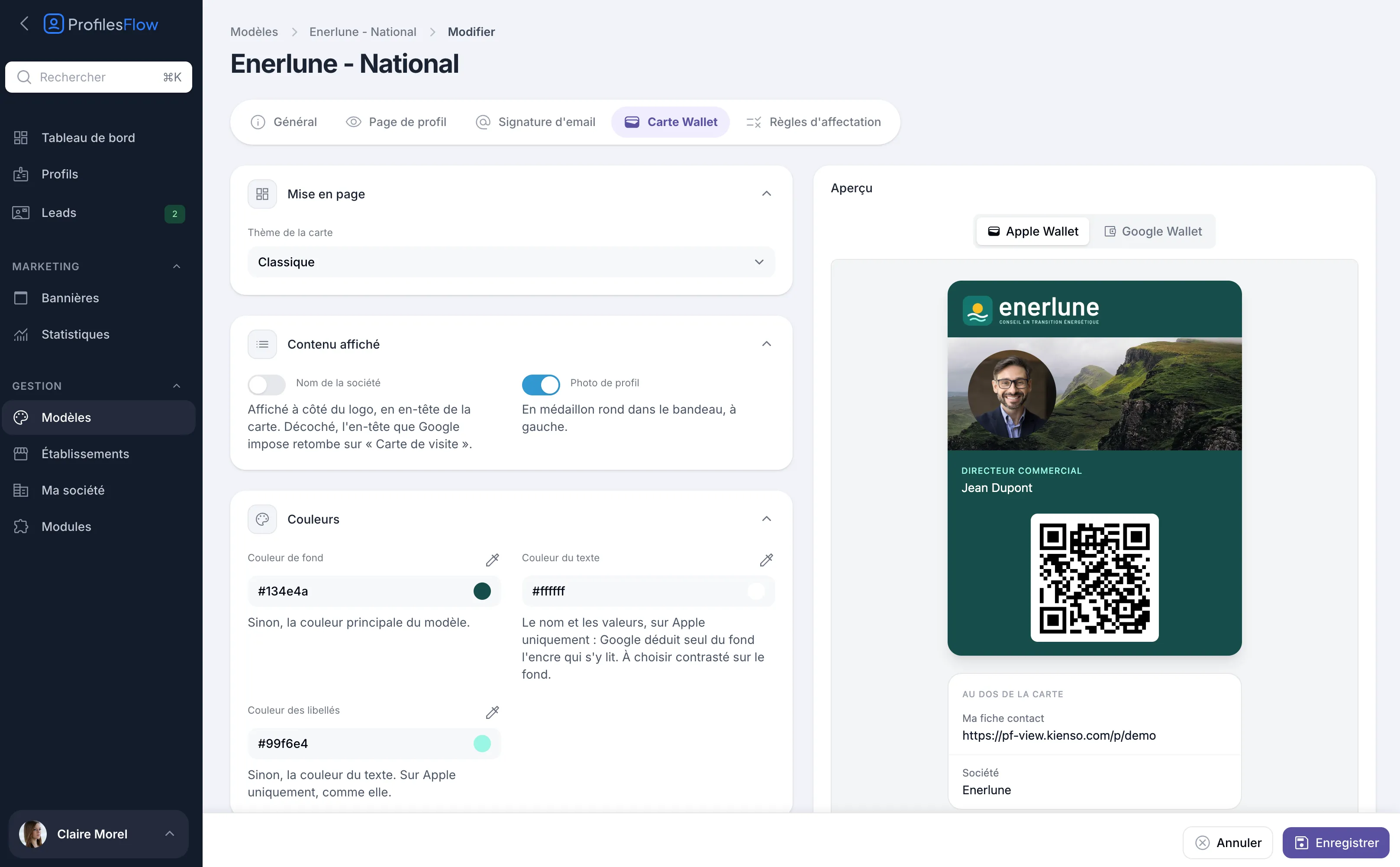
In the template, you set the background color (Google works out the text color on its own), the logo, the company name next to the logo, the round profile photo and a banner. You also choose where the QR code leads: the vCard by default, or the full profile page.
To install their card, the employee opens the “Wallet card” tab of their profile, or the link in the “Your digital profile” email, then “Open the Google Wallet link”. On Android, Google Wallet offers to save it. From a computer, the card arrives on the phone signed in to the same Google account.
As for updates, the card's QR code always points to the up-to-date profile: a change of position or number requires no reinstallation. You only need to reinstall the card to change its appearance. The dashboard shows how many cards have been added to Wallet, Apple and Google combined, so you can track how well the team is equipped. All the details on the Wallet card page.
Frequently asked questions
Is Google Wallet available in France?
Yes, Google Wallet is available in France on Android phones. The features offered may vary by country and phone model.
Can you use Google Wallet on iPhone?
No, Google Wallet is an Android app. On iPhone, the equivalent is Apple Wallet, which uses a different card format.
What happens if I change Android phones?
The card is linked to your Google account. By signing in with the same account on the new phone, you'll find it in Google Wallet.
Does my card update if I change jobs?
It depends on the tool that created it. With a QR code that points to an online profile, the contact details viewed are always correct, even if the card's visual hasn't changed.
Want to try it on your phone? Profiles Flow offers a 30-day free trial, no credit card required.