How do you easily create a professional email signature?
An email signature is read dozens of times a day, by your customers and your suppliers alike. Here is how to create an email signature that is clear, up to date and readable everywhere, without being a designer or a developer.

Every email you send ends with the same thing: your signature. It is often the only place where the other person finds your direct number, your job title or your office address. Yet many signatures are incomplete, unreadable on mobile or broken as soon as they reach another email client.
Good news: creating a clean email signature requires neither desktop publishing software nor HTML skills. Above all, you need to know what to put in it, what to leave out, and how to test it.
What a professional email signature should contain
A good signature answers three questions at a glance: who you are, how to reach you, and which company you work for. Everything else is secondary.
The essential elements:
- First and last name, written in full.
- Job title, in words your customer understands (“Key Account Sales Manager” rather than an internal title).
- Company name, and if needed the establishment or office.
- One or two phone numbers in international format (+33 6 12 34 56 78), so they stay clickable from a smartphone, including abroad.
- The company's website.
Useful elements, depending on your line of work:
- the establishment's address, if you receive customers;
- a link to your LinkedIn profile or the company's social networks;
- the company logo;
- a photo, in professions where the relationship is very personal (consulting, real estate, recruitment).
As for legal requirements, the French Commercial Code (Code de commerce, article R123-237) requires certain mentions on a company's correspondence, including the SIREN number followed by the mention RCS and the city of the commercial court registry. Many companies add them at the bottom of the signature; the Bpifrance Création page summarizes these mentions.
Creating an email signature in 6 steps
Here is a simple method that works whatever your email client.
- List your information in a text file: name, job title, phone numbers, website, address. Proofread it; it's the most important part.
- Choose a layout: one column (everything stacked) or two columns (logo or photo on the left, contact details on the right). Stick to two columns at most.
- Prepare the logo: a lightweight PNG or JPG file, displayed at around 150 to 200 pixels wide. Avoid files of several hundred kilobytes.
- Format with restraint: a standard font (Arial, Helvetica, Verdana, Georgia), two text sizes at most, a single accent color, your brand's.
- Add the links: email, phone (
tel:link), website, social networks. Check that each one opens in the right place. - Install it, then test it: send yourself an email at a Gmail address, an Outlook address and on a smartphone. It's the only way to see what your recipients see.
For the installation itself, the menus differ from one email client to another: we cover them in detail in our guide email signatures in Gmail and Outlook.
Common mistakes that spoil a signature
A signature made entirely of an image
It's tempting: you create a nice visual and paste it in. But an image can't be copied or clicked, and many email clients block images until the recipient allows them. Your correspondent then sees an empty frame instead of your number. Keep text as text, and reserve the image for the logo.
Too much information
Three numbers, two addresses, six social network icons and a quote: the signature becomes longer than the message. Keep what is really useful for contacting you again.
Images hosted just anywhere
A logo pasted from your hard drive often becomes an attachment, or disappears for the recipient. The images in an HTML signature must be available online, at a public https address.
Forgetting dark mode
In Outlook or Gmail in dark mode, the background turns black. A black logo on a transparent background then becomes invisible. Plan for a logo with a light background built into the image, or a version that stays readable on a dark background.
Different signatures within the same team
Everyone cobbles together their own, with an old logo or an old address. For a single person, it's not a big deal. For a team, it's a real image issue: we devote an article to it, making a team's email signatures consistent.
Should you add a banner or a photo?
A banner under the signature is useful for announcing a trade show, an offer or a job opening, provided it is lightweight, dated and changed regularly. A banner left up for two years ends up no longer being seen. Our detailed advice is in email banners: best practices.
A photo makes exchanges more human, especially in service professions. Choose a tightly framed portrait on a neutral background, and check that the person agrees to have it circulate in all their emails.
Creating your email signature with Profiles Flow
The principle of Profiles Flow is simple: one profile per employee, and the signature is generated from that profile. You don't type a signature; you fill in information (name, job title, phone numbers, establishment, social networks), and the signature builds itself.
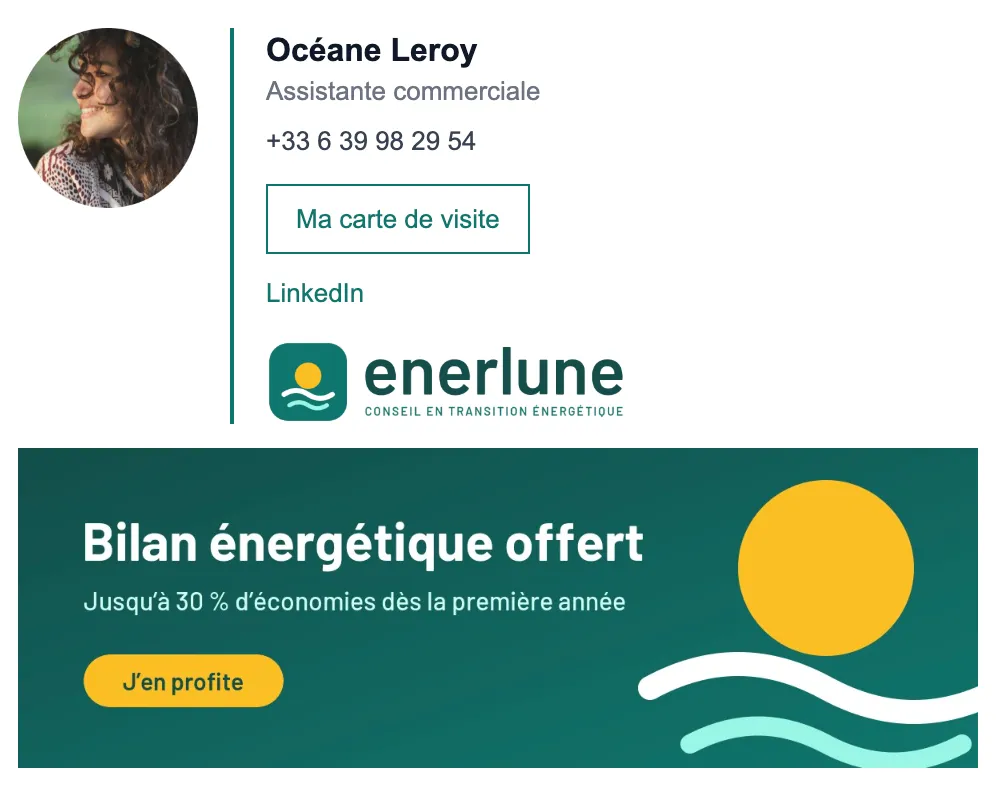
The formatting comes from a template shared by the whole company: color, logo and layout. This layout is composed in the signature editor, from five starting layouts (Text only, Photo on the left, Photo and logo, Logo on top, Standalone card), which you adjust by dragging blocks (text, image, button, holder's photo, logo, social networks) into a table, with an exact preview.
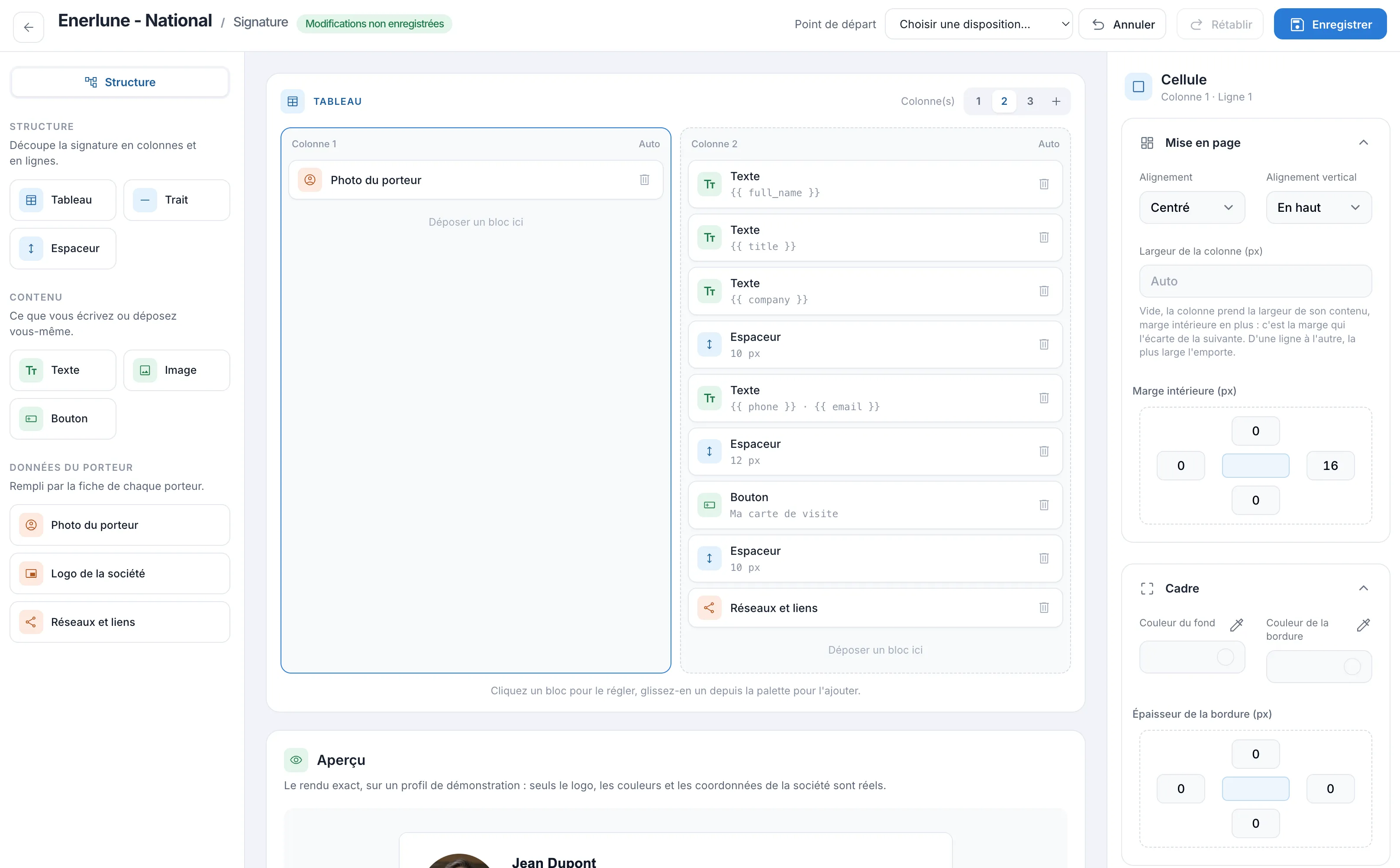
A few practical details taken care of for you:
- phone numbers are stored in international format;
- the signature logo can get a light background built into the image, which Gmail and Outlook don't invert in dark mode;
- images are hosted online, at a public address;
- the photo, logo and banner update on their own in signatures already installed.
To install it, the “Email signature” tab of the profile offers two buttons: “Copy the signature”, to paste into Gmail, Outlook on the web, Outlook for Mac or Apple Mail, and “Download the .htm file” for Outlook on Windows. A signature installed by hand keeps the text from the day it was installed: after a change of job title or number, you have to copy it again. The images (photo, logo, banner), however, update on their own. Companies on Google Workspace or on an in-house Exchange server can install signatures automatically: with these modules, everything updates without intervention, see the integrations. All the details are on the email signature page.
Frequently asked questions
What size should an email signature be?
Aim for a total width of about 500 to 600 pixels, which stays readable on a computer screen as well as on a smartphone. In height, a signature ideally fits in five or six lines, plus a banner if there is one.
Can you use a custom font in an email signature?
It's best to avoid it. If the font isn't installed on the recipient's side, their email client replaces it with another, often Times New Roman. Standard fonts (Arial, Helvetica, Verdana, Georgia) display the same way everywhere.
Why doesn't my logo appear for my recipients?
Most often, the image isn't hosted online, or the recipient's email client blocks external images until they have been allowed. A public https image, lightweight, with alt text, limits these problems.
Should you have a different signature for replies?
It's possible in Gmail and Outlook, which distinguish between new messages and replies. Many companies use a short version for replies to lighten discussion threads.
Want to try it on your own profile? Profiles Flow offers a 30-day free trial, no credit card required.